
Edit Objects from the Report Editor
Starting in Strategy (September 2026) you can edit stand-alone objects and access their properties from the Report Editor in Library. This feature enables editing objects without having to browse or search for them outside of the report. The reports needs to be re-entered to reflect changes performed in the object editor.
This functionality is available for:
-
Metrics
-
Filters
-
Prompts
-
Custom Groups
-
Attributes
-
Consolidations
-
Facts
-
Smart Attributes
-
Hierarchies.
Access Object Editor from the Report Editor
-
Go to a report.
-
Click
 Edit to switch to authoring mode.
 -
You can access the object editor from the following panels in the Report Editor:
-
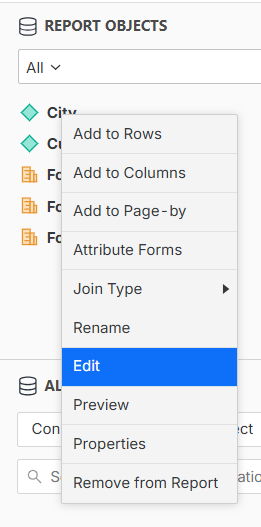
In the Report Objects panel, right-click the object and select Edit.
-
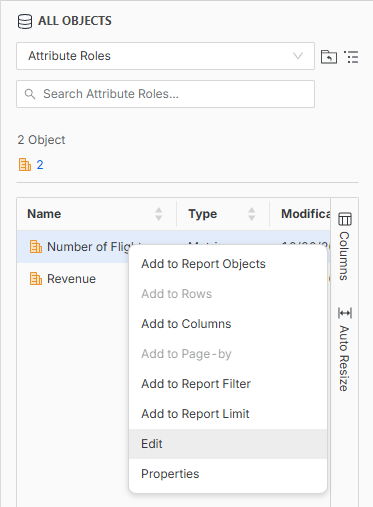
In the All Objects panel, right-click the object and select Edit.
-
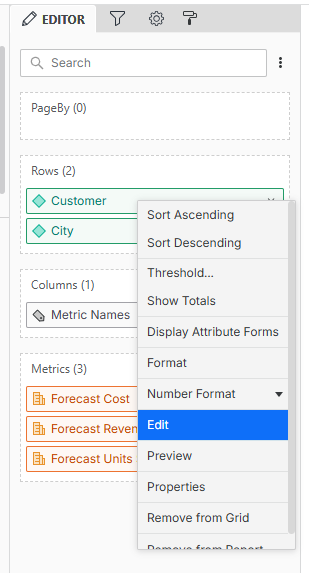
In the Drop Zone panel, right-click the object and select Edit.
-
-
A notification displays.
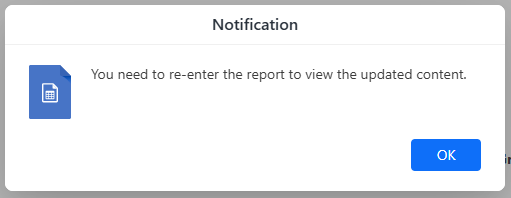
The changes made in the object editor are not automatically reflected in the report. The report needs to be closed and opened again.
This notification is only displayed once.
-
Click OK.
-
Object editor opens in a new tab.
If the editor is available in Library, the Library editor opens. This is true for Metrics, Filters, Prompts and Custom Groups. For other types of objects, the Workstation Web editor opens.
For a seamless transition to the Workstation Web editor, the project in which the edited object was created, must first be connected as Active Project in Workstation Web.
Access Object Properties
-
Go to a report.
-
Click
Properties to switch to authoring mode. -
You can access the object editor from the following panels in the Report Editor:
-
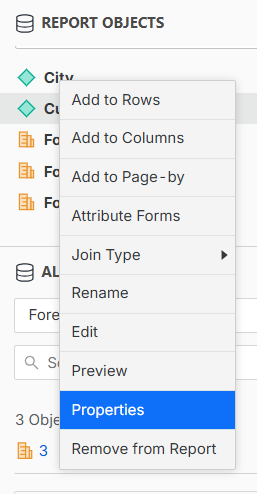
In the Report Objects panel, right-click the object and select Properties.
-
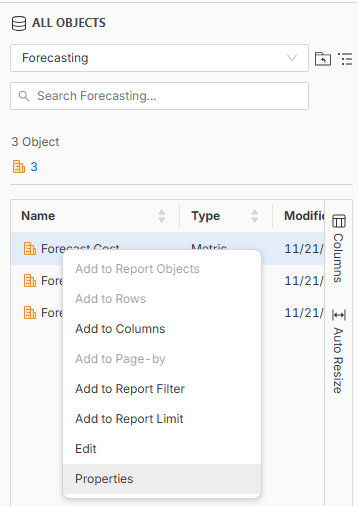
In the All Objects panel, right-click the object and select Properties.
-
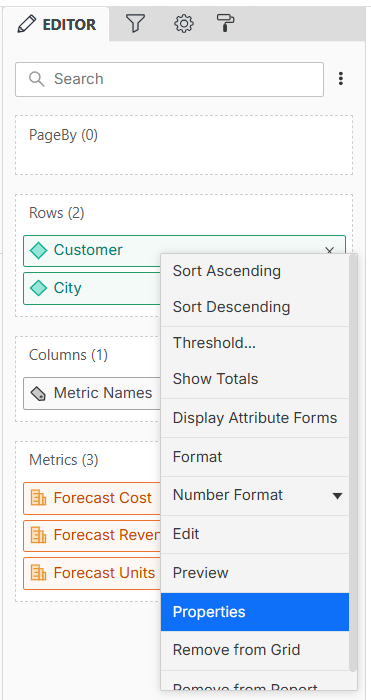
In the Drop Zone panel, right-click the object and select Properties.
-
-
Workstation Web Properties window opens in a new tab.