
View Data Objects
Use the Data Library page to view information about your data objects and quickly perform actions such as create a dashboard, rename an object, delete an object, and more.
Strategy (September 2026) adds an enriched information window for Mosaic models, MTDI cubes, and OLAP cubes in Library. Use this window to view extensive information such as model and cube overviews, tables, linked models, hierarchy information, dependent objects, and universal access configuration details.
Strategy (September 2026) also adds support for additional operations on Data Import Cubes and Intelligent Cubes in the Library Data Blade. The available operations depend on the cube type and query mode.
Access the Data Page
-
Connect to your Library environment.
-
In the Navigation pane, click Data.
Additional Information
In the grid view, click a data object and click Additional Information or right-click an object and choose Get Info and view the following information or perform the following tasks.
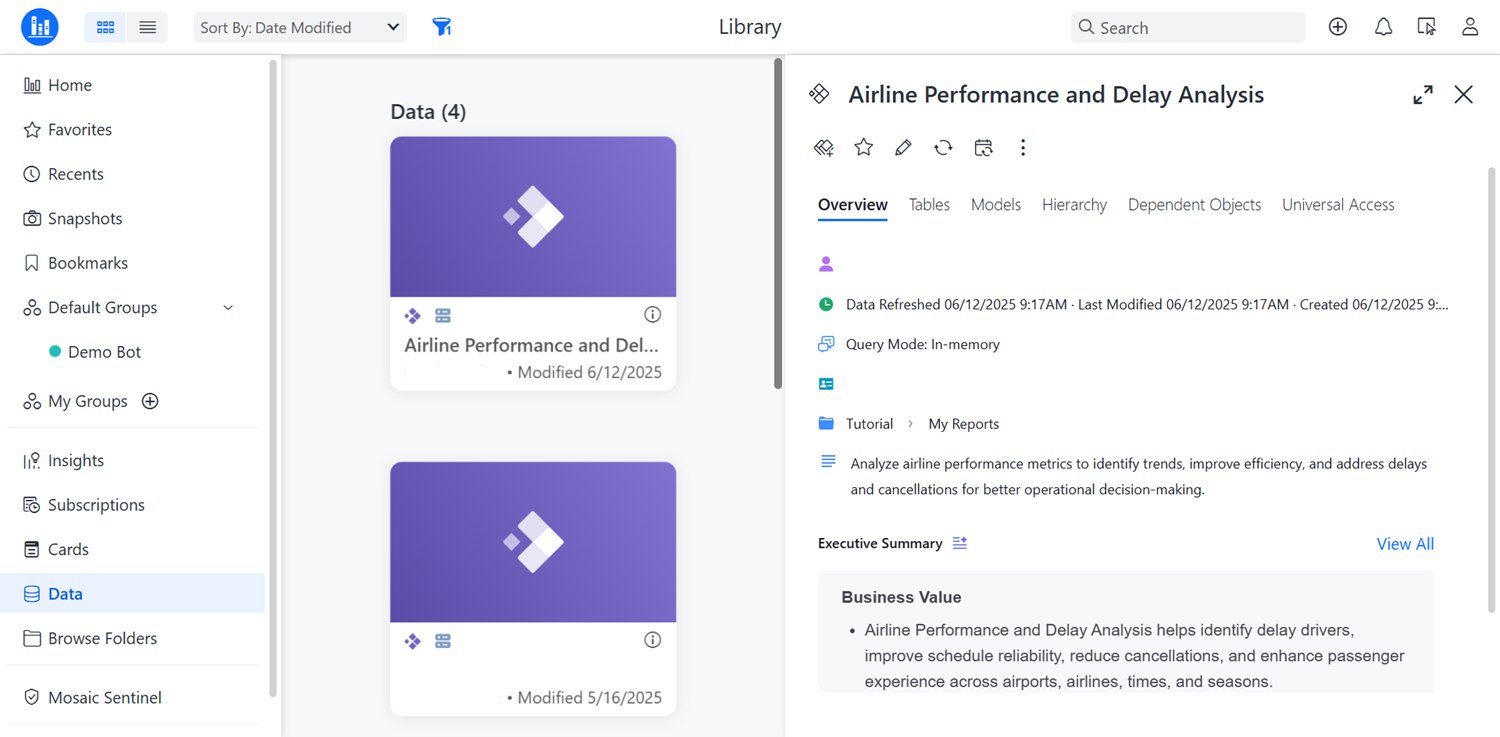
Top Navigation
Click the associated icons to Create a Dashboard, Add to Favorites, Edit, Refresh, Schedule a Refresh, and click More Options for more actions.
Overview
View information such as the owner, last modified date, query mode, ID, folder structure, and summary information.
Tables
View the tables included in the model or cube. Click Hide  next to an object to make an object not visible to users.
Models
This option is only available for Mosaic models.
View the models linked to your Mosaic model.
Hierarchy
View the hierarchy information for your model or cube.
Dependent Object
View the objects that use the model or cube. Right-click a dependent object to use a variety of options such as Copy to, Edit, Add to Library, Favorite, and more.
Universal Access
View the connection information for the Universal Semantic Layer.
Available Actions
Right-click a data object and choose one of the following actions depending on your data type and query mode.
If an option is not available in the context menu, it may be due to your application settings or user privileges. Options also vary depending on your Strategy environment version.
-
Create Agent
This option only displays after the cube is enabled for AI.
-
Create AI Data Collection
This option only displays after the cube is enabled for AI.
-
Refresh
-
Multi-select
This option is only available in the Grid view.
-
Favorite or Remove from Favorites
-
Rename, Copy to..., Move to...., and Delete
-
Create Shortcut
-
Manage Access
-
Enable for AI or Disable for AI