MicroStrategy ONE
Navigating data in a grid or graph report
The following actions can be applied to most grid and graph reports after they have been displayed:
-
To change the orientation between portrait and landscape, rotate the device.
-
To scroll across large reports, swipe the middle of the screen horizontally. To scroll up and down large reports, swipe the middle of the screen vertically.
-
To change the group of data that is displayed, tap the Menu
 button and then tap Page-by. Select the group of data that you want to display.
The following sections show examples of grid and graph reports displayed on an Android device, and steps taken to analyze their data.
Navigating data in grid reports
A grid report organizes business data into rows and columns. The image below shows a grid report displayed on an Android device.
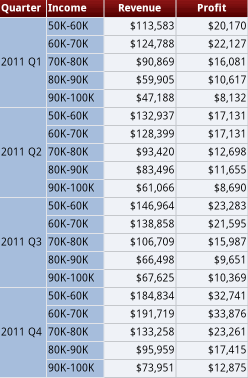
Some reports display special formatting depending upon certain conditions, for example, sales over $1 million, or inventory count below 50.
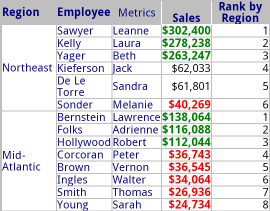
In the example below, the report shows specially formatted data that has met specific conditions, or thresholds, in the Sales column:
To magnify the contents of a cell in the grid, tap and hold the desired cell. The Info Viewer appears and displays the cell value, column headings, row headings, and Drill and Link buttons, as in the following example.
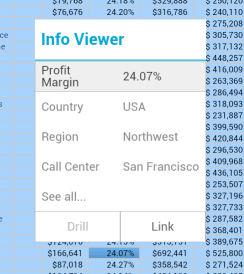
If the grid was designed with a drill map for the selected attribute, tap Drill to view the drill options. If the grid was designed with a link for the selected attribute, tap Link to open the link.
Viewing graph reports
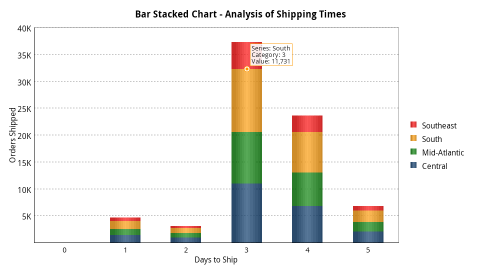
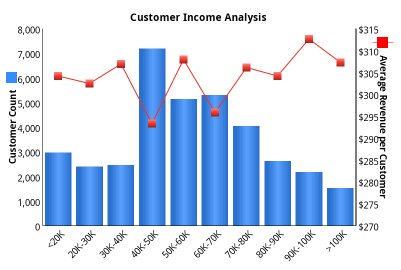
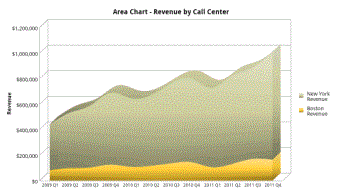
Graph reports present data visually in a style such as a bar, line, or pie graph. The images below provide examples of graph reports displayed on an Android device.
Tooltips provide information such as the value of a specific data point, the name of a group, or the label of a graph's X-axis. To view tooltips to explain parts of a graph, such as a single bar in a bar graph, tap and hold on the screen. An example of a tooltip in a stacked bar graph is shown below: