
Import Data From File Storage
Connect to file storage sources for storing and accessing data, quickly browse folders and files and import them into your Mosaic model. Connect to a file storage source that can be accessed by other users in your environment. See the following example using Google Cloud Storage:
-
Create a Mosaic model or edit an existing one.
-
In the Sources tab, click Add File Storage.
-
Choose Google Cloud Storage.
-
Type a name for the file storage source.
-
Expand the driver drop-down list and choose Native or Other.
-
If you choose Other, type a Connection String.
-
If you choose Native:
-
Expand the Connection Method drop-down list and choose OAuth or Service Account.
-
In Billing Project, type the project ID from the service account key JSON file obtained from your administrator.
-
-
Enter values in the following fields depending on your Authentication Mode:
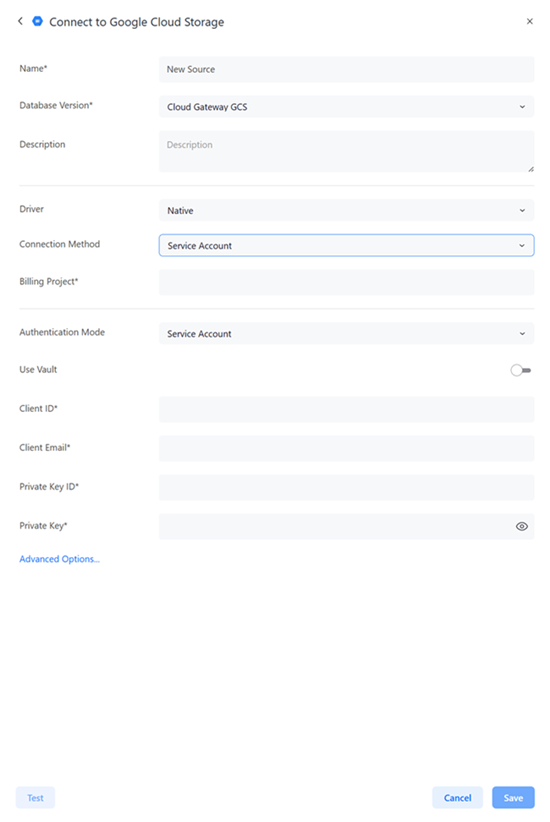
OAuth
Authentication Service: Expand the drop-down list and choose an authentication service. For more information on creating authentication services, see Manage OAuth Enterprise Security with Identity and Access Management.
Service Account with Vault Enabled
-
Use Vault: Toggle on this option to use a vault connection for your file storage source.
-
Type: Expand the drop-down list and choose a vault type.
-
Vault Connection: Expand the drop-down list and choose a vault connection. To create a vault connection, see Create, Edit, and Delete Vault Connections.
-
Secret Name: Expand the drop-down list and choose your secret.
Service Account with Vault Disabled
-
Use Vault: Leave this toggle disabled.
-
Client ID: Type the client ID from the service account key JSON file obtained from your administrator.
-
Client Email: Type the client email from the service account key JSON file obtained from your administrator.
-
Private Key ID: The private key ID from the service account key JSON file obtained from your administrator.
-
Private Key: The private key from the service account key JSON file obtained from your administrator.
-
-
Optionally click Advanced Options... to further define file storage options including the maximum cancel attempt time, maximum query execution time, connection lifetime, and more.
-
Optionally click Test.
-
Click Save.