Row-level Security for Linked Models
Starting in Strategy One (January 2026), Mosaic model linking is available out-of-the-box. The following topic describes how security filters are governed when models are linked, including how filters defined on base models and linked models interact when the linked model is consumed.
In a linked model, security filters are governed from the base model and the current model. All security filters are applied cumulatively when the linked model is consumed, ensuring consistent and layered data access control.
Example Security Filter Governance
Before configuring security filters in a linked model, the following models are set up:
-
A base model that contains time dimension attributes.
-
A sales model that contains category and sales data per month.
Create the Base Model and Define a Security Filter
-
Create a base model with the following attrbutes:
-
Year
-
Quarter
-
Month (referred to as
B_Month)
-
-
Define a security filter on the
B_Monthattribute in the base model.The following values return for
B_Month: Jan 2023, Feb 2023, Mar 2023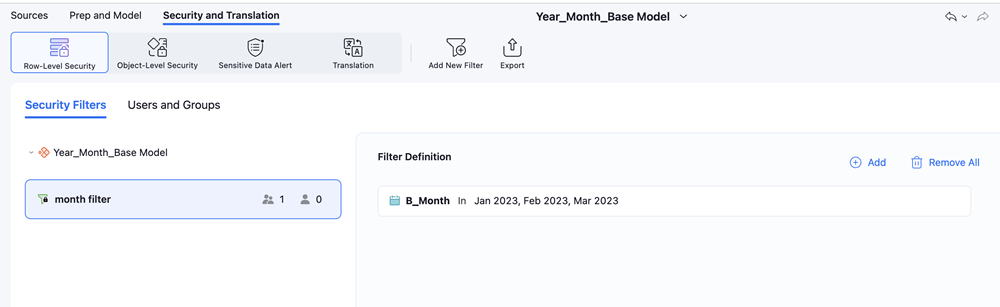
Users that consume the base model directly will only have access to the three month values based on the security filter definition.
Create the Sales Model and Define a Security Filter
-
Create a sales model that contains category sales data per month, with the following attributes:
-
Category (
S_Category) -
Month (
S_Month) -
Sales metrics
-
-
Define a security filter on the
S_Categoryattribute in the sales model.The sales model will only return the following value for
S_Category: Books.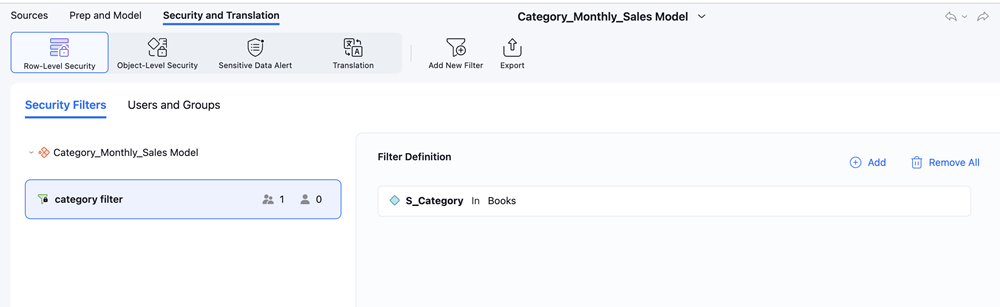
Any user that consumes the sales model directly will only have access to the
Bookscategory based on the security filter definition.
Link the Base Model to the Sales Model
-
Open the sales model.
-
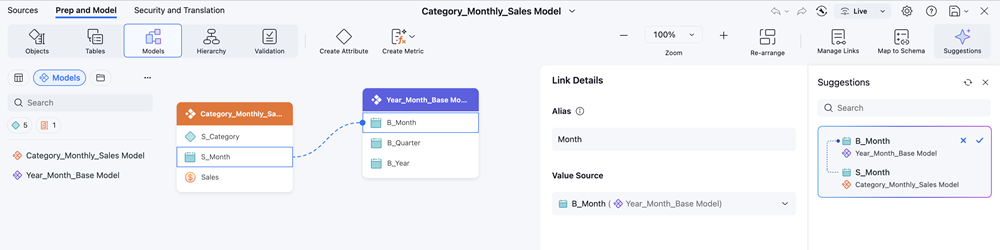
Add the base model as a linked model.
-
Configure the link as follows: Linked attribute alias
Month(B_Monthset as source) -
Save the linked model configuration.
Review Security Filters in the Linked Model
-
Click the Row-Level Security tab at the top of the Mosaic model editor.
-
The following security filters will be visible:
-
The security filter defined on the base model (filtering
B_Month) -
The security filter defined on the current sales model (filtering
S_Category)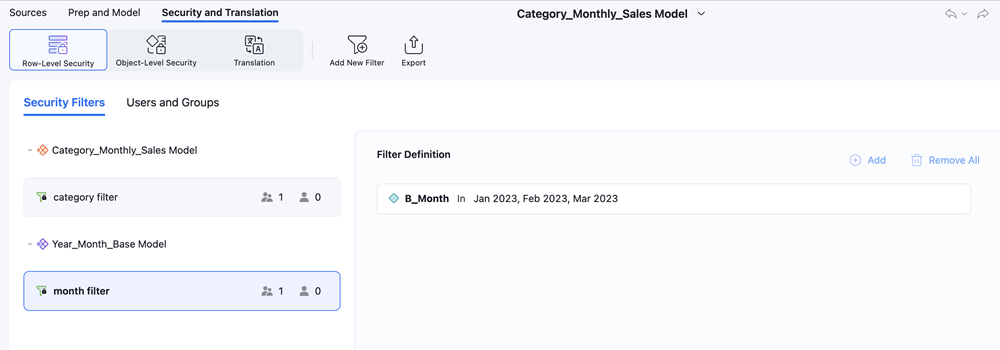
Security filters from linked models are automatically inherited and display in the Row-Level Security tab, providing full visibility of all applied filters in one place.
-
Define Additional Security Filter on Linked Attributes
In addition to inheriting security filters from the base model, you can define new security filters directly on linked attributes or on any attribute from the linked model.
Example: Adding a Security Filter on the Linked Attribute "Month"
-
In the Row-Level Security tab of the sales model, select the linked attribute
Month. -
Define a new security filter on
Monthto restrict access further.Only the following value returns for the
Monthlinked attribute:Jan 2023.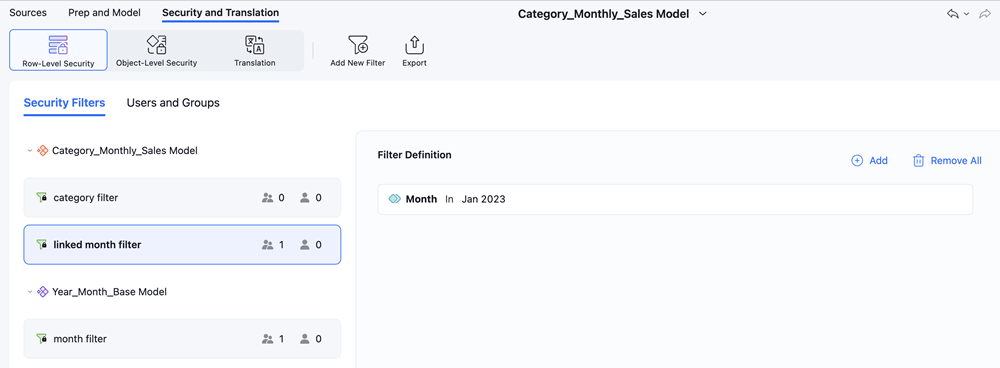
This filter is applied in addition to the security filter already defined on
B_Monthin the base model, further narrowing the accessible data.
Consuming the Linked Model
When a user consumes the linked model, all applicable security filters are enforced simultaneously, including:
| Description | Windows Shortcut | Mac Shortcut |
| Base Model Filter | B_Month (via the linked attribute, Month) | Jan 2023, Feb 2023, Mar 2023 |
| Linked Attribute Filter | Month | Jan 2023 |
| Current Model Filter | S_Categpory | Books |
Final Result While Consuming the Linked Model
The combination of all security filters means that the user will only see data that satisfies all of the following conditions:
-
Month = Jan 2023 (most restrictive filter between base model and linked attribute filters)
-
Category = Books