
Connect to Tableau Cloud Using OAuth
If you are a Tableau user and want to connect data sources from your Tableau environment to Strategy Mosaic, you can use the connectors available through your Tableau license, such as Starburst. Be aware that it is your responsibility to ensure compliance with the license terms and conditions that apply to any third-party software, services, or tools you use.
Use the Starburst Enterprise connector to connect Strategy to Tableau Cloud using OAuth authentication.
Prerequisites
-
You must have the Use Universal Access and Use Application Tableau privileges.
-
Cognitive search index must be enabled. For more information, see Cognitive Search.
-
The environment deployment must be publicly accessible for Tableau to connect.
Define Library Server Settings in Workstation
-
Open Workstation and connect to your environment.
-
Right-click your environment and choose Properties.
-
In the left pane, click Library and expand Library Server.
-
Under Cookies, select None in SameSite Attribute.
This step is required for Tableau Cloud.
-
Under Mosaic Universal Access, add your Callback URL using the following format:
https://<your_pod>.online.tableau.com/auth/add_oauth_token.Replace
<your_pod>with your Tableau Cloud site.For example:
-
https://us-east-1.online.tableau.com/auth/add_oauth_token -
https://us-west-2b.online.tableau.com/auth/add_oauth_token
-
-
Click OK.
-
Restart the Library Web Server.
Create OAuth Client Registry
-
Open Library.
-
In the Navigation pane, click Data.
-
Find your cube and click Additional Information
 and click the Universal Access tab.
 -
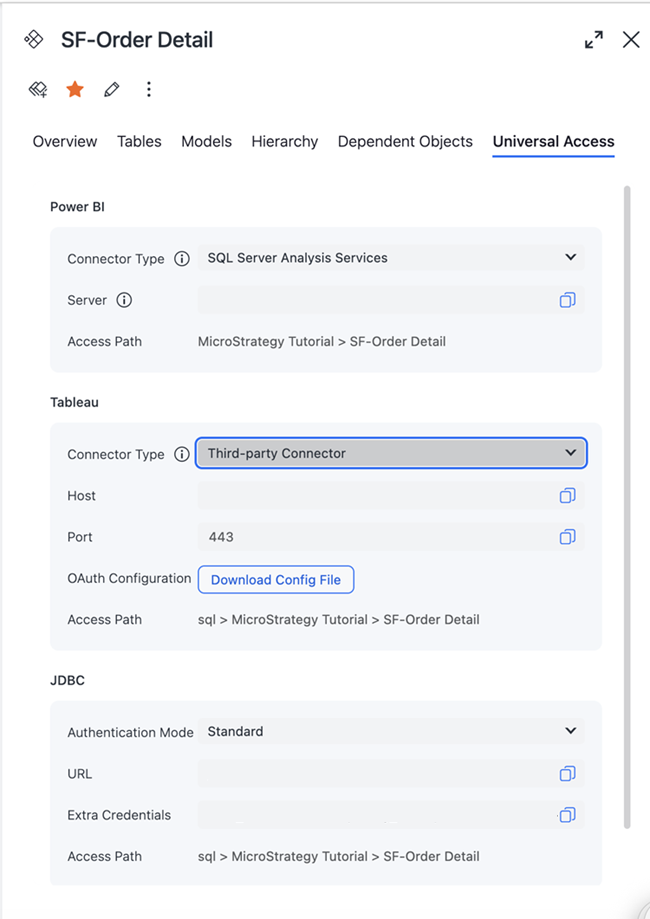
Under Tableau, expand Connector Type and choose Third-party Connector.
-
Click Download Config File.
-
Go to Tableau Cloud.
-
In the left navigation, click Settings.
-
In the General tab, under OAuth Clients Registry, click Add OAuth Client.
-
Enter the following values in Create OAuth Client:
-
Connection Type: Choose Starburst by Starburst.
-
Client ID: Enter
5ced4277-1930-4b96-a098-e1cde04765aa. -
Redirect URL: Enter the callback URL you entered in step 5 of Define Library Server Settings in Workstation.
-
Choose OAuth Config File: Click Choose a file and upload your OAuth Config XML file.
-
-
Click Add OAuth Client.
-
Click Save in the top navigation.
Connect to Datasource
-
Open Tableau Cloud.
-
Click New and Workbook.
-
Click Connect to Data.
-
Click Connectors and choose Starburst by Starburst.
-
Enter the following values in the Starburst by Starburst dialog:
-
Server: Enter the server hostname.
You can find this value in the Universal Access tab in Library.
-
Port: Enter
443. -
Authentication: Choose Single Sign On (OAuth).
-
OAuth Provider: Choose your desired configuration file.
-
Require SSL: Select this check box.
-
SSL Verification: Leave the FULL default value.
If you encounter issues, choose NONE.
-
Related Topics
For more information on connecting using Tableau Desktop, see Connect to Tableau Desktop Using Standard/LDAP and OAuth Authentication.