
Connect to Google Data Studio
Starting in Strategy (November 2026), you can connect to your Google Data Studio data to the Strategy Semantic Service using the Data Studio connector.
Prerequisites
-
You must have the Use Universal Access privilege.
If a user encounters a Community Connector Error in Data Studio, ensure the user has this privilege.
-
Ensure the Strategy Library you want to access from Data Studio is publicly accessible.
Connect to Google Data Studio
-
In Strategy Library, click Data in the Navigation pane.
-
Click Additional Information
 next to your Mosaic model.
-
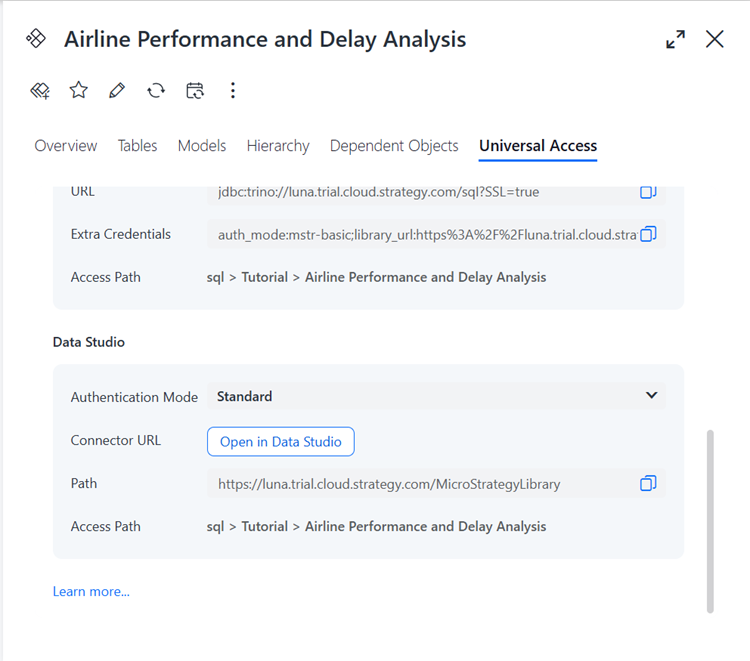
Click the Universal Access tab.
-
In the Data Studio section, click Copy
 next to Path.
-
Click Open in Data Studio.
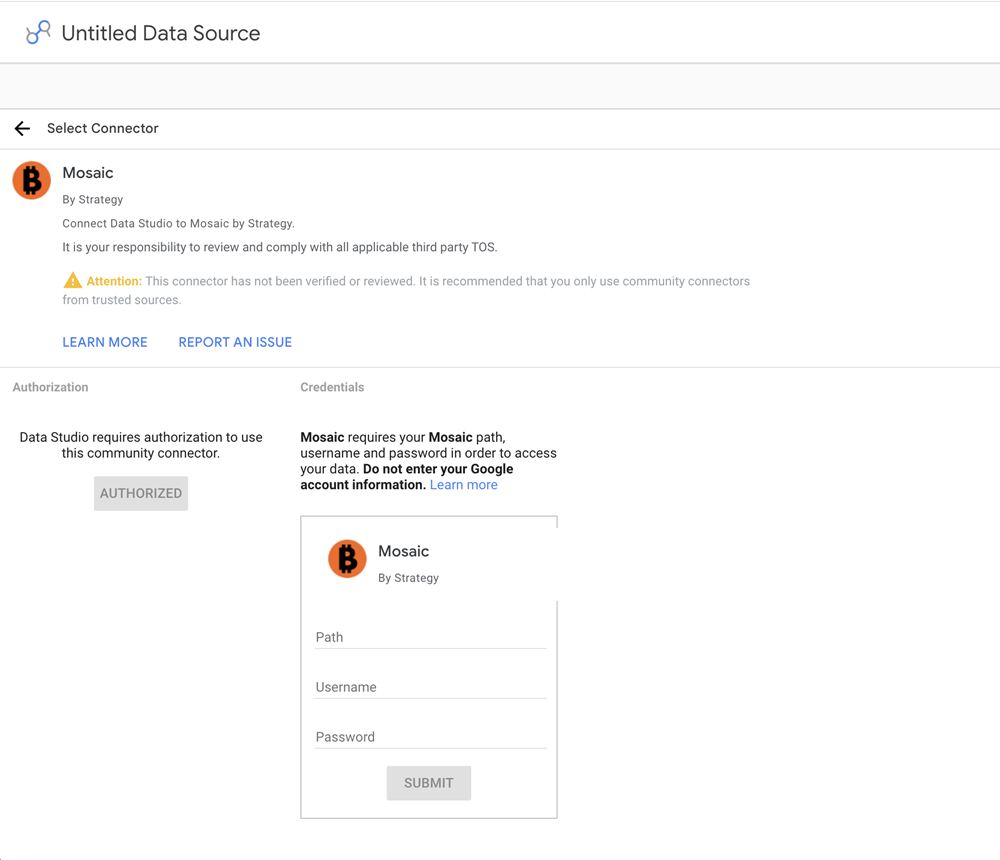
The Mosaic connectivity dialog displays in your Data Studio environment.
-
Paste the path you copied in step 4 into Path.
-
Enter your Strategy Username and Password.
-
Click Submit.
-
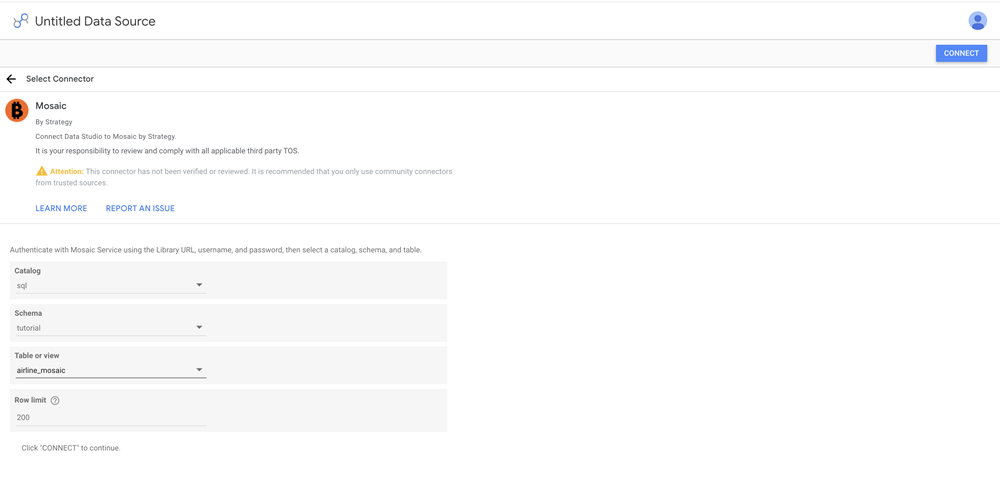
In Catalog, choose sql.
-
In Schema, choose your Strategy project.
-
In Table or view, choose your Strategy model.
-
Optionally edit your Row limit.
-
Click Connect.
-
Verify all fields and rename the Mosaic connection.
-
Click Create Report.
-
Query your data and apply filters, as needed.
-
To connect to a different Strategy Library environment:
-
Go to the following URL:
https://datastudio.google.com/u/0/datasources -
Click More Options
 and choose Revoke access.
-
Repeat steps 1 to 16 above.
-