
Excel Migration Assistant
Starting in Strategy One (June 2026), you can enable migration logs before performing a migration. Use this filterable table that contains migration activity, displayed in a new worksheet after migration, to assist in debugging.
Starting in Strategy One (May 2026), you can set header rows to specify the header count to ensure migrated data begins in the correct row to maintain layout structure. Use this setting when migrated reports do not correctly align in the workbook, especially when rows, headers, formulas, or surrounding content shifts after migration. The header row count tells the Migration Assistant how many rows at the top of the legacy report should be treated as headers to help the migrated data begin in the correct row and preserve the existing workbook layout.
Strategy One (October 2025) adds support for page-by reports.
Starting in Strategy One (August 2025), you can import prompted reports from your legacy Excel add-in to the modern Excel add-in.
Starting in Strategy One (July 2025), you can use the Migration Assistant to import non-prompted reports from your legacy Excel add-in to the modern Excel add-in for compliance with Strategy's modern stack.
The Excel Migration Assistant does not yet support documents, report services documents, and graphs.
-
Click More Items
 in the Excel add-in side panel and click Settings.
 -
Toggle on Enable Migration Assistant.
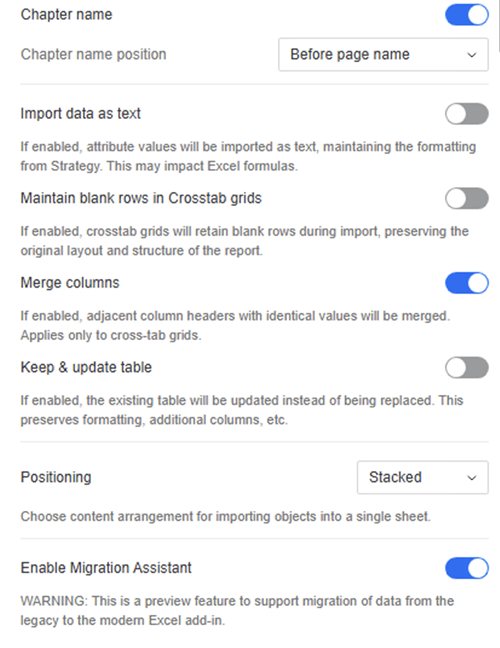
-
Close Settings.
-
Click More Items
and click Migration Assistant.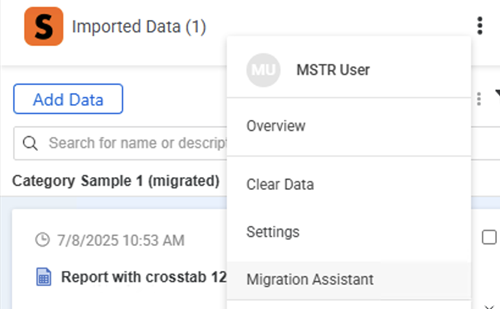
-
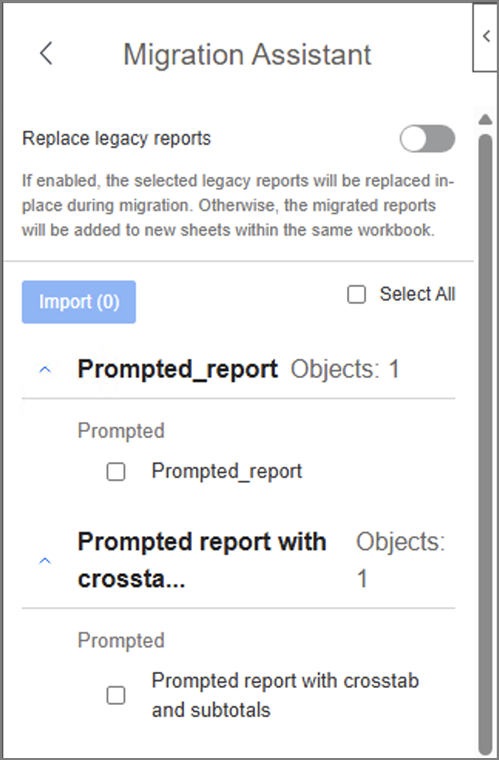
Select the check box next to the objects you want to import from the legacy Excel add-in.
-
To replace existing legacy report cells with newly imported reports, toggle on Replace legacy reports.
If you leave this option toggled off, the new reports will import into a new sheet.
-
Starting in Strategy One (May 2026), display report header counts, ensuring your migrated data begins in the correct row to maintain your layout structure:
-
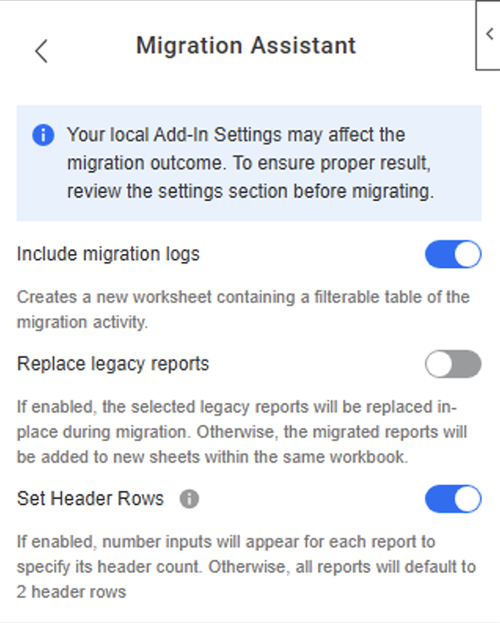
Toggle on Set Header Rows.
-
To define the desired header row height, expand the sheet name below the Set Header Rows setting and click the arrows in the value next to each report to reduce or increase the number of header rows. The default value is
2.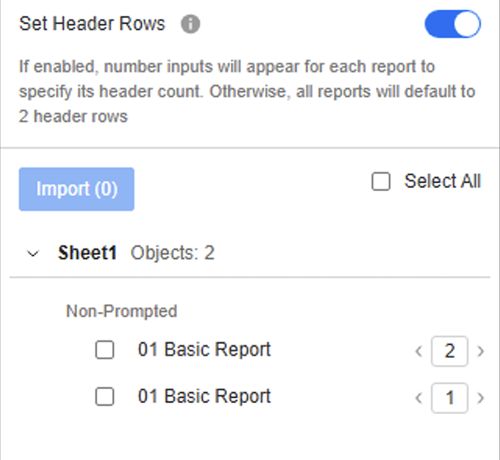
For example, if the legacy report has only 1 header row, set the value to 1. If the report has complex or stacked headers, increase the value to match the actual number of header rows.
This setting does not recreate legacy display types such as Grid, Flattened, Quick Grid, or Grid (Implicit). It is intended to help migrated reports migrate in the correct location and reduce layout issues.
-
-
Starting in Strategy One (June 2026), to enable a migration log that details migration activity in a new worksheet, toggle on Include Migration Logs.
-
Click Import.
The object with the same object ID is imported to your modern Excel add-in.
-
Starting in Strategy One (August 2025), if you choose a prompted report, select your prompt options and click Apply.