Create a Freeform SQL Cube
Starting in Strategy (October 2026) you can browse and map existing freeform SQL objects, including attributes and metrics, directly to SQL query columns. You can also copy and paste freeform SQL statements that contain prompts, conditions, and security filters between freeform SQL editors while preserving the definitions of those objects.
Prerequisites
-
You must have the Use Freeform SQL Editor and Create schema objects privileges to access and use the Freeform SQL Editor.
-
If you are using Strategy (July 2026) or later, see Freeform SQL Privileges for a list of required privileges.
-
If you are using a version prior to Strategy (July 2026), to use, create, and edit freeform SQL cubes, you must have the following privileges:
-
Use Intelligent Cube Editor
-
Use analytics
-
Create application objects
-
Modify the list of Report objects (use object browser)
-
Use Freeform SQL Editor
-
-
If no database instance is defined in the metadata, the Freeform SQL Editor can not load and a message appears.
-
Database instances are available for selection only if they have been set up correctly for use with Freeform SQL.
Click here for steps to set up database instances.-
Open the Workstation window.
-
In the Navigation pane, click Projects.
-
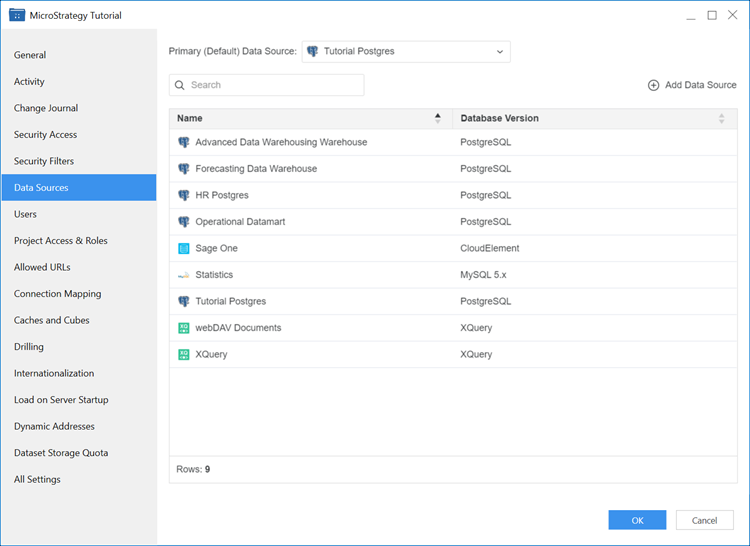
Right-click a project and choose Properties.
-
In the pane on the left, click Data Sources.
-
Click Add Data Source. For details, see Create and Edit Data Sources.
-
Create a Freeform SQL Cube
- Open the Workstation window.
- In the top Navigation pane, click File and choose New Freeform SQL Cube.
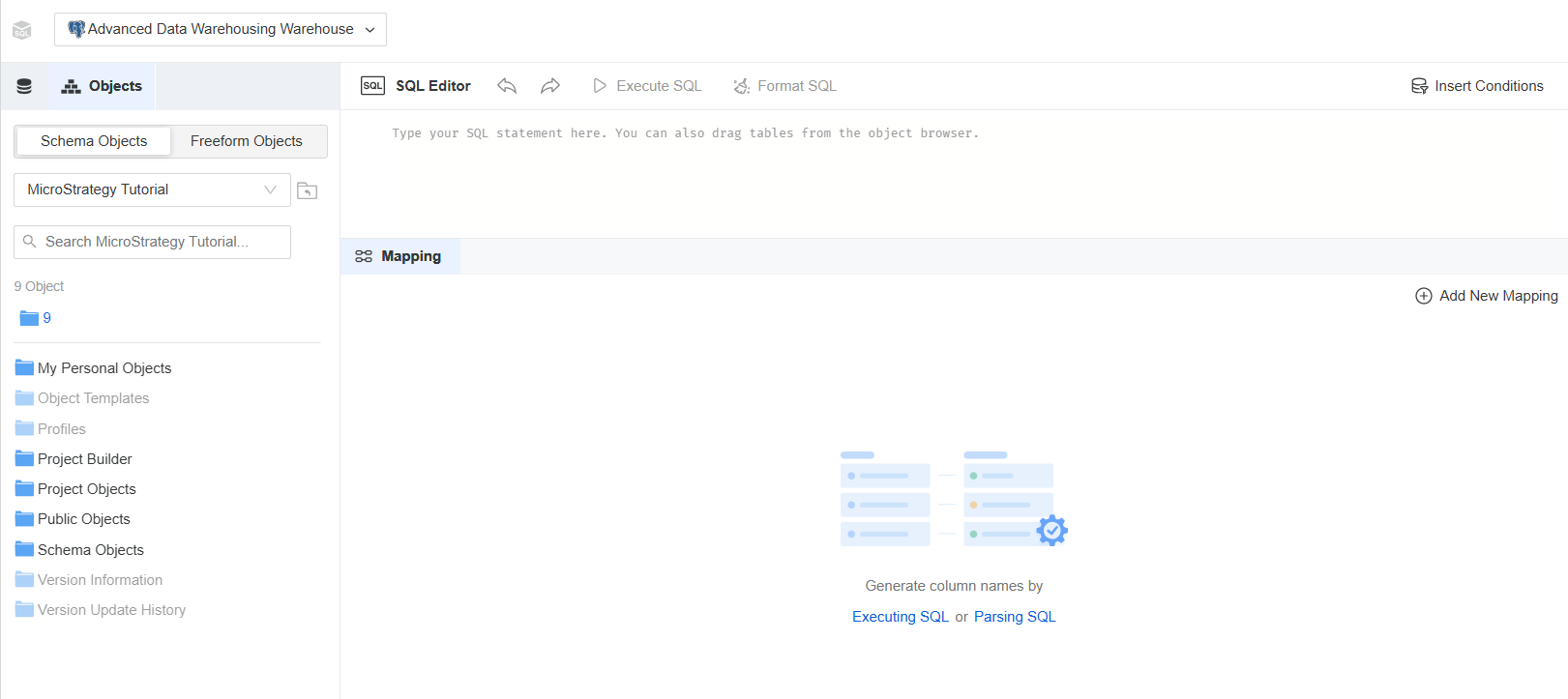
- Select a project and click OK. The Freeform SQL Editor displays.
- Select a database instance for the data source to access using freeform SQL.
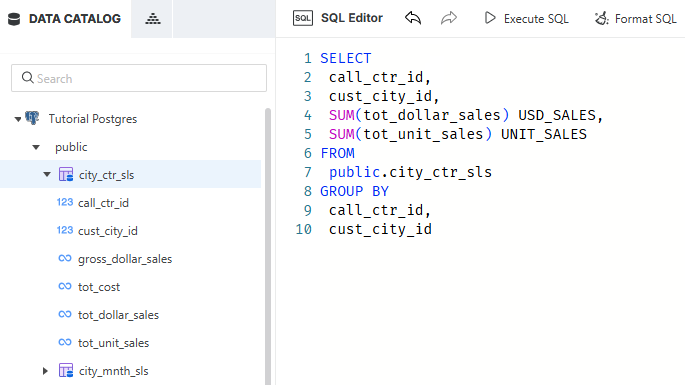
- Enter your SQL statement in the SQL Editor. You can browse through objects on the Data Catalog tab and drop them into the editor.
-
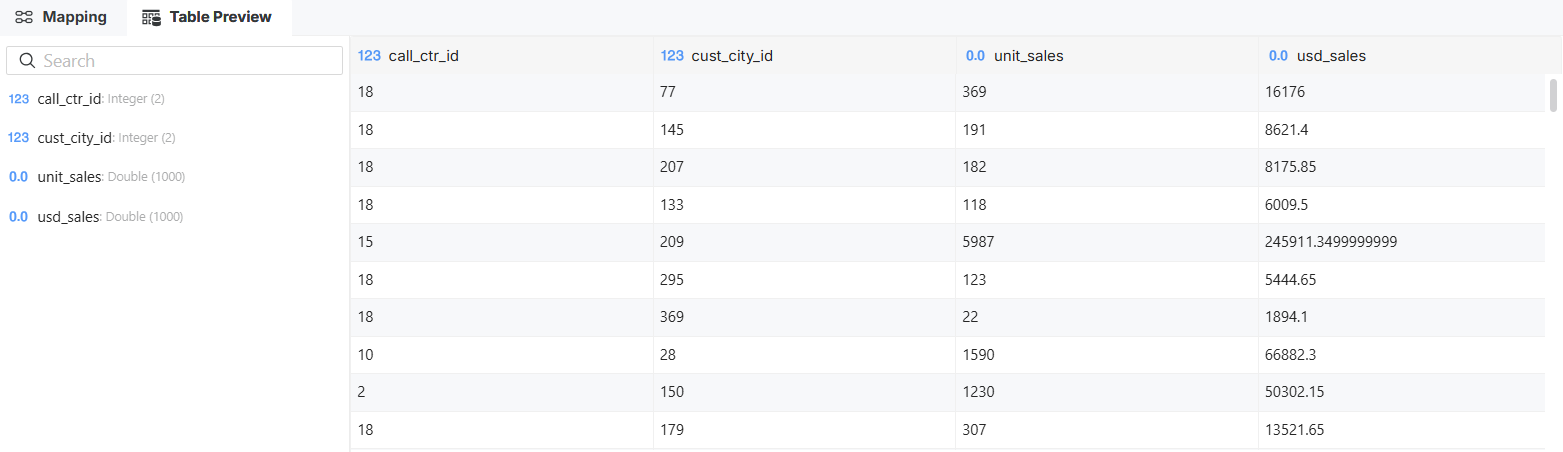
Click Execute SQL.A preview of your query results displays under Table Preview below the SQL editor.
-
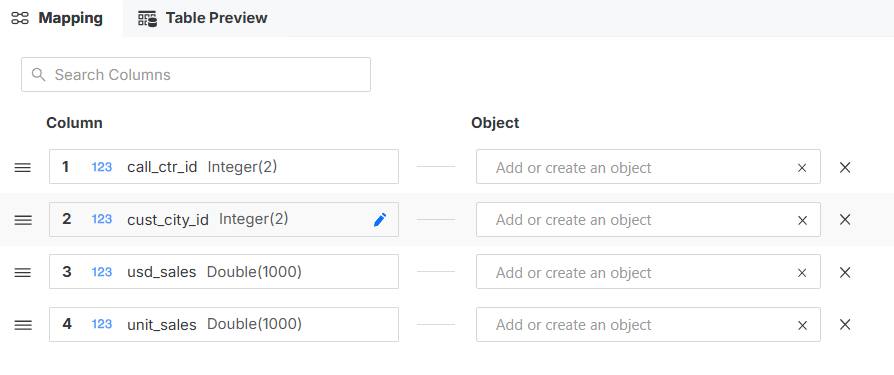
Map the columns from your SQL statement to report objects in the Mapping tab located at the bottom.
To generate column list, click Update columns by Executing SQL to send the query to the data source for a more accurate definition or Parsing SQL to simply use the statement typed in the editor.
-
To add a mapping column manually, click Add New Mapping.
If you create the column list manually, it is important to follow the same sequence of the columns as they appear in the SQL statement. If you do not follow the same sequence, the cube will fail.
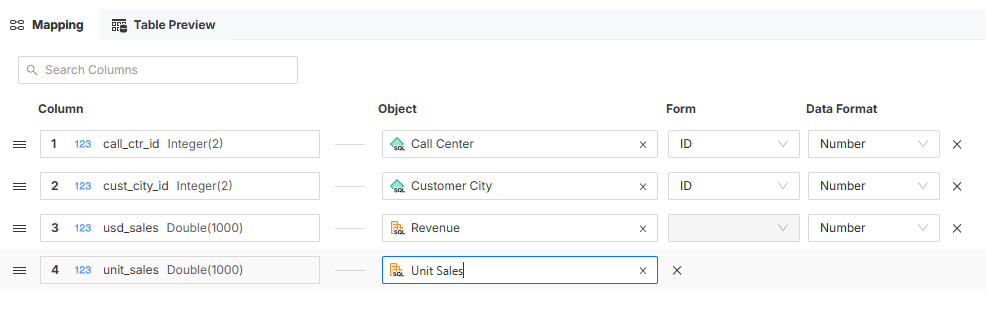
Ensure the number of mappings is the same as the number of columns in the SQL statement. For example, if your SQL statement lists 10 columns to retrieve data, you should map them to 10 attributes and metrics.
For each attribute, you must map a column to the ID form.
-
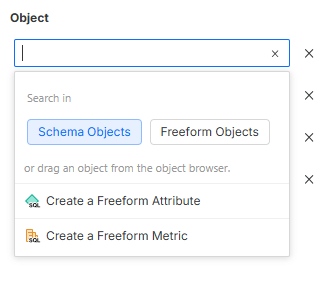
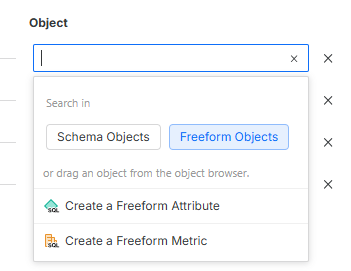
Search in Schema Objectsto map the column to an existing project object.
-
Starting in Strategy (October 2026), Search in Freeform Objects to map the column to an existing freeform object.
-
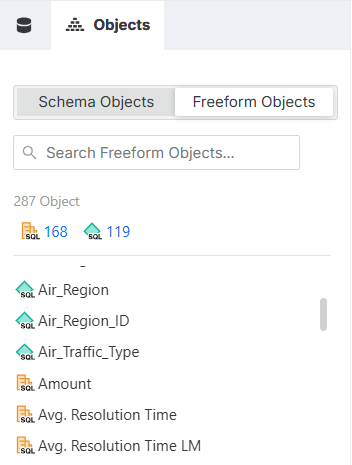
Search for objects under Objects tab in the menu on the left, and then drag and drop them onto the mapping pane.
-
Create your own objects and define the Data Format.
-
Click Save and Open Cube.
-
Make any additional changes to your cube definition as required.
For more information on defining cubes, see Create Intelligent Cubes.
-
Click Publish.
-
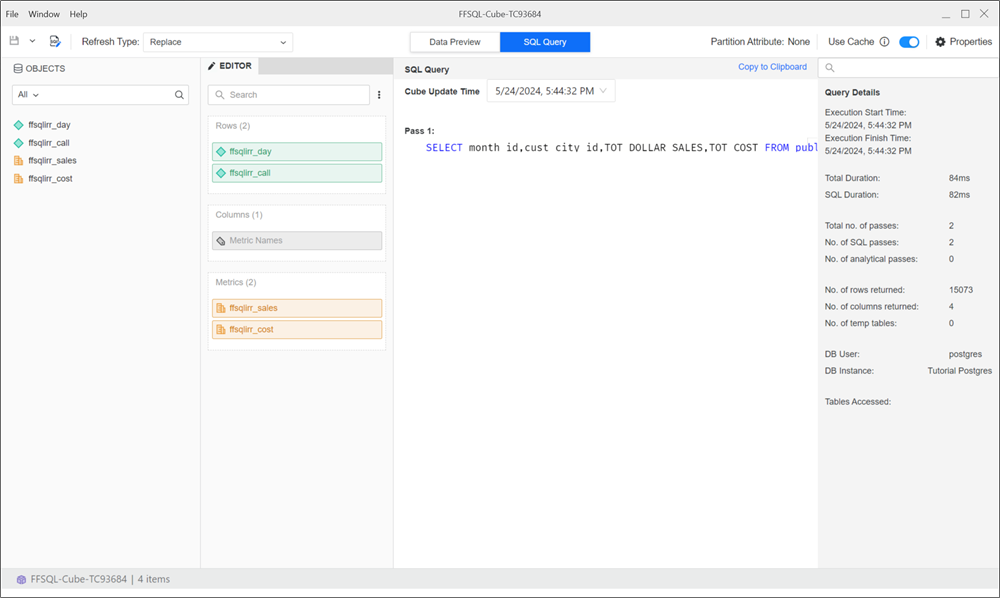
If there is a cube cache, a Cube Cache toggle appears in the top-right of the cube editor. If this toggle is on, the editor will display data as it appears in the cache in the SQL View and Data Preview. If you switch this toggle off, the SQL View displays the latest SQL from the current cube definition and Data Preview displays Publish. If you save new changes in the cube editor, the Cube Cache toggle should be off.