
Custom Attribute Display Forms for Dashboards
Starting in Strategy (October 2026), you can define dashboard attribute display forms at the attribute level. If a display-form customization is not configured at the dashboard dataset level (for report or cube) or dashboard level, the dashboard uses the attribute-level display-form settings from the Advanced tab.
- Find the attribute you want to add a custom display form.
- Right-click the attribute and click Edit.
-
Click the Display & Sort tab and the Advanced tab.

-
Click the check boxes next to the attribute forms to customize their display:
-
Available in Dashboard: The form displays as an option when you right-click the attribute in a dashboard and choose Display Attribute Form. You can select this form to display in the dashboard. If the Default Displayed on Dashboard option below is selected, the form is automatically selected.
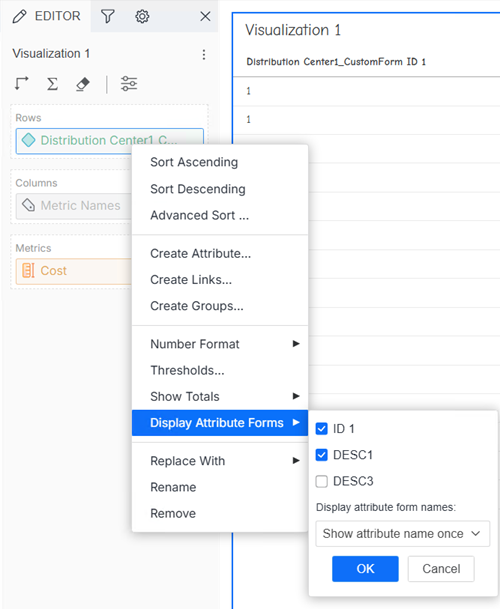
-
Default Displayed on Dashboard: When you add the attribute to a visualization on a dashboard, this form displays.
-
- Click Save.
- Reload your schema.
- Open your dashboard and click Refresh in the top navigation if needed to refresh your data.