Edit Transactional Reports
Starting in Strategy (October 2026), you can set advanced properties (also known as VLDB properties) for your transactional reports.
Starting in MicroStrategy 2021 Update 9, you can edit transactional reports.
Use transactional reports to perform write-back operations to a database to enable real-time updates and interactions with data.
-
Log into an environment.
-
Use the Workstation window to navigate to your transactional report.
-
Right-click a transactional report and choose Edit.
-
Right-click in the SQL Editor to define new input for transactions with either an existing attribute or metric, or by creating one.
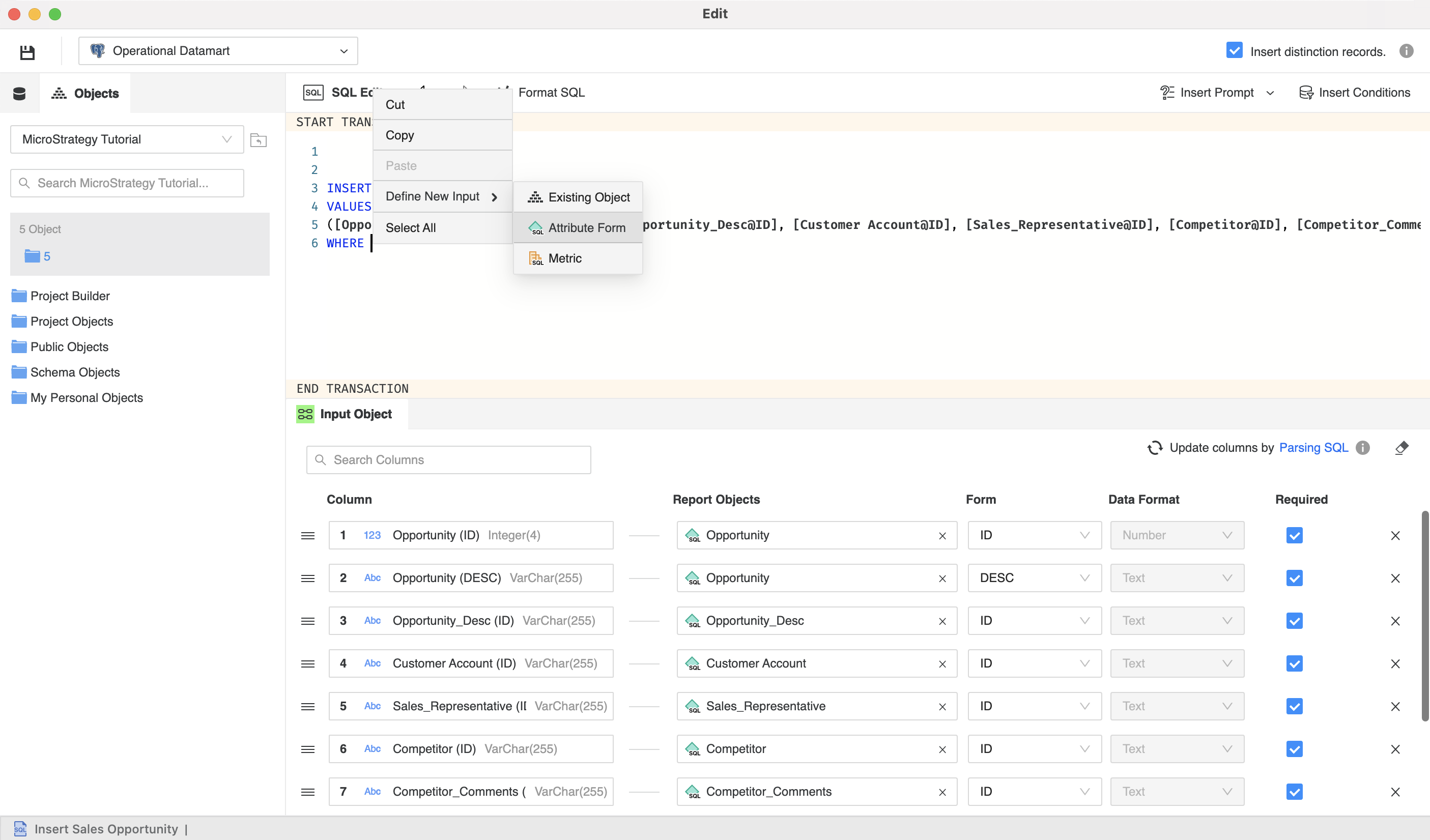
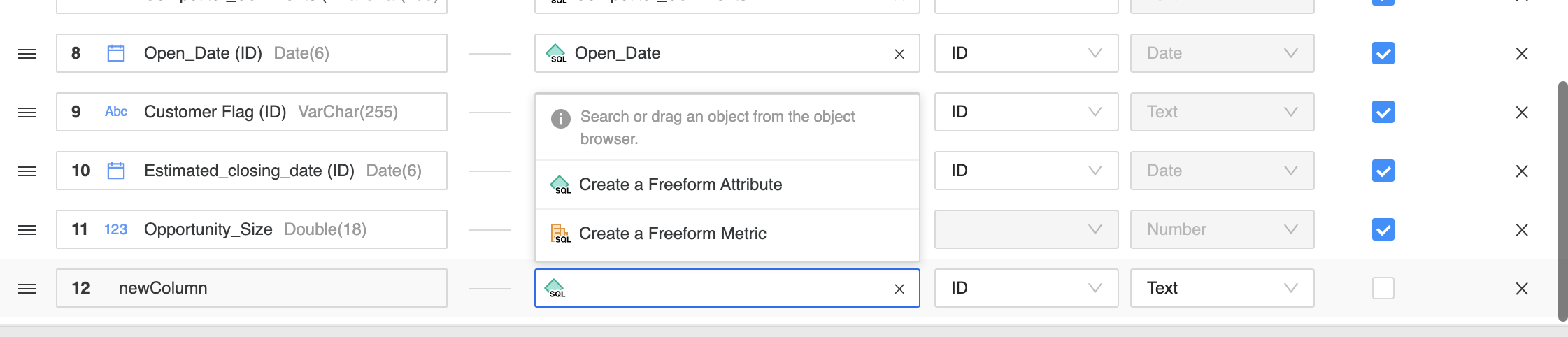
A new line for the transaction appears.
-
Depending on the option you chose, you can either define new objects or search for existing ones.
For existing objects you can also use drag objects from the left pane.
-
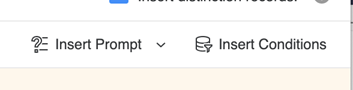
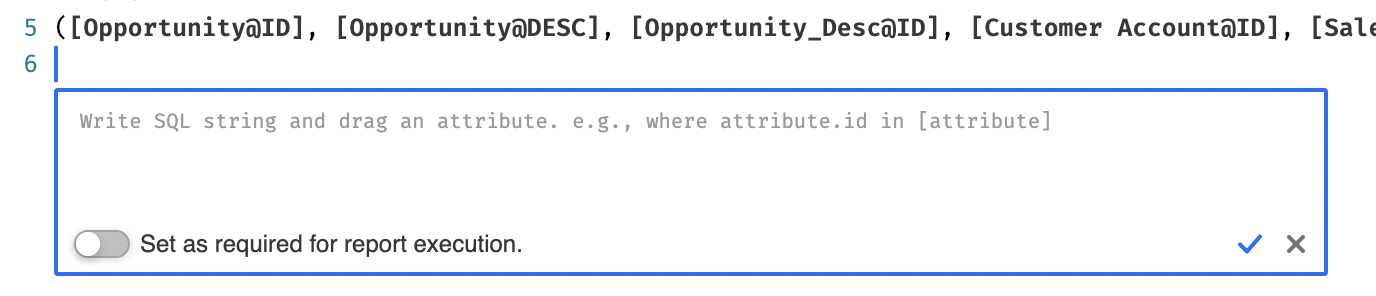
From the right side of the editor you can choose Insert Prompt or Insert Conditions.
-
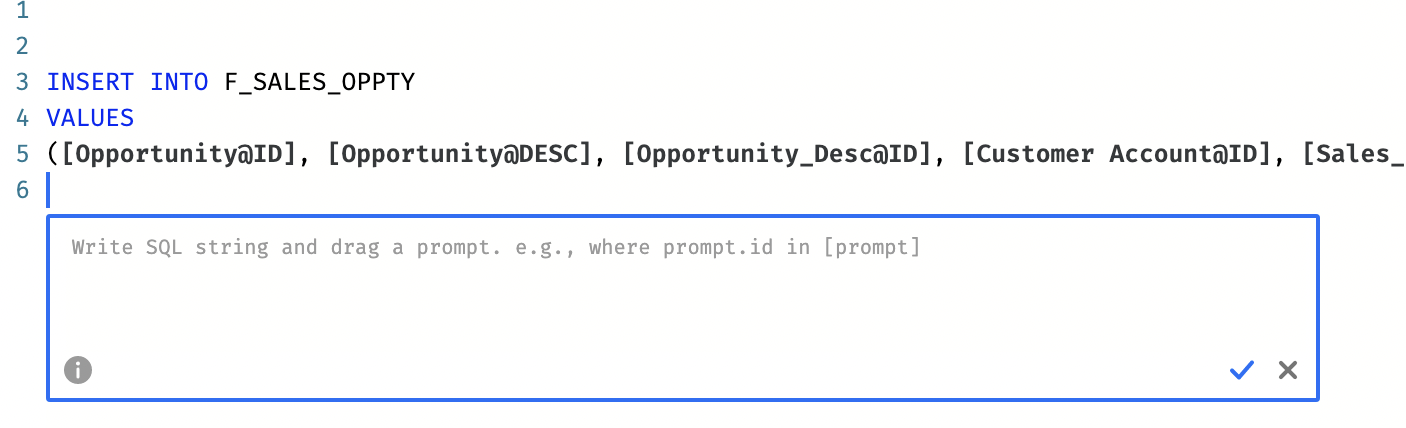
A new section appears where you can define:
-
Value prompts
-
Conditions
-
-
Starting in Strategy (October 2026), to define advanced properties for control over the analytical calculations and query generation:
-
Click Properties.
-
Locate the desired property.
-
Expand the Property Value drop-down list and select the desired Property Value.
-
Click Done.
-
-
Click Save
 .
.
Only value prompts are supported