
Shared Platform Analytics Project
Starting in Strategy (October 2026), you can create a shared Platform Analytics projects across all tenants in your environment while maintaining separate data between tenants.
Enable Shared Platform Analytics
Prerequisite
Before enabling the shared Platform Analytics project, you must Enable Tenant Partitioning.
Enable Platform Analytics Support for a Shared Project
Before you share the Platform Analytics project with your tenants, you must enable Platform Analytics support for the share project. To ensure your tenant data is separate, Platform Analytics enforces a strict security policy that prevents tenants from accessing the data from global projects and objects. This restriction also applies by default to shared projects and prevents users from accessing data from some shared objects.
To allow tenants to access tenant telemetry data correctly from the shared Platform Analytics project, you must manually enable Platform Analytics support for shared projects by performing an API call to the telemetry endpoint. Call PUT /api/telemetry/admin/runtime-config/sharedProjectEnabled with Administrator privileges. A successful response displays a HTTP status code 200 and value: "true" in the body.
Update the Platform Analytics Project to a Shared Project
The following steps can not be undone. If you want to keep a private version of the Platform Analytics projects, make a duplicate of the project before you share it.
Some dashboards and cubes contain project and metadata-level information. You may want to restrict tenant users' access to the project and metadata using ACLs before sharing the Platform Analytics project.
The following objects contain project and metadata-level information:
-
Dashboards:
-
Admin setting change history
-
Auto Adoption
-
Compliance Telemetry
-
Database Capacity Planning
-
Intelligence Center Dashboard
-
-
Cube:
-
Admin Setting Change Cube
-
Capacity Planning
-
Compliance Telemetry
-
-
Attributes - all attributes in the following locations:
-
Platform Analytics > Schema Objects > Attributes > A09. Badge Locations
-
Platform Analytics > Schema Objects > Attributes > A10. Badge Resources
-
Platform Analytics > Schema Objects > Attributes > A11. Compliance Telemetry
-
-
In the Workstation Navigation pane, click Projects.
-
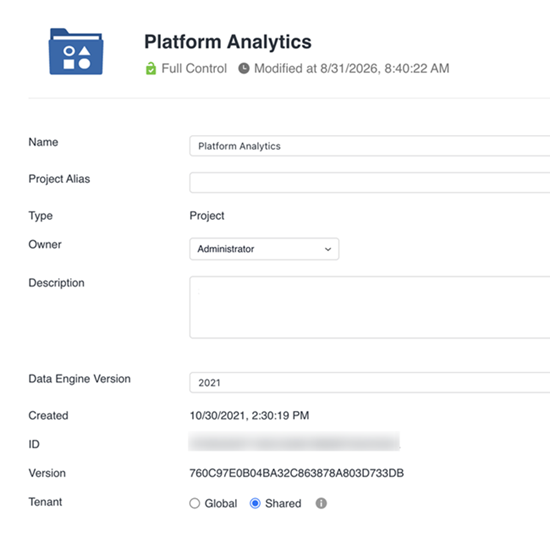
Right-click the Platform Analytics project and choose Properties.
-
In Tenant, select Shared.
-
Proceed to Restrict Tenant Access Using Connection Map.
Restrict Tenant Access Using Connection Map
Ensure the tenant user does not have access to the Platform Analytics project before you update it to a shared project and properly set up access restrictions based on the Connection Map. Otherwise, tenant telemetry data may leak to other tenants.
Strategy only guarantees the data separation in out-of-the-box objects in the Platform Analytics project. If the Global Administrator needs to create other cubes or dashboards from the Platform Analytics data, the Administrator should perform their own tests to prevent data leak.
To restrict tenant users to only see their own data, enable cache per database connection and create a connection map for each tenant.
To enable cache per database connection:
-
If needed, right-click the shared project and choose Properties.
-
In the left navigation, choose All Settings.
-
Toggle on Create caches per connection map, Create caches per database connection, and Create Intelligent Cubes by database connection.
-
Click Yes in the warning dialog.
-
Click Save.
-
Restart your Intelligence Server.
-
To test the settings are enabled:
-
Right-click the share project and choose Properties.
-
In the left navigation, choose All Settings.
-
Ensure the settings you toggled on above are enabled.
-
Create a Connection Map for Each Tenant
-
Create a database connection for each tenant. For more information on creating database connections, see Create a Database Connection.
-
In the Projects page, right-click the shared Platform Analytics project and choose Properties.
-
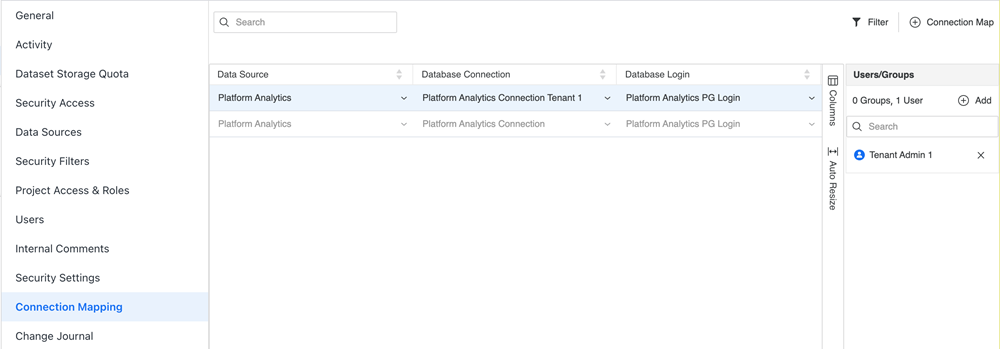
In the left navigation, click Connection Mapping.
-
Click
 Connection Map.
 -
Expand the Data Source drop-down list and choose Platform Analytics.
-
Expand the Database Connection drop-down list and choose one of the databsse connections you created above.
-
Expand the Database Login drop-down list and choose the login.
-
In the Users/Group panel, click Add and add any users or groups to the tenant.
-
For each additional tenant, repeat steps 4 to 8.
Subscribe to Platform Analytics Data for Tenants
After properly restricting data access for tenants, you can create subscriptions for each tenant so the Platform Analytics data is updated.
Strategy provides python scripts in the global Platform Analytics project. Global administrators can run the script to create scheduled and subscriptions to refresh data for a tenant. The schedules are daily by default and randomly spread with 10 minute gaps in between tenants.
Create a Subscription For Each Tenant
-
Get the tenant admin user ID. This ID will be used as the owner of the subscriptions.
-
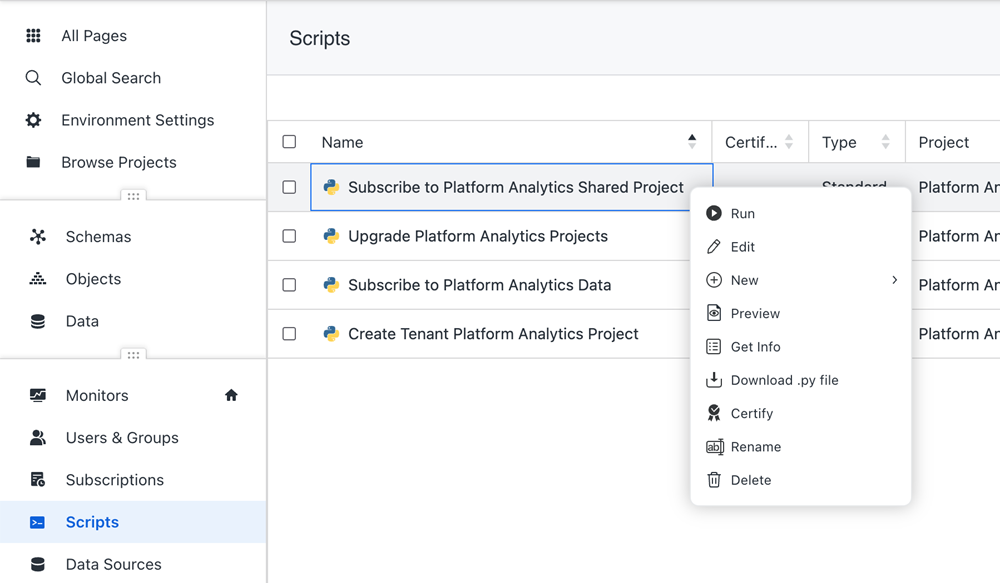
In the Workstation Navigation pane, click Scripts.
-
Right-click the Subscribe to Platform Analytics Share Project script and click Run. The script creates schedules and subscriptions for the tenant using the following variables:
-
pa_shared_name: Name of the new Platform Analytics project to create. -
tenant_admin_id: User ID of the tenant admin. If you add the global administrator ID, the script recreates the default hourly schedules and subscriptions for the administrator.
-
-
Optionally assign the project to a tenant.
You do not need to perform this step if you added the Tenant ID after running the Create Tenant Platform Analytics Project script.
Known Limitation
Tenant users should not have access to cubes and dashboards in the shared Platform Analytics project before the cache per database connection settings are enabled and proper connection maps are created for all tenants. Otherwise, a tenant may hit cache created by a global administrator or create cache which causes unexpected data leakage.