
Warehouse Partition Mapping
Warehouse partition mapping is the mapping of partitions, where the mapping is performed by and maintained in the data warehouse.
Starting in Strategy (October 2026), you can create and edit warehouse partition mapping tables.
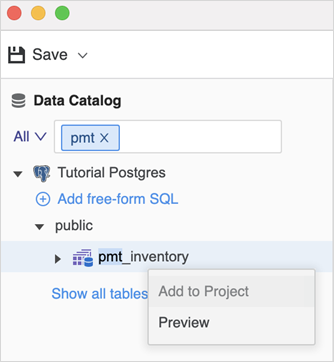
Workstation does not support creating new warehouse partition mapping or updating existing warehouse partition mapping tables. This means the Add to Project option is disabled, as shown below. Users can preview warehouse partition tables, as well as create or edit attributes and facts based on partition mapping tables.
Manage Warehouse Partition Mapping Tables
- Open the Workstation window with the Navigation pane in smart mode.
- In the Navigation pane, click Schemas.
- Select an Environment from the upper-left drop-down list.
- Right-click a schema and select Edit Schema. The schema is locked while being edited.
-
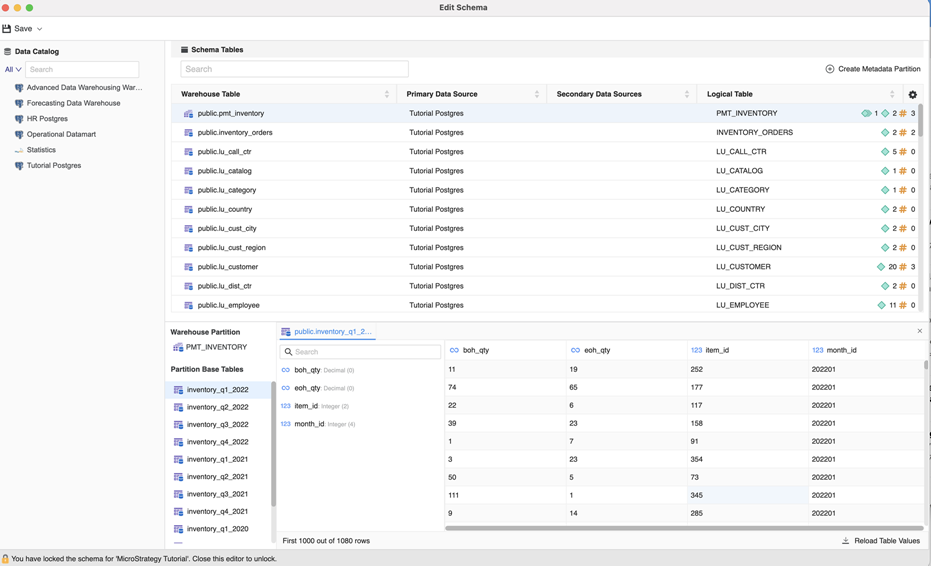
In the left pane of the bottom panel, partition base tables are listed under Partition Base Tables. Click a table to view warehouse table data in the database.
-
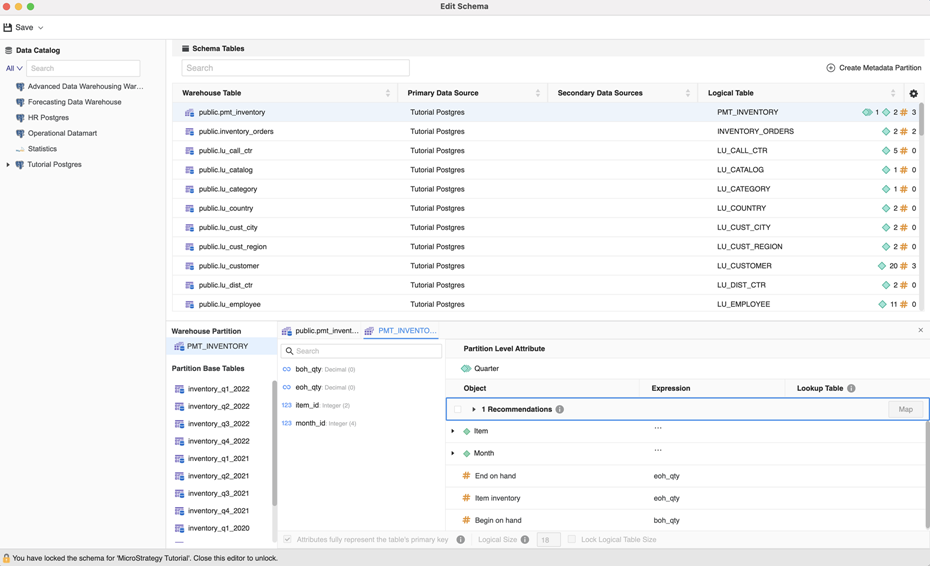
In the corresponding preview, you can view partition level attributes, as well as create and edit attributes/facts.
Create and Edit Warehouse Partition Mapping Tables
Starting in Strategy (September 2026), you can create and edit warehouse partition mapping tables in Workstation.
- Open the Workstation window with the Navigation pane in smart mode.
- In the Navigation pane, click Schemas.
- Select an Environment from the upper-left drop-down list.
- Right-click a schema and select Edit Schema. The schema is locked while being edited.
- Find your warehouse partition that includes a
PBTNAMEcolumn. -
Right-click a Logical Table that meets the warehouse partition table requirements and click Create New.
If this option is not available, you may have to unlock your schema. To unlock your schema, click Schema in the Navigation pane, right-click your schema, and choose Unlock.
- Type a name for your table and press
Enter. -
Right-click your newly created table and choose Preview.
To edit a warehouse partitioning table, find an existing table, right-click the table, and choose Preview.
- In the Preview dialog, select the check box next to mapping recommendations you want to apply and click Map.
-
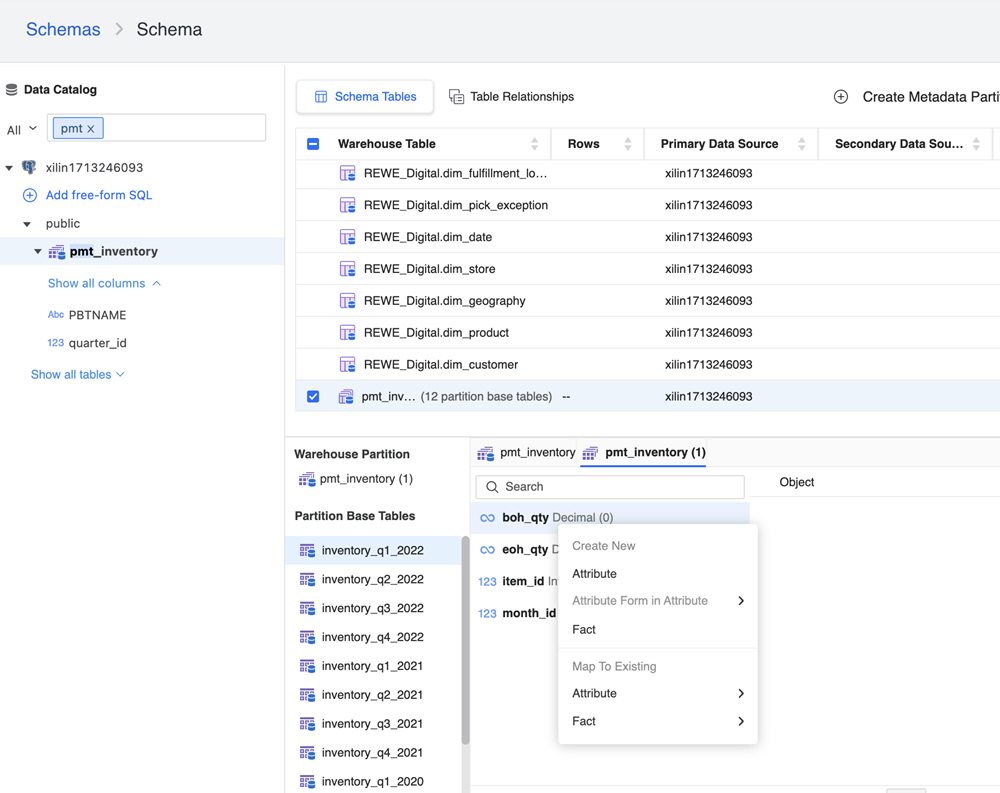
To create attribute or facts, right-click a column and choose one of the Create New options.
-
To unmap an object, right-click it and choose Unmap.
-
Click Save.
-
To delete a table, right-click the table and choose Delete.