
Enable Single Logout with OIDC Authentication
Okta
-
Configure OIDC login using Enable Single Sign-On with OIDC Authentication. If your IdP supports logout mode, the LogOut Mode field appears below Issuer and you can follow this procedure to set up single logout.
-
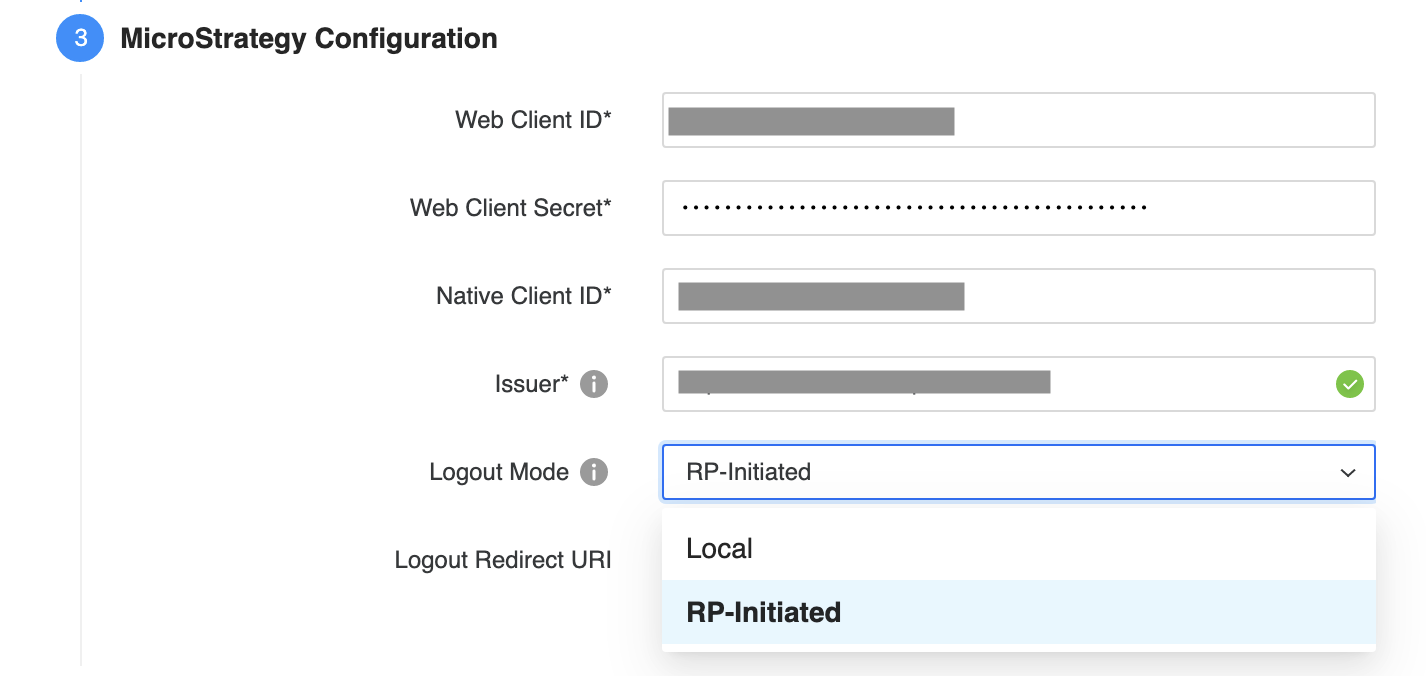
In Logout Mode, choose RP-Initiated.
-
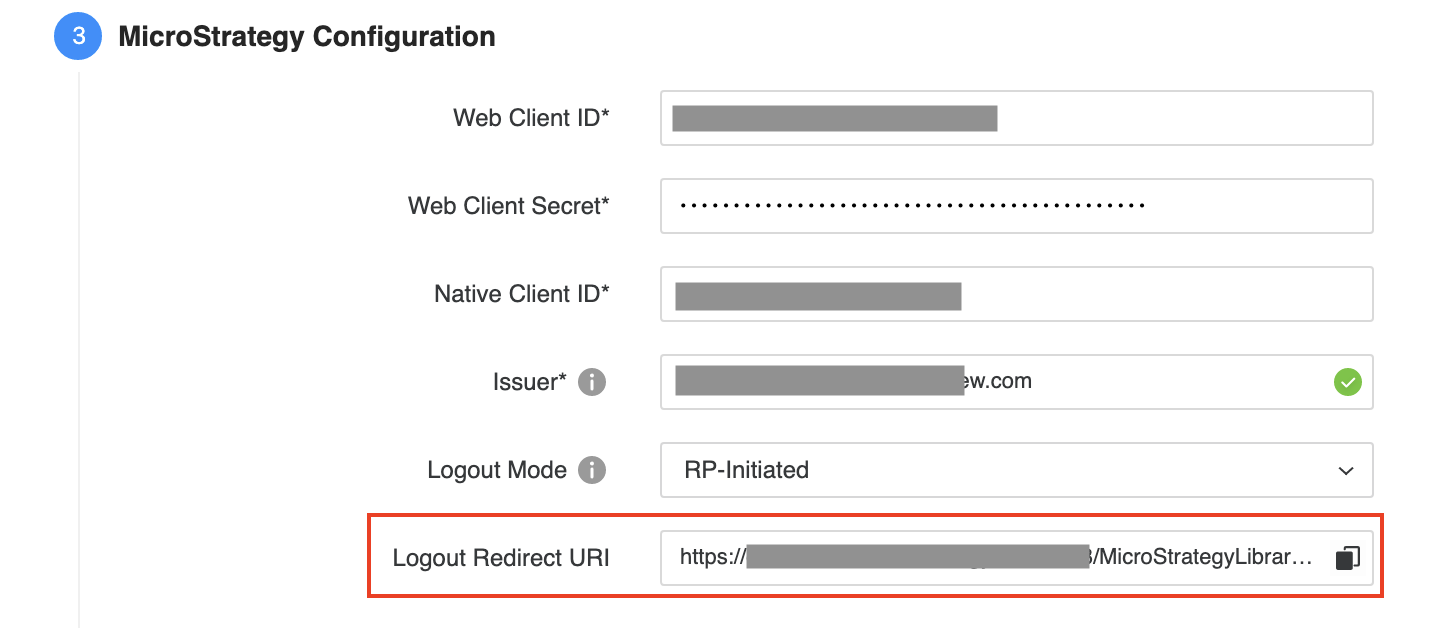
Copy the Logout Redirect URI.
-
In the Okta console, go to Applications and add the Logout Redirect URI you copied into Sign-out redirect URIs. Use the following format:
Copyhttps://domain:port/MicroStrategyLibrary/auth/oidc/logout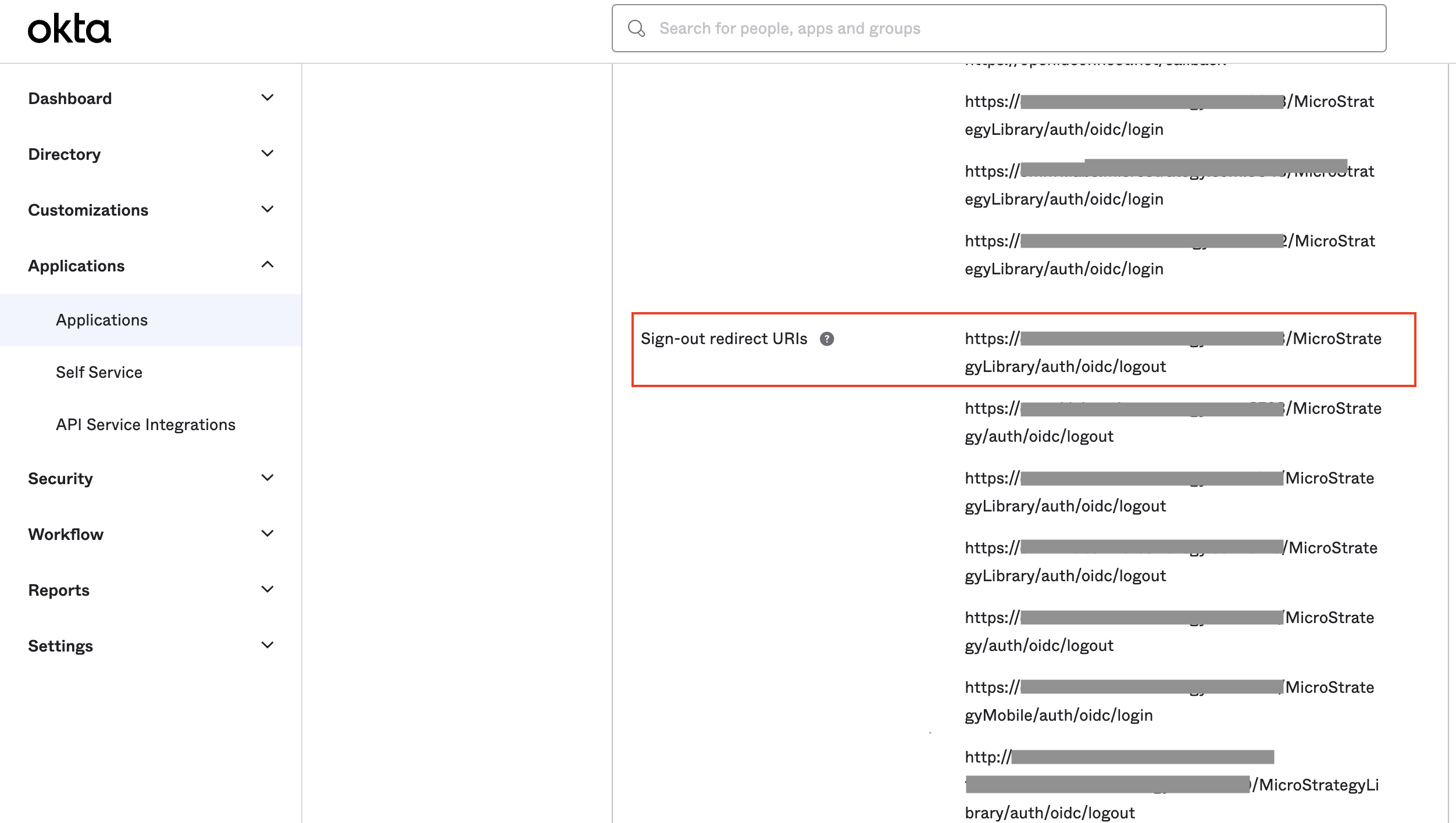
- Save your changes in Workstation and the Okta console.
- Restart the Library server.
Azure
-
Configure OIDC login using Enable Single Sign-On with OIDC Authentication. If your IdP supports logout mode, the LogOut Mode field appears below Issuer and you can follow this procedure to set up single logout.
-
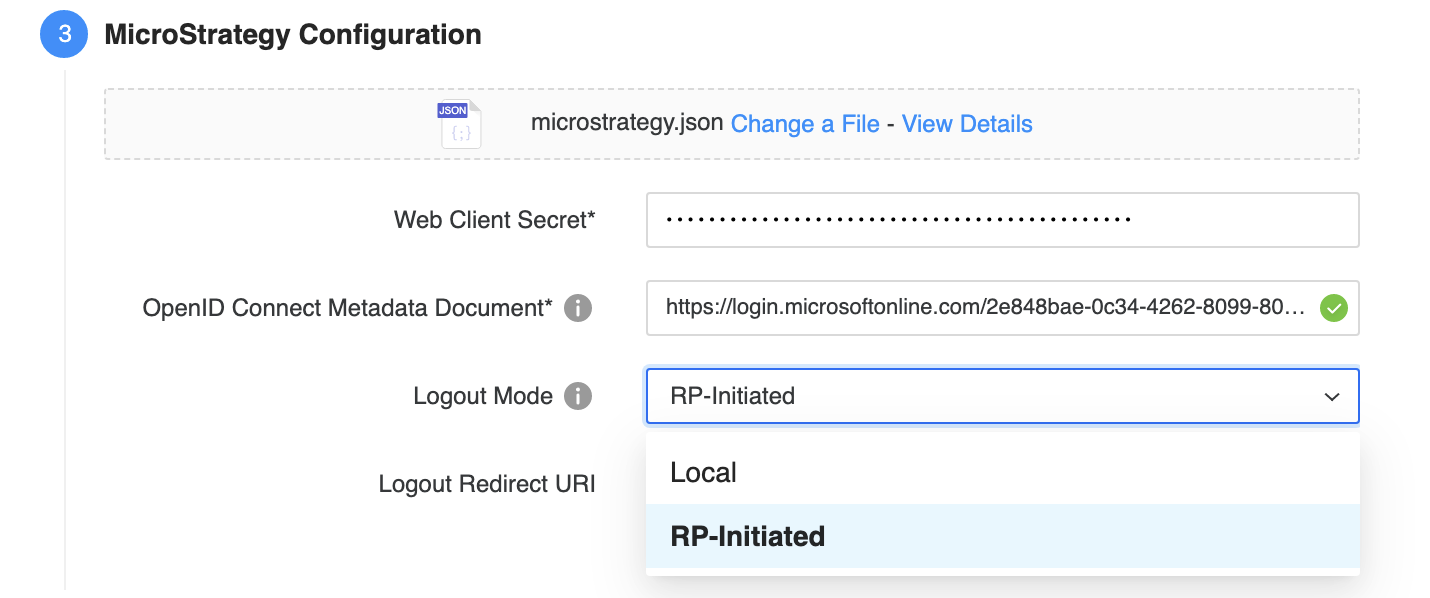
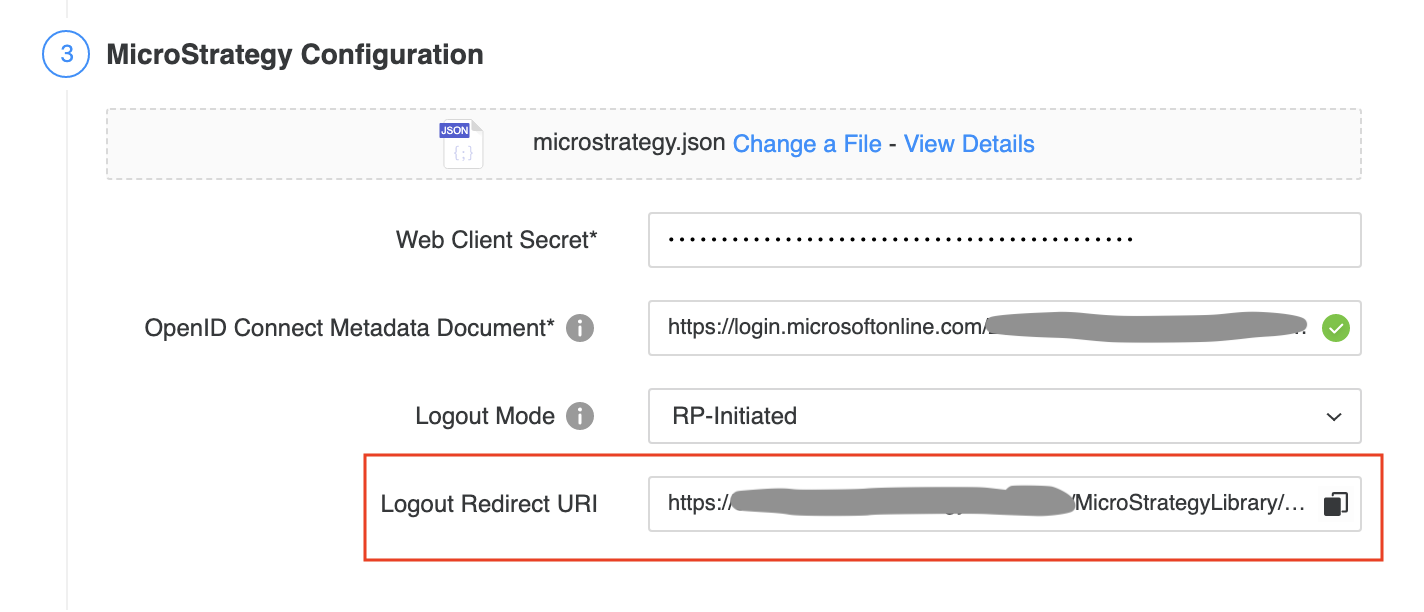
In Logout Mode, choose RP-Initiated.
-
Copy the Logout Redirect URI.
-
In the Azure console, go to Authentication and add the Logout Redirect URI you copied under Redirect URIs. Use the following format:
Copyhttps://domain:port/MicroStrategyLibrary/auth/oidc/logout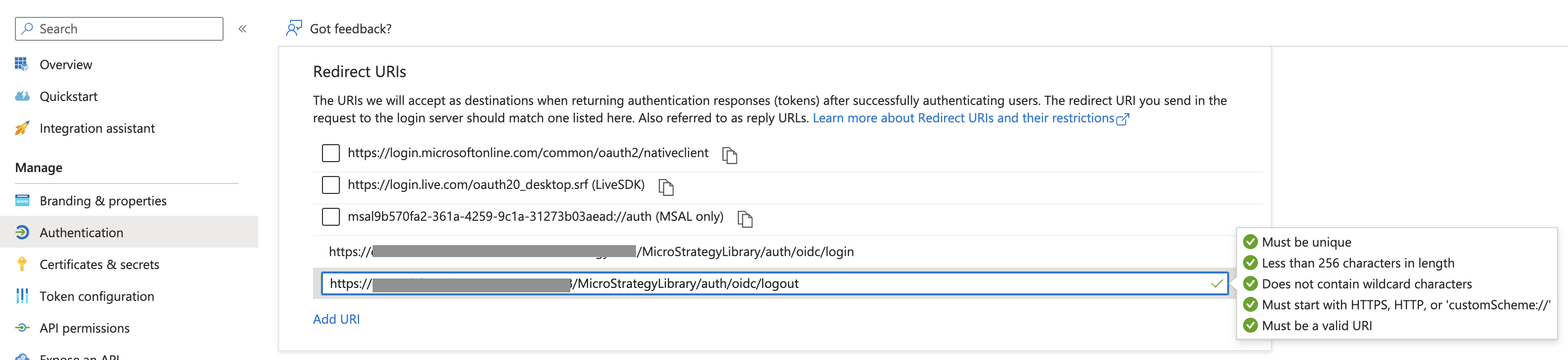
- Save your changes in Workstation and the Okta console.
- Restart the Library server.