
MicroStrategy ONE
Custom Group Structure on Reports
Custom groups give a natural hierarchical structure to their elements. Each custom group element can be viewed as a set of smaller grouping elements, which can be repeatedly broken down until the actual items are reached. For example, in a Ranking custom group, the top-level element is Sales, which can be separated into the bands of Top Cities, Average Cities, and Bottom Cities. Each band can be further divided into elements such as San Diego and Berlin. By default, only the element names are displayed on the report, as shown in the following report sample in MicroStrategy Developer.
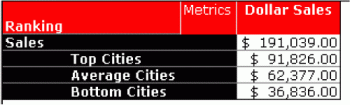
If you change the display option of the custom group element in the Custom Group Editor, this division can be displayed in more detail. For example, the following is the same report with the element names and individual items displayed.
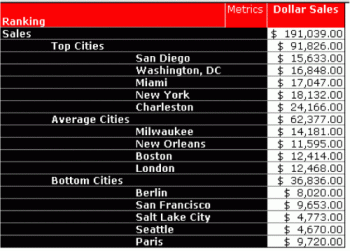
While hierarchical display is similar to drilling on a report, drilling requires additional executions of the report. However, drilling allows you to manipulate a report on the fly.
To view custom groups in a hierarchical structure on a report, you must:
- Expand the item display of at least one custom group element
- Enable hierarchical display for the custom group
- Display the hierarchical view in the report (MicroStrategy Developer only)
These tasks are completed at different levels and in different MicroStrategy interfaces, as described in the following table.
|
Level |
Target |
Interface |
Settings |
|
Element |
Individual custom group element |
Display Options in Custom Group Editor |
Display: Only the element names Only the individual items within this element The element names, individual items, and expand the items if possible The individual items and expand them if possible The last option is available only for banding. |
|
Custom group |
All elements of a custom group |
Options in Custom Group Editor |
Enable hierarchical display Enable subtotals Position of element headers |
|
Report |
All custom groups on a report |
Report Data Options in Report Editor (Developer) |
Display custom groups in hierarchical or flat view In MicroStrategy Web, custom group display is controlled by the setting in the Custom Group Editor. |
|
Report |
Individual custom groups |
Report Data Options in Report Editor (Developer) |
Enable subtotals In MicroStrategy Web, subtotal display is controlled by the setting in the Custom Group Editor. |
|
Project |
All custom groups in a project |
My Preferences in MicroStrategy Developer |
Show advanced qualification in Custom Group Editor Show all prompt buttons in Custom Group Editor Show tip boxes in Custom Group Editor Trim leading spaces |