
Enable OAuth Authentication wuth AWS Databricks Identity Provider
Starting in MicroStrategy ONE Update 11, integrating Strategy with AWS for sign-sign on (SSO) with OAuth authentication is supported.
Prerequisites
You must have the E2 version of the Databricks platform for your Databricks on AWS account.
Add a User in Account Console and Workspace
- Log in as an Administrator to https://accounts.cloud.databricks.com/.
- In the navigation menu, click User management.
- Click Add user.
- Enter the user email address and click Save.
- Log in to the workspace using your Administrator credentials. The URL is similar to
https://<deploymentName>.cloud.databricks.com. - Click your username and select Admin Settings from the drop-down.
- Click Add user.
- Enter the user email address.
- Click Invite, then Give user access.
Set Up SSO for Your Databricks Account Console and Workspace
Configure Account Console
Configure Databricks Workspace
If your account was created after June 21, 2023, unified log in is enabled on your account and no further action for this perquisite is needed.
If your account was created before June 21, 2023, unified log in is not enabled on your account. The single-sign-on (SSO) for your account and for each workspace is managed separately. You must configure SSO to the same identity provider at the account level and on your workspaces. For more information, see https://docs.databricks.com/administration-guide/users-groups/single-sign-on/index.html#workspace-sso-application-examples.
To configure SSO for Entra ID or Okta, see the following links:
- https://docs.databricks.com/administration-guide/users-groups/single-sign-on/azure-ad.html
- https://docs.databricks.com/administration-guide/users-groups/single-sign-on/okta.html
Configure an Application in Databricks Internal Identity Provider
Authenticate to the Account API
- Create a
.netrcfile withmachine,login, andpasswordproperties: - Enter
-nin your curl command to invoke the.netrcfile.
echo machine accounts.cloud.databricks.com login <username> password <password> >> ~/.netrcReplace <username> and <password> with the account administrator's email address and password.
If you have a $ in your password, enter \ before the $.
Enroll Your Databricks Account into OAuth
- Run the following command to invoke the .netrc file enroll your Databricks account:
- Run the following command to verify that yoru Databricks account is enrolled in OAuth:
curl -n -X POST https://accounts.cloud.databricks.com/api/2.0/accounts/<accountId>/oauth2/enrollmentReplace <accountId> with your account ID.
curl -n -X GET https://accounts.cloud.databricks.com/api/2.0/accounts/<accountId>/oauth2/enrollmentReplace <accountId> with your account ID.
Create an Application in Databricks Internal Identity Provider
- Run the following command to create a native application:
-
Open the Workstation window.
- In the Navigation pane, click
 , next to Enterprise Security.
 - Choose an environment.
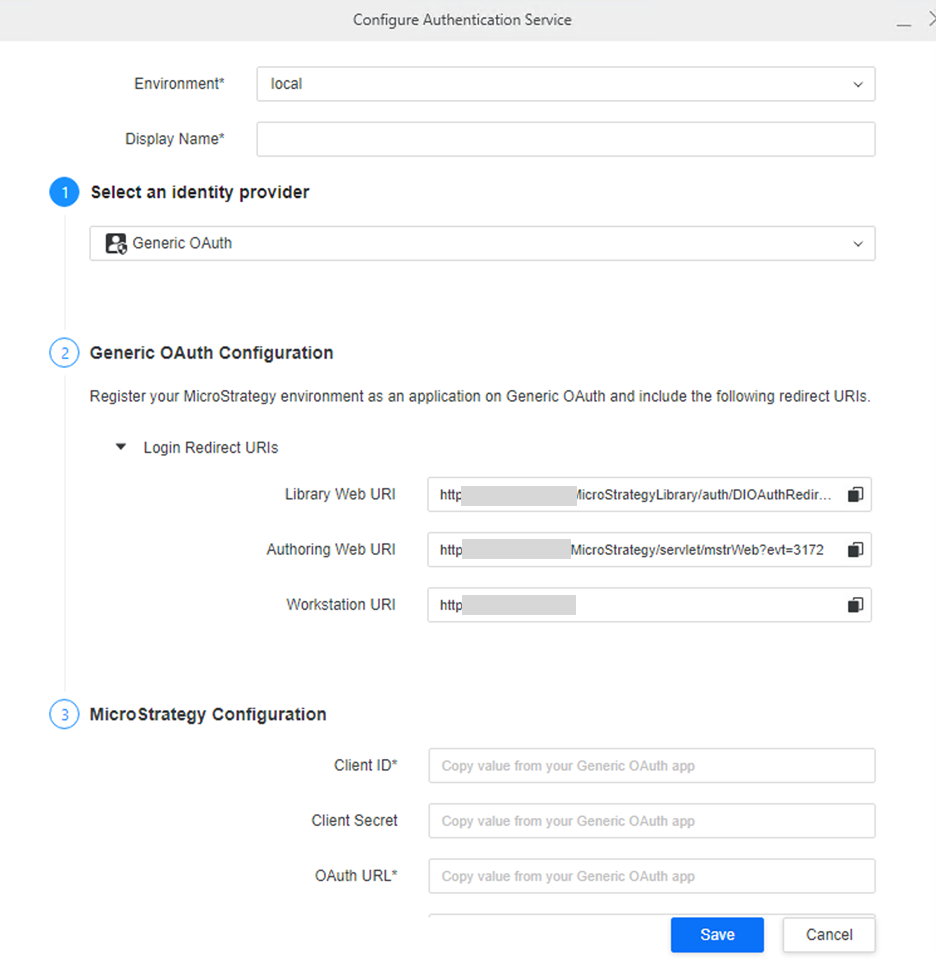
- From the identity provider drop-down, select Generic OAuth.
- Once you run the command, a client ID is generated and an output similar to the following is returned:
-
Note the client ID and client secret as these will be used to configure authentication service.
curl -n -X POST -d '{"redirect_urls": [ "<Workstation URI>", "<Library Web URI>", "<Authoring Web URI>", "<Redirect URI 4>"], "confidential": false, "name": "<CustomNativeAppName>"}' https://accounts.cloud.databricks.com/api/2.0/accounts/<accountId>/oauth2/custom-app-integrationsReplace <CustomNativeAppName> with your application name and <accountId> with your account ID.
Replace the URI names with the URIs that can be found in Strategy Workstation when you configure an authentication service:
{"integration_id":" <Integration ID>","client_id":" <Client ID>","client_secret":""}API for Integration Application
Use the following links and commands to list, delete, and update your application:
-
To list your applications, see
https://accounts.cloud.databricks.com/api/2.0/accounts/<accountId>/oauth2/custom-app-integrations. Replace<acountId>with your ID. -
To delete an application, run the following command:
-
To update an application, run the following command:
-
Open the Workstation window.
- In the Navigation pane, click , next to Enterprise Security.
- Choose an environment.
- From the identity provider drop-down, select Generic OAuth.
curl -n -X DELETE https://accounts.cloud.databricks.com/api/2.0/accounts/<Account ID>/oauth2/custom-app-integrations/<Integration ID>Replace <Account ID> and <Integration ID> with your account and integrations IDs.
curl -n -X PATCH -d '{ "redirect_urls" : "<Redirect_URL1>", "<Redirect_URL1>", "<Redirect_URL13>"], "confidential" : false, "name" : "<app-name>" }' https://accounts.cloud.databricks.com/api/2.0/accounts/<accountId>/oauth2/custom-app-integrations/<application-integration-id>Replace <app-name> with your application name and <accountId> and <application-integration-id> with your account and application integration IDs.
Replace the URL names with the URIs that can be found in Strategy Workstation when you configure an authentication service:
For more information, see https://docs.databricks.com/api/account/customappintegration.
Strategy Configuration
Create an Enterprise Security Object
-
In the Workstation Navigation pane, click
 , next to Enterprise Security.
 -
Expand the Environment drop-down list and choose your environment.
-
Expand the Type drop-down list and choose Gateway Authorization.
-
Type a Display Name.
-
Expand the 1. Select an identity provider drop-down list and choose Generic OAuth.
-
In 3. Strategy Configuration, add the following values:
-
Client ID: Copy the client ID generated in Create an Application in Databricks Internal Identity Provider.
-
Client Secret: If you created an application with the command
"confidential":false, leave this field blank. If you created an application with the command"confidential":true, copy the client secret generated in Create an Application in Databricks Internal Identity Provider. -
OAuth URL: Copy
authorization_endpointfromhttps://<accountId>.cloud.databricks.com/oidc/.well-known/openid-configuration, replacing<accountId>with your account. -
Token URL: Copy
token_endpointfromhttps://<accountId>.cloud.databricks.com/oidc/.well-known/openid-configuration, replacing<accountId>with your account. -
Scope: To add permission to SQL, add
sqlin the scope. For example,offline_access sql. To includeopenid, addprofileoremailwithopenid. -
Additional OAuth Parameters: Leave this field blank.
-
-
Click Save.
Create a Databricks Source with OAuth
-
In the Workstation Navigation pane, click
, next to Data Sources. -
Choose Databricks.
-
Type a Name.
-
Expand the Default Database Connection drop-down list and click Add New Database Connection.
-
Type a Name.
-
Expand the Authentication Mode drop-down list and choose OAuth.
-
In Databricks, login to your Databricks workspace.
-
Select your cluster.
-
Expand Advanced Options.
-
Click the JDBC/ODBC tab and view the JDBC URL that includes your Host Name, Port, Http Path, and Database in the following format:
Copyjdbc:databricks://<hostName>:<port>/<database>;transportMode=http;ssl=1;httpPath=<httpPath>;AuthMech=3;UID=token;PWD=<personal-access-token> -
Copy the Host Name, Port Number, Http Path, and Database from the JDBC URL and paste them in the Workstation Create New Database Connection dialog.
-
Expand the Authentication Service drop-down list and choose the enterprise security object you created above.
-
Click Save.
-
Choose the Projects for the data source and click Save.