
Strategy One
Enable Prompt Auto Text to Use Absolute Prompt Position
Strategy One (May 2026) introduces a feature-flagged enhancement to the auto text {&PromptN&}. You can map PromptN to the absolute position of prompts defined in a dashboard, ensuring stable references even when some prompts are hidden for specific users. By default, the product uses relative order (current behavior). Enabling the feature flag switches auto text resolution to absolute order.
Relative indexing can yield different PromptN values for different users due to access-based prompt hiding. Absolute indexing guarantees consistent targeting across users, exports, Library, and Mobile.
Use {&PromptN&} in:
-
Exporting custom file names
-
Library execution (JSON)
-
Auto text on Mobile
The {&PROMPTDETAILS&} auto text code is unchanged, so it continues to use the relative behavior.
Enabling the auto text to use absolute position does not change how prompts display. The Prompt Answer dialog box maintains relative ordering.
Examples
In this scenario, a dashboard contains four prompts. The prompt answers display in a text field using a mix of static and dynamic text, as shown below.
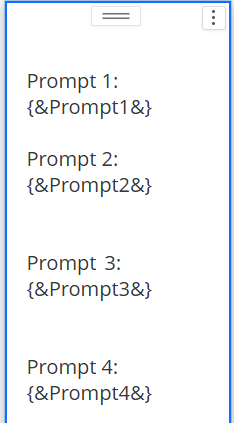
User 1 sees all four prompts. For User 2, the first prompt does not display.
If the dashboard uses:
-
Relative order (default): Prompt indices are reassigned at runtime based on what a user can see.
{&Prompt1&}resolves to the first visible prompt for that user.-
User 1 sees and answers all four prompts; their answers display in the text field.
-
User 2 sees and answers three prompts; Prompt 1 does not display for them. Their answer to Prompt 2 displays as Prompt 1's answer, their answer to Prompt 3 displays as Prompt 2's answer, their answer to Prompt 4 displays as Prompt 3's answer, and Prompt 4 is blank.
-
-
Absolute order (with the flag enabled):
{&PromptN&}always targets the Nth prompt defined in the dashboard, regardless of visibility. If the user cannot access that prompt, the auto text resolves to an empty string.-
User 1 sees and answers all four prompts; their answers display in the text field.
-
User 2 sees and answers three prompts; Prompt 1 does not display for them. The text field displays a blank as the answer to Prompt 1, their answer to Prompt 2 displays as Prompt 2's answer, their answer to Prompt 3 displays as Prompt 3's answer, and their answer to Prompt 4 displays as Prompt 4's answer.
-
When the dashboard is exported, the custom file name contains the {&Prompt2&} auto text. If the dashboard uses:
-
Relative order (default)
-
The file that User 1 exports is named with Prompt 2's answer.
-
The file that User 2 exports is named with Prompt 3's answer.
-
-
Absolute order (with the flag enabled)
-
The export file for both users is named with Prompt 2's answer.
-
Feature Flag Object
The new metadata feature flag is Stable PromptN Macro (tag=BI/StablePromptNMacro).
-
The flag's status values:
-
1 = Enable
-
2 = Disable
-
-
Scope: Metadata (MD) feature flag, cluster-aware via configuration replication
You can toggle the flag at runtime without needing to restart Intelligence Server. Purge dashboard caches after enabling or disabling the feature flag.
{
  "id": "06FCF26EC3594008B5C65FCA82029087",
  "tag": "BI/StablePromptNMacro",
  "name": "Stable PromptN Macro",
  "description": "Enable stable PromptN macro to avoid confusion and incorrect values when prompt positions change due to security-based hiding of prompts",
  "disclaim": "",
  "enabled": true,
  "internal": true,
  "status": 1,
  "defaultEnabled": false,
  "helpURL": "",
  "feedbackURL": ""
}
Best Practice: Document for other dashboard editors that interface display indices remain relative, while auto-text resolution can be absolute when the flag is enabled..
Enable or Disable the Feature Flag
Toggle the flag using Strategy Library REST APIs.
Prerequisites:
-
Access to Library API docs with
?visibility=all -
Create Configuration Objects privilege
-
Network access to the target Library server
-
Open the API docs:
http://HOST:PORT/MicroStrategyLibrary/api-docs/index.html?visibility=all. -
Authenticate via
POST /api/auth/login; capture x-MSTR-AuthToken. -
List flags via
GET /api/v2/configurations/featureFlags. Confirm id06FCF26EC3594008B5C65FCA82029087. -
Toggle status via
PUT /api/configurations/featureFlags/{id}with{"status":1}or{"status":2}.
Examples
POST /api/auth/login
Headers:
  Content-Type: application/json
Body:
{ "username":"YOUR_USERNAME", "password":"YOUR_PASSWORD", "loginMode":1 }
GET /api/v2/configurations/featureFlags
Headers:
  x-MSTR-AuthToken: <token>
PUT /api/configurations/featureFlags/06FCF26EC3594008B5C65FCA82029087
Headers:
  Content-Type: application/json
  x-MSTR-AuthToken: <token>
Body (enable):
{ "status": 1 }
PUT /api/configurations/featureFlags/06FCF26EC3594008B5C65FCA82029087
Headers:
  Content-Type: application/json
  x-MSTR-AuthToken: <token>
Body (disable):
{ "status": 2 }
After toggling, purge dashboard caches. In clustered environments, ensure all nodes receive the update per your configuration replication strategy.
Best Practices
-
Enable the flag where consistent, audit-friendly
PromptNmapping is required, such as dashboards, automated exports, and role-diverse audiences. -
Always purge dashboard caches after toggling.
-
Educate authors on the difference between interface indices (relative) and auto-text resolution (absolute) to avoid confusion.
-
Validate dashboard text, export headers/footers, and filenames with representative roles before promoting to production.
-
For automation or SDK scripts that rely on
PromptNindices, regression-test after enabling.
Troubleshooting
The solutions for various errors are listed below:
-
401 Unauthorized error code: Re-authenticate via
POST /api/auth/login. Ensure requests include a validx-MSTR-AuthToken. -
403 Insufficient privileges error code: The acting user must have the Create Configuration Objects privilege.
-
Flag is not visible: Append
?visibility=allto API docs URL and query the correct environment, filtering bytag=BI/StablePromptNMacro. -
The behavior is unchanged after enabling the flag: Clear client/browser caches, sign out and in, re-open dashboards, and purge server-side dashboard result caches.