
Strategy ONE
The parts of a table
A transaction cell is the basic component of a transaction table. A transaction cell contains an input object control, which are the objects that allow analysts to edit the data displayed in a document. For example, users can type text in a text field, turn a switch on and off to specify a numeric value, select a value from a list, and so on.
An example of a transaction table in Design Mode is show below:
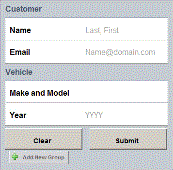
A transaction cell displays a title and a placeholder, as described below:
-
Cell title: The title or description of the cell. An input object control cell displays the value entered by the user. In the example above, Name, Email, and Year are cell titles.
-
Cell placeholder text: A hint for the user about the format for an input object control. In the example above, "Last, First" and "Name@domain.com" are placeholders. A placeholder is optional. In the example, "Make and Model" does not have a placeholder.
If an input object control is required, the placeholder text displays "Required" automatically for the user on a mobile device. If the placeholder is not empty, the text "(Required)" is added to the placeholder text. When you configure the transactions, you select whether the control is required.
A transaction table contains at least one group. Groups collect related cells together under a descriptive title. The example above contains two groups, Customer and Vehicle, which separate and give context to the cells that require customer information and cells that require vehicle information.
You can create a group that is displayed to the document designer but hidden from users. For example, you may create a cell that contains a macro to gather the mobile device's ID. Since no input is required from the user, only the mobile device, you may want to hide the group. To hide a group, name the group hidden.
A transaction table also displays a Clear button and a Submit button, or Cancel and Submit if the transaction table is used as an Information Window.
-
The Submit button submits the data in the transaction table. If the transaction table is displayed as an Information Window, the Information Window is also closed.
-
The Clear button erases all the information added to the transaction table, allowing the user to start again.
-
The Cancel button closes the Information Window without submitting the data in the transaction table.
You can customize the button names, but they are referred to as Clear and Submit throughout this chapter. By default, changes are cleared or submitted automatically, as soon as the button is tapped. You can require that a confirmation message is displayed after the Clear or Submit button is tapped.