Strategy ONE
Viewing and navigating data in a document
Documents are used to present data from multiple reports in a presentation-quality format. They can contain a variety of graphics and text, depending upon their design.
The following actions can be used to view and navigate data in a document. Some of these actions may be disabled by the designer. For more information about designing documents for use on the iPhone, see the Strategy Mobile Administration Help.
-
Switch between portrait and landscape orientations by rotating the device.
-
Zoom in or out on a document by performing a pinch on the center of the screen or double-tapping the center of the screen.
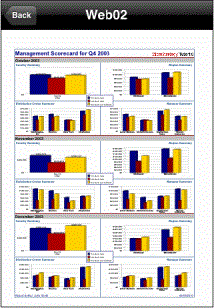
The following example shows a basic document displayed on an iPhone.
Switching between panels in a document: panel stacks
A document may contain panels that you can switch between, similar to slides in a slideshow.
You may be able to switch between panels by tapping a button or link, or by swiping left or right.
Some panels contain a gray bar at the bottom with a row of circles, as shown below. Each circle represents a panel and the currently displayed panel is marked with a dark circle.
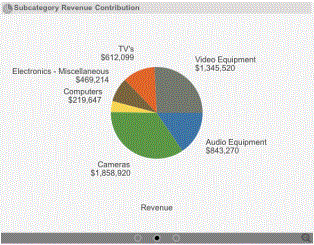
To switch between panels, swipe left or right.
Viewing and navigating tabs in a document
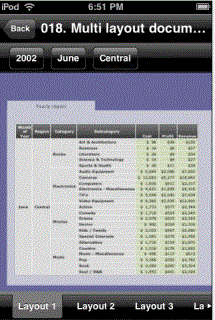
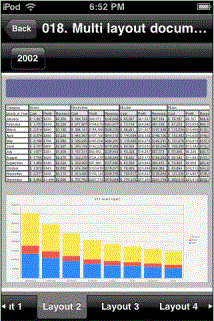
A document may contain multiple tabs across the bottom of the document, called layouts. To view a layout, tap the tab with the layout's name.
Each layout functions as a separate document and can have its own grouping of data, formatting, and so on. The following examples show two different layouts from the same document.
The following examples show two different layouts from the same multi-layout document.