
Bulk Export Report
Starting in Strategy (October 2026) you can create a bulk export report in Library.
Starting in Strategy (September 2026) you can subscribe to a bulk export report in Library.
The bulk export feature allows you to select a report and export it to a delimited text file. Using this feature, you can retrieve data from large result sets without having to load the result sets in memory. As the data is brought back incrementally, no limit is set on the size of the result set to be retrieved.
Unlike a standard report, a bulk export report cannot be directly executed in Library. To retrieve data you need to create a subscription for your bulk export report.
Create a Bulk Export Report
Prerequisites
-
To be able to create a bulk export report you must have the Use Bulk Export Editor privilege.
-
The report needs to be non-interactive:
-
View filter must be cleared.
-
All objects must be on the template.
-
Derived metrics must be removed.
-
All attribute forms must be set to default.
-
Create a Bulk Export Report
-
In Strategy Library click New and select Report.
-
Define the report by adding attributes, metrics and filters as required.
-
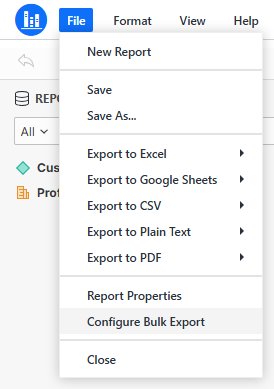
In the Report Editor select File and choose Configure Bulk Export.
-
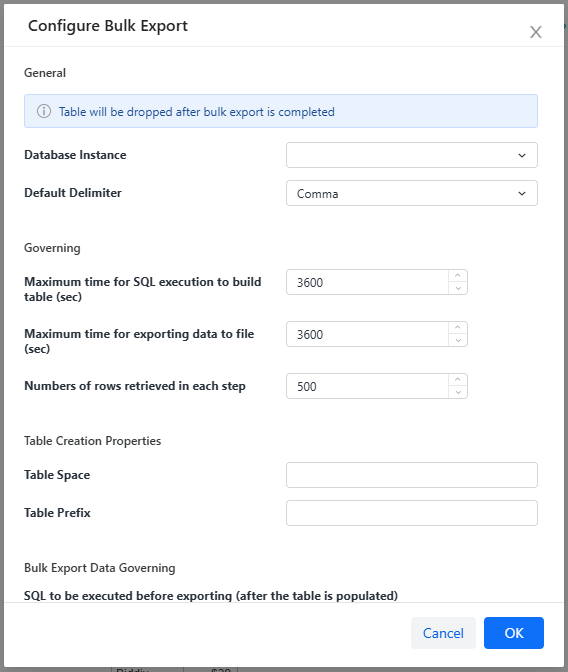
Specify detailed configuration in the Configure Bulk Export dialog box.
General
-
Specify the Database Instance for your report. By default, the bulk export database instance, which is the database containing the report data, is defined as the data warehouse for the project. You can specify another database instance in this field.
-
Select the Default Delimiter for the exported text file, which is the character that separates the data in the text file. If the character that you want is not available, select Other, then type the character.
Governing
-
Type the Maximum time for SQL execution to build table, in seconds. If this time limit is reached before the table is built, the export is canceled with a timeout error.
-
Type the Maximum time for exporting data to file, in seconds. If this time limit is reached before the file is completely written, the export is canceled with a timeout error.
-
Type the Number of rows retrieved in each step, which is the number of database rows that the bulk export retrieves at a time.
Table Creation
-
Type the Table Space, which is the database table space in which the temporary table for the bulk export is created.
-
Type the Table Prefix, which is the table prefix for the bulk export temporary table.
Bulk Export Data Governing
-
In SQL to be executed before exporting box, specify the SQL statements to be executed after the table is populated, but before the data is exported to a file. For instance, if you need to format the warehouse data in a particular way, you can run a SQL script to do so.
-
Click OK.
-
Save the report.
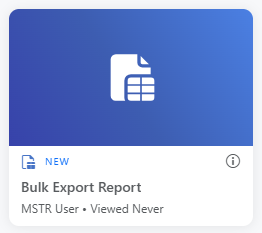
After you save the report as a bulk export report, its icon in Library changes as shown here:
If your report does not meet the criteria of a non-interactive report, you will see a pop-up information window with the option to automatically adjust the report.
Remove bulk export report definition
To be able to execute the report in Library, convert it back to a standard report, as described below. You then can no longer export it as a bulk report.
-
In report Editor click File and select Remove Bulk Export Definition.
-
Click OK in the displayed confirmation box.
-
Bulk export definition is removed.
Subscribe to a Bulk Export Report
Prerequisites
-
If you are using version prior to Strategy (October 2026), a bulk export report must be created in advance in Strategy Developer.
-
To be able to subscribe to a bulk export report you must have the Web subscribe to bulk export privilege.
Subscribe to a Bulk Export Report
-
Navigate to your bulk export report.
-
Click
 Info or right-click the report and select Get Info.
 -
In the Info page select
 Manage Subscriptions .
 -
Select New Subscription.
-
Subscription Editor opens.
-
Type a Subscription Name.
-
The Type drop-down is inactive as bulk export report subscriptions are only available in the File format.
-
In Content, define:
-
Data Delimiter - Specify the character used to separate data in each cell.
-
File Name - By default, the file name is the same as the report name. You can customize the name by combining plain text with predefined, dynamic placeholders. Type
{and choose from the following drop-down list:-
Date: {&Date}
-
Time: {&Time}
-
Recipient Name: {&RecipientName}
-
Project: {&Project}
-
User Login: {&UserLogin}
-
Subscription: {&Subscription}
-
Prompt N: {&Prompt#&}
-
Content Name: {&ContentName}
-
Content Details: {&ContentDetails}
-
Attribute: {[Attribute Name]@[Attribute Form]}
-
Metric: {MetricName}
-
-
File Name Delimiter - You can replace the blank spaces in the file name with a predetermined character.
-
-
In Location, choose from the following:
-
Users
-
Sub-folder
-
-
If you choose Users:
-
In Users, type the users that have a default delivery address for File subscription.
-
Optionally select the check box next to Send notification to user's address and/or Send preview now to all recipients.
-
-
If you choose Sub-folder:
-
Expand the Subscription Device drop-down list and choose the device you want to send the subscription to.
-
In Sub-folder, type the sub-folder you want to send the subscription to.
Dynamic text is supported in the Sub-folder field.
-
Optionally select the check box next to Send preview now to all recipients.
-
-
In Delivery, expand the Schedule drop-down list and choose how often to send the subscription.
-
To compress the file or set an end date for the subscription, click the Advanced Settings icon
 in the top right corner of the Subscription Editor.
 -
To compress the file, select the Compress Into Zip File check box. You can edit the zipped file name. If you want, you can Password Protect Zip File by adding a password.
-
To set an end date for the subscription, select the Do Not Deliver After check box. Enter the end date and select a Time Zone.
-
Click Subscribe. The new subscription is created.
Related topics: Manage Subscription Delivery Devices