
Create a Legend Selector
Starting in Strategy One (May 2026), you can create a legend for visualizations; this legend also works as a filter.
In the example below, the Filter Revenue Visualizations selector targets the Revenue by Product Category heat map and the Revenue by Type bar chart. Both visualizations are colored by the Category attribute. Three of the four categories are selected, so only those categories display in the visualizations. The selector also provides a helpful summary of the attributes in the visualizations and a quick way to identify the category colors.
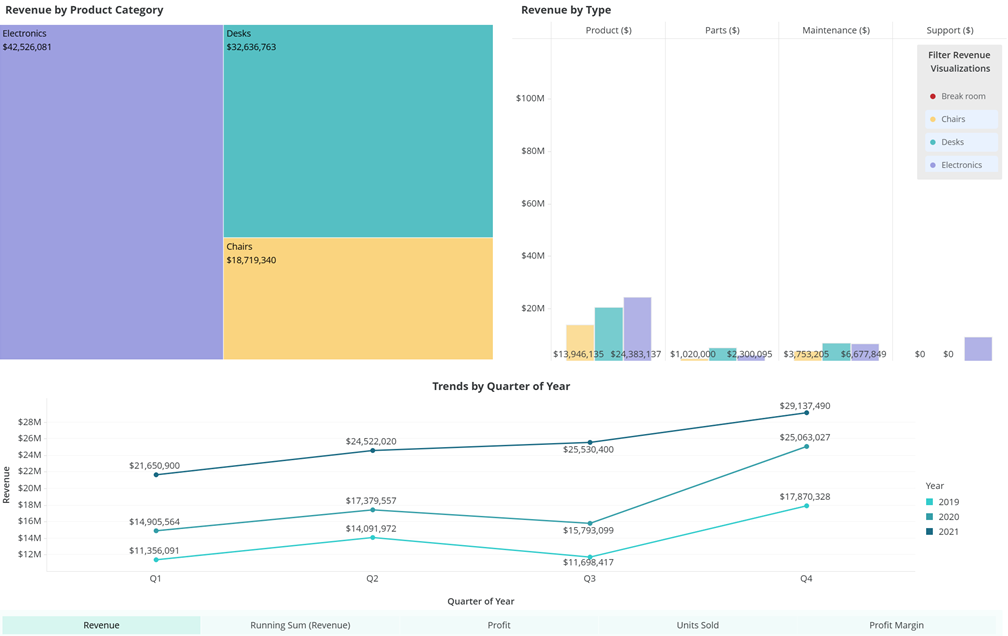
You can also create a legend selector that targets the line chart. You cannot have a single legend selector that targets all three of the visualizations on the page, because the line chart is colored by year, not category. All target visualizations in the legend selector must be colored by the same attribute.
You can freely position the legend anywhere on the page to maximize your screen space. Using the legend as a selector eliminates the need for redundant, space-consuming legends and filters. If the page uses free-form layout, the legend is a floating object, like any other object, that you can reposition and layer.
A legend selector acts as a display-level selection for the targets; it does not recalculate the underlying data.
Create a Legend Selector
-
Open the dashboard you want to modify.
- Select the chapter that contains the visualization to filter.
- In the top toolbar, click Filter and choose Legend Selector. An empty selector displays in the dashboard.
- In the selector, click Select Target.
- Only visualizations colored by an attribute are available as targets. Click at least one visualization on the same page to target. You can select multiple visualizations as targets but they must be colored by the same attribute.
- Click Apply.
- Reposition and resize the selector as needed.
-
You can format the font, choose the shape displayed next to the attribute elements, modify the color of the selected objects, and determine whether the selections filter or highlight the targets. For steps, see Format Panel for Legend Selectors.
- Save the dashboard.