
Display Selector Values in a Text Field
Starting in Strategy One (May 2026), you can display the currently applied selector values in a text field using autotext. Use this functionality to display the applied filter selections to your users without requiring users to open the selector.
-
Create a Visualization Filter or Create Dashboard and Chapter Filters.
-
Click More Options
 in top right of the filter.
 -
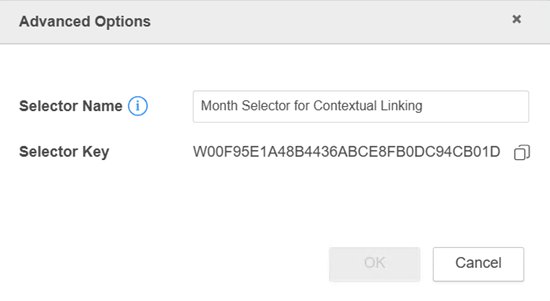
Click Advanced Options.
-
Next to Selector Key click Copy
 .
.
-
Click Cancel.
-
Enter the following text, replacing
[Selector_Key]with the Selector Key value you copied above:Copy{&CURRENTSELECTION:[Selector_Key]&}For example, if your selector key is
W00F95E1A48B4436ABCE8FB0DC94CB01D, you should enter the following:Copy{&CURRENTSELECTION:W00F95E1A48B4436ABCE8FB0DC94CB01D&}The currently selected options display.
-
Click Save.
Examples
The following examples use a calendar month selector.
Basic multi-select
If your selector has April and May selected, the autotext output will be the following:
April, MayExclude Mode
If your selector only excludes April and May, the autotext output will be the following:
(Exclude)April, MayDynamic Selector
If you selector is configured to a Dynamic Selection with the First N Elements, the autotext output will be the following:
January