
Add User Comments
Starting Strategy (August 2026) users can enter Change Journal comments when creating new objects or when saving changes to existing objects edited in Library.
Prerequisites
The Library application must be configured to allow users to enter comments. To configure this option, see Create an Application.
Add User Comments When Creating New Objects
-
In Library, create a new object, such as a dashboard, a document, an agent, a report, and so on.
-
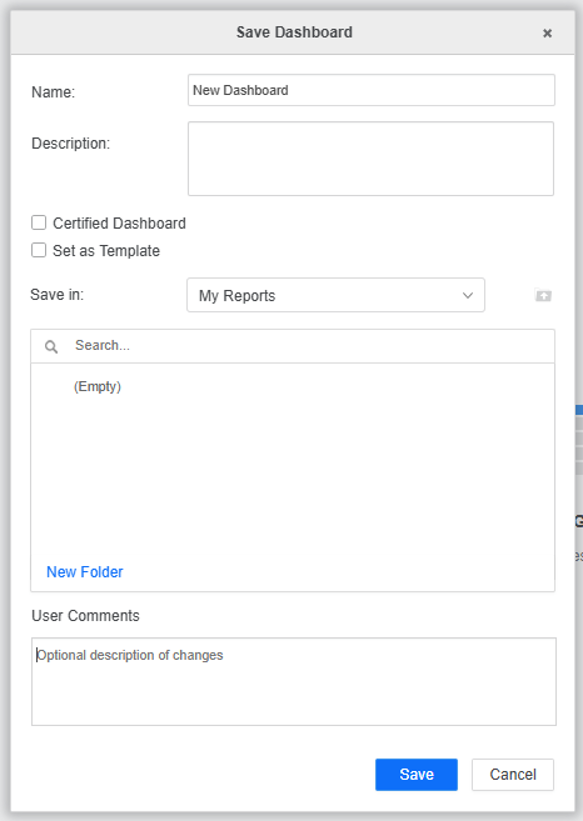
Click the Save button. A save dialog box displays:
-
Insert the comment in the User Comments box and click Save.
The comment is now saved in the Change Journal of the object created.
Add User Comments When Editing Existing Objects
-
Edit an existing object in Library.
-
Make the desired changes.
-
Click the Save button.
Before the changes are saved, the User Comments dialog box displays.
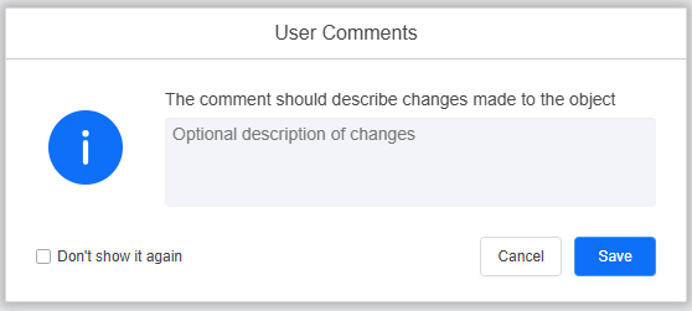
To prevent the User Comment dialog box from being displayed again, select the Don’t show it again check box. To enable the dialog box again, clear your browser's cache.
-
Insert the comment here and click the Save button.
The comment is now saved in the Change Journal of the edited object.
Mandatory User Comments
It is possible for the Administrator to make the comments mandatory for the users. In this case:
-
The User Comments dialog box does not display the Don’t show it again check box.
-
The Save button is inactive until a comment is entered.
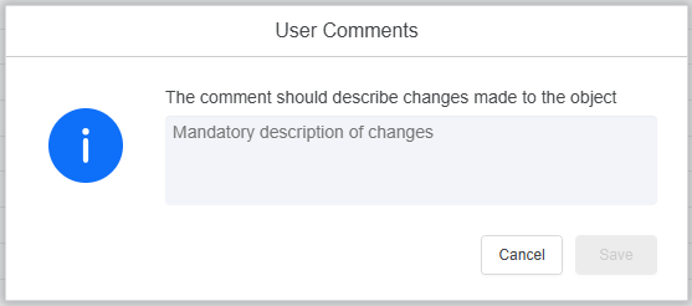
Mandatory User Comments is an environment-level setting. To edit this option, see Edit All Server-Level Settings.