
Rename an Object
You can rename attributes and metrics in a dashboard at different levels, depending on your needs.
Renaming an object in a dataset updates its name in all dashboards that use that dataset.
Renaming an object in a dashboard updates its name in all visualizations within that dashboard.
Renaming an object in a visualization updates its name only in that specific visualization.
Starting in Strategy (August 2026), you can rename attributes and metrics using the new Object Alias Editor in Library. This editor lets you edit object names and provides an overview of all aliases defined so far.
Rename an Object in a Dataset
-
Go to a report.
-
Click
 Edit to switch to authoring mode.
 -
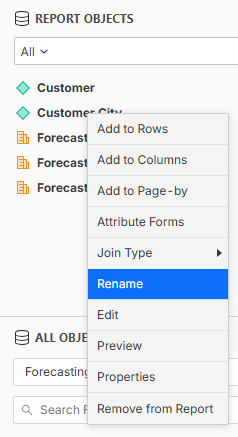
In the Report Objects panel, right-click the object to rename and select Rename.
-
Type a new name for the object and press the Enter key.
Rename an object in the Object Alias Editor
-
Go to a report.
-
Click
Edit to switch to authoring mode. -
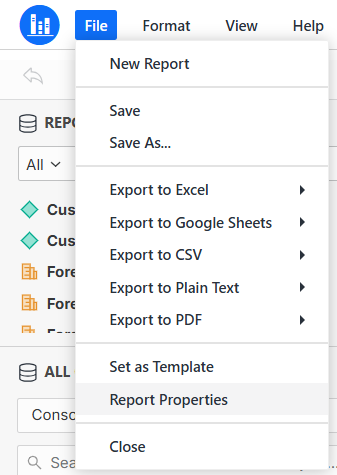
From the menu in the upper-left corner, select File, then click Report Properties.
-
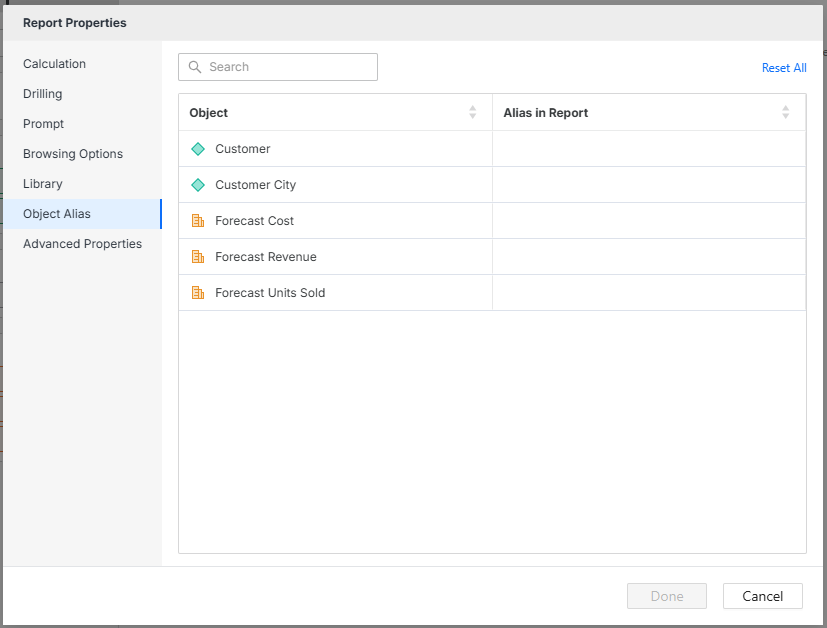
In Report Properties, select the Object Alias tab.
-
In the Alias in Report column, you can view the objects previously renamed.
To restore original names of all objects, click the Reset All button in the upper-right corner of the editor.
-
Type new names for the objects you want to rename.
-
Click Done. Object Alias Editor closes and the new names are applied to objects in the report.
Rename an Object in a Dashboard
-
Go to a dashboard.
-
Click
Edit to switch to authoring mode. -
In the Datasets panel, right-click the object to rename and select Rename.
-
Type a new name for the object and press the Enter key.
Rename an object in the Object Alias Editor
-
Go to a dashboard.
-
Click
Edit to switch to authoring mode. -
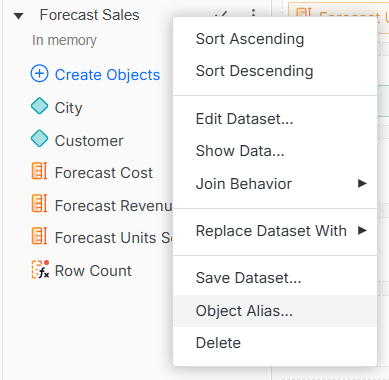
Right-click a dataset. From the menu that is displayed, select Object Alias.
-
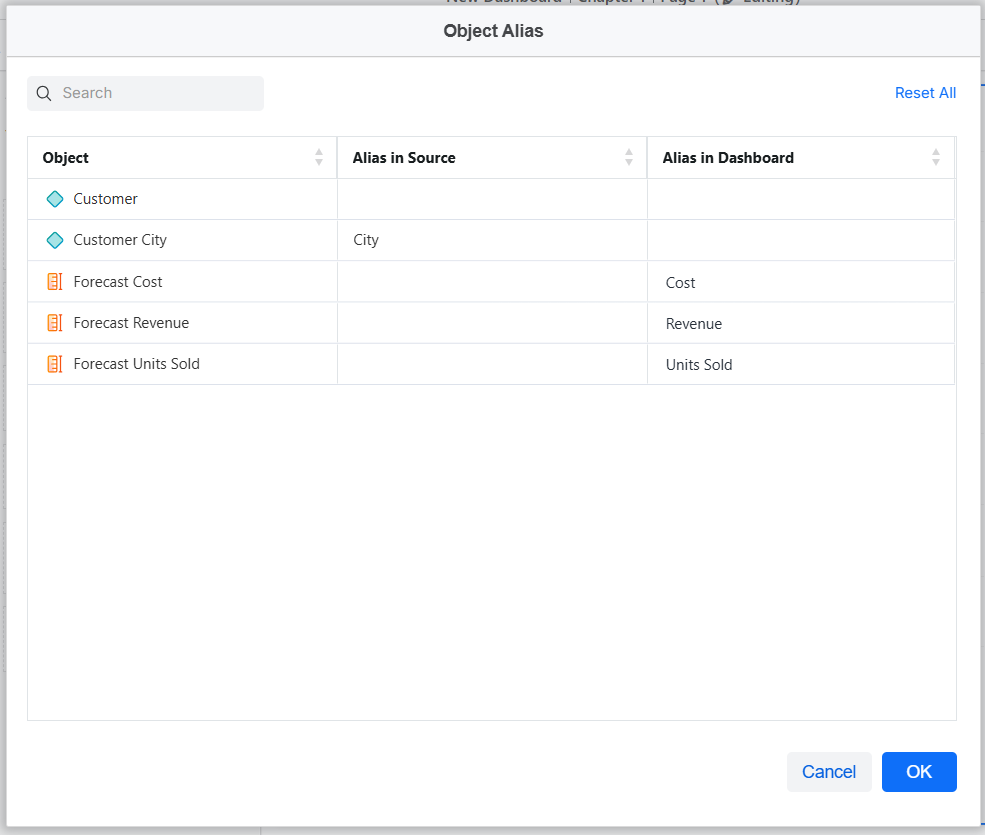
Object Alias Editor opens.
-
In the Object column, you can view the object's original name.
In the Alias in Source column, you can view the alias created at the dataset level. This field is not editable.
In the Alias in Dashboard column, you can view and edit the alias of the object.
To restore original names of all objects click Reset All button in the upper-right corner of the editor.
-
Type new names for the objects you want to rename.
-
Click Done. Object Alias Editor closes and the new names are applied to objects in the dashboard.
Rename an Object in a Visualization
-
Go to a dashboard.
-
Click
Edit to switch to authoring mode. - Select the visualization that contains the objects you want to rename.
- In the Editor panel, right-click the object to rename and choose Rename.
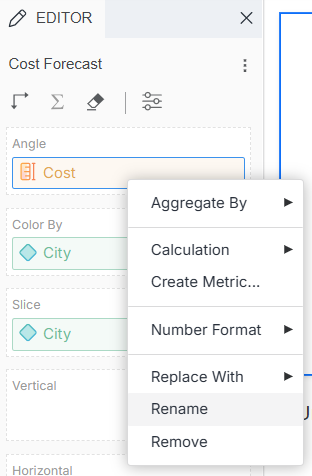
- Type a new name for the object and press the Enter key.
You can hover over a renamed object in the Editor panel to view its original name in the dataset.