
Configure the Default Report Export Settings
Starting in Strategy (September 2026), you can configure the default settings for exporting to plain text.
Starting in Strategy One (April 2026), you can configure the default settings for exporting to Google Sheets.
- Open the Workstation window.
-
In the Navigation pane, click Applications.
-
Create or edit an application.
-
In the left pane, click Export Settings.
-
To configure the Excel export settings:
-
Select the Configure Export to Excel Settings.
-
Select whether to Expand All Page-By Fields.
-
If page-by fields are expanded, use the drop-down list to select to export each Page-By on a Separate Worksheet or All Page-By on One Worksheet.
-
Select whether to Export Page-By Information. This lists the page-by element above the report grid for that page.
-
Expand More Settings.
-
Select whether to Export the Report Title.
-
Select whether to Export Filter Details.
-
Select whether to Customize the Header and Footer.
-
To customize the header, type text into the Header box. As you type text in a box, type a curly bracket { to display dynamic text in the suggestions list, then select the text to include. From the drop-down list, select where to display the header:
-
Display Before Standard Headers (The standard headers include the report title, filter details, and page-by information.)
-
Display After Standard Headers
-
Replace Other Headers
-
-
To customize the footer, type text into the Footer box. As you type, type a curly bracket { to display dynamic text in the suggestions list, then select the text to include.
To view a list of dynamic text, click the information icon
 next to Customize the Header and Footer.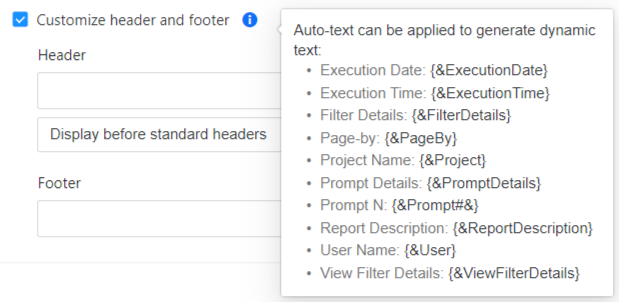
-
-
Starting in Strategy One (April 2026), to configure the Google Sheets export settings:
-
Select the Configure Default Settings for Google Sheets Exports check box.
-
Select whether to Expand All Page-By Fields.
-
If page-by fields are expanded, use the drop-down list to select to export each Page-By on a Separate Worksheet or All Page-By on One Worksheet.
-
-
Select whether to Export Page-By Information. This lists the page-by element above the report grid for that page.
-
Expand More Settings.
-
Select whether to Export the Report Title.
-
Select whether to Export Filter Details.
-
Select whether to Customize the Header and Footer.
-
To customize the header, type text into the Header box. As you type text in a box, type a curly bracket { to display dynamic text in the suggestions list, then select the text to include. From the drop-down list, select where to display the header:
-
Display Before Standard Headers (The standard headers include the report title, filter details, and page-by information.)
-
Display After Standard Headers
-
Replace Other Headers
-
-
To customize the footer, type text into the Footer box. As you type, type a curly bracket { to display dynamic text in the suggestions list, then select the text to include.
To view a list of dynamic text, click the information icon
next to Customize the Header and Footer.
-
-
To configure the CSV export settings:
-
Select the Configure default settings for CSV exports check box.
-
Select whether to Expand all Page-By fields.
-
Select or clear the Export Page-By Information check box to include or exclude details about the Page-By value in the file.
-
From the Delimiter drop-down list, choose the character that separates the individual data fields within a row:
-
Comma (,)
-
Space
-
Tab
-
Semicolon (;)
-
Colon (:)
-
Tilde (~)
-
-
If the delimiter you need is not listed, select Other in the Delimiter drop-down list and type the character in the box.
-
Under More Settings:
-
Choose whether to Remove Extra Column.
This is the extra "Metrics" header which displays on the exported report. It is removed by default.
-
-
-
To configure the PDF export settings:
-
Select the Configure Export to PDF Settings.
-
Select whether to Expand All Page-By Fields.
-
-
Starting in Strategy (September 2026), to configure the Plain Text export settings:
-
Select the Configure default settings for Plain Text exports check box.
-
Select whether to Expand all Page-By fields.
-
Select or clear the Export Page-By Information check box to include or exclude details about the Page-By value in the file.
-
From the Delimiter drop-down list, choose the character that separates the individual data fields within a row:
-
Comma (,)
-
Space
-
Tab
-
Semicolon (;)
-
Colon (:)
-
Tilde (~)
-
-
If the delimiter you need is not listed, select Other in the Delimiter drop-down list and type the character in the box.
-
Under More Settings:
-
Choose whether to Remove Extra Column.
This is the extra "Metrics" header which displays on the exported report. It is removed by default.
-
-
-
Continue to another element or, if you have completed customizing your application, click Save.