Add a Report Limit
Report limits are filtering criteria that limit the final result set that is returned to the client. The main difference between report limits and metric qualifications is that metric qualifications can change the actual calculations and report limits do not. If you are familiar with SQL, a good analogy in terms of SQL Generation is to think of a metric qualification as a WHERE clause and a report limit as a HAVING clause; the WHERE clause has a direct impact in the result set and the calculations of the query whereas the HAVING clause has the effect of only limiting the final result set.
Add a Report Limit to a Report
-
Open the report to filter. On any page in Library, search for or navigate to the report. Right-click the report and select Edit.
The report displays with data retrieval paused.
-
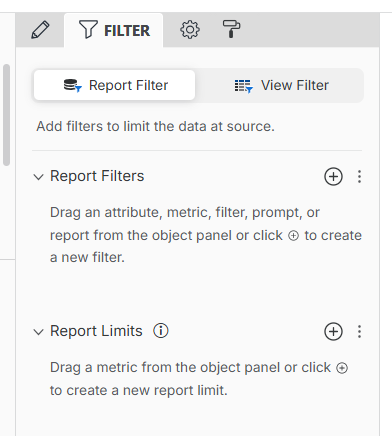
Click Filter
 to display the Filter panel.
-
In the In the Objects panel, search for or navigate to the metric you want to use for qualification. Drag the object to the Filter panel and drop it under Report Limits.
-
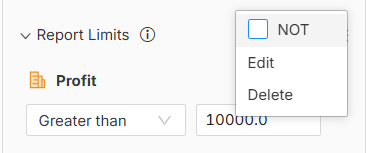
You can add NOT to the filter so that the report returns everything that doesn't match the filter condition. To do this, expand the drop-down menu next to report limit definition and select the NOT check box.
-
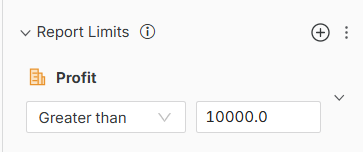
You can modify report limit directly in the Filter panel by choosing operator (for example Greater than or Less than) and typing a specific value to compare the metric to.
-
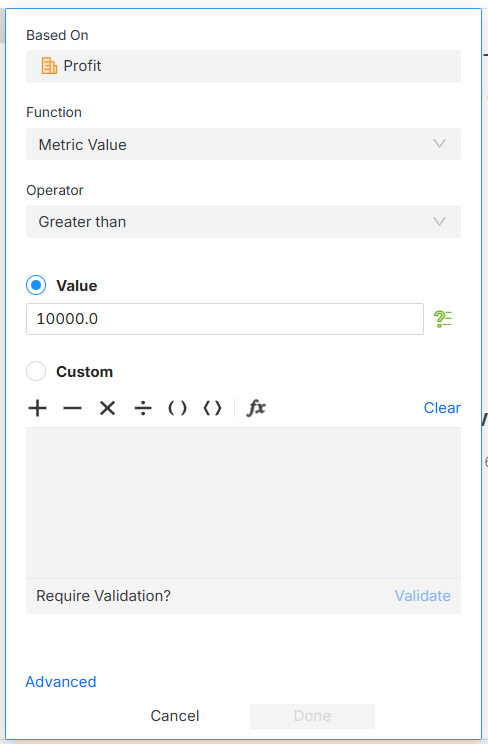
If you need more complex filtering criteria, click on the metric name to open the report limit editor.
-
In the Based On box, select the metric to base the qualification on.
-
In the Function drop-down, choose from Metric Value, Rank and Percent.
-
In the Operator drop-down, choose metric value operators such as Greater than or Less than, or Rank and Percentage operators like Top or Bottom.
-
For Rank and Percentage qualifications, optionally choose a Break By attribute.
-
Type a specific Value to compare the metric to.
You can create or insert a value prompt to ask users to provide a specific value.
-
If you require more complex comparison, you can define a Custom expression.
-
By default, existing attribute qualifications are not merged into the calculation of the metric qualification. To merge them, follow the steps below. For more information, see Merging Attribute and Metric Qualifications.
-
Click Advanced.
-
Select the Consider (and merge) other qualifications when resolving this qualification check box.
-
-
Click Done.
You can switch to the SQL view of your report to see the SQL generated with the report limit.