
Export and Import Database Logins and Vaults
Starting in Strategy One (May 2026), you can bulk export and import database logins and vaults from your Intelligence Server and import them into the Strategy Gateway Agent. This method allows you to migrate database connection credentials between environments without having to manually recreate connections.
Use the export and import functionality to utilize the following:
-
Export one or more database logins with their associated vault dependencies.
-
Export credentials in encrypted or plaintext format.
-
Import logins and vaults directly into the Strategy Gateway Agent.
-
Preserve vault configurations including TLS certificates and authentication credentials.
Certified vault types include AWS Secret Manager, Azure Key Vault, CyberArk, and Google Secret Manager.
Prerequisites
Intelligence Server Requirements
-
Strategy One (May 2026) or later with database login export API support
-
You must have the Use Database Login Manager and Create and Edit Vault privileges.
The Create and Edit Vault privilege is only required if a database login is vault-based.
-
You must have Read access to the database logins and vault dependencies.
Strategy Gateway Agent Requirements
You must be on the same version as the Intelligence Server.
Export Database Logins from the Intelligence Server
-
Determine which database logins you want to export. You can export the following:
-
Specific database logins by their GUIDs
To find database login GUIDs, use the Strategy REST API or Workstation interface.
-
All database logins in the environment
-
-
Open the Strategy REST API Explorer by appending your environment URL that ends with
/MicroStrategyLibrarywith/api-docs/index.html?visibility=allin your browser. -
Authenticate yourself by creating a session:
-
Expand Authentication and find
POST /api/auth/admin/login. -
Click Try it out.
-
Modify the request with your username and password.
-
Click Execute.
-
In the response, find
X-MSTR-AuthTokenand note the value. This value will be used in future steps.
-
-
Export the database logins:
-
Expand Datasource Management and find
GET /api/datasources/logins/export. -
Click Try it out.
-
In
X-MSTR-AuthToken, enter the value you noted above. -
To export specific database logins, in the
idsparameter, enter the database GUIDs, separated by a comma. -
To export all database logins, set
includeAllto true. -
Click Execute.
The result exports in JSON.
-
Save the JSON response to a file (for example,
dblogins_export.json).You will use the Strategy Gateway Agent user interface to import the logins, so you may need to copy the exported
dblogins_export.jsonfile to the location you will import.
-
Import Database Logins into Strategy Gateway Agent
-
Open the Strategy Gateway Agent user interface in your browser.
-
If prompted, authenticate yourself to the Library.
-
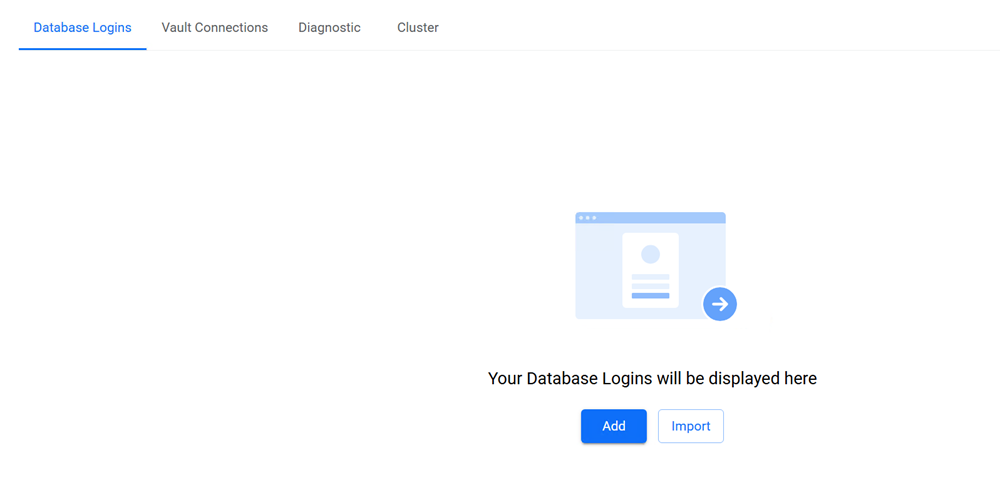
Click the Database Logins tab and click Add.
-
Navigate to the
dblogins_export.jsonfile and click Open. -
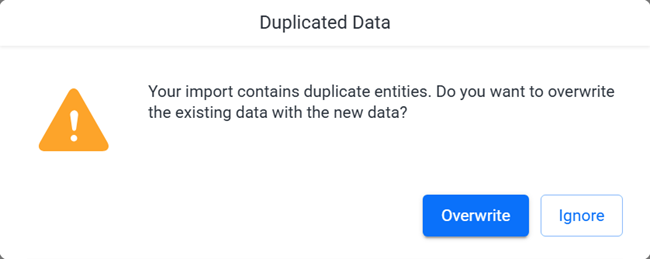
If there are no conflicts, wait for the import to finish. If there are conflicts, you will be prompted to Overwrite or Ignore the existing data.
Verify the Import
After the import successfully completes:
-
Verify the vault configurations:
-
In the Strategy Gateway Agent user interface, go to the Vaults section.
-
Confirm the imported vaults display in the Vaults list.
-
Click Test Connection.
-
-
Verify the database logins:
-
Go to the Database Logins section and confirm the imported logins display in the list.
-
For vault-backed logins, verify they reference the correct vault.
-
-
Test database connections:
-
Use the imported database logins to connect to your data sources.
-
Verify that connections succeed and data can be accessed.
-