
Strategy ONE
Viewing grid and graph reports
There are two types of MicroStrategy reports: grid reports and graph reports. Grid reports display business data organized in rows and columns. Graph reports present data visually in styles such as a bar, line, or pie graph.
The following is applicable to most grid and graph reports:
-
You can view reports in portrait or landscape mode by rotating the iPad.
-
To scroll across a report, swipe horizontally. To scroll up and down a report, swipe vertically.
-
In grid reports, tap and hold your finger over a cell to see a magnified view of the data in that cell.
-
To switch between viewing the report as a grid or a graph, tap the graph icon
 at the top-right of the screen.
 -
The data in a report may be specific to a certain group, displayed in the page-by at the top of the report. To change the group of data, tap the name of the current group and choose another. You may also be able to switch to another group using gestures, as described in Using gestures for page-by.
Using gestures for page-by
You can use gestures to navigate through pages in up to two page-by groups, displayed at the top of the report.
If the designer has enabled book-style page-by navigation, the report is displayed as a book, as shown below.
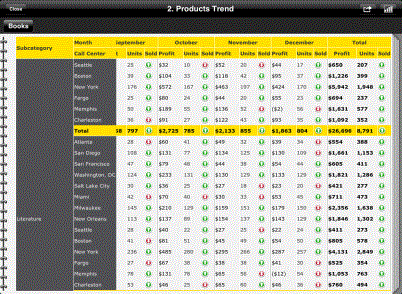
To navigate through the pages, tap the left or right edge of the report.
If book-style page-by navigation is not enabled, switch between page-by groups by tapping the name of the current page-by group at the top of the page. Select the group you want to view.