
Cost Intelligence
Strategy One (June 2026) introduces Cost Intelligence which enables you to understand and control your cloud database spend with precision. You can connect Cost Intelligence directly to your data ecosystem to view costs for specific datasets and execution activities on platforms such as Databricks and Snowflake. Cost Intelligence analyzes how your data is accessed and provide AI generated recommendations to reduce waste and optimize your budget.
Configure Billing Source
To display cost information, Administrators must set up a billing source so Mosaic Sentinel can access billing data to track costs.
-
From the Strategy Library Home page, click Workstation in the sidebar.
-
In the left pane, click Environment Settings.
-
Click the Environment tab and click Sentinel.
-
Expand the drop-down list next to each account and choose an existing data source or click Add New Data Source.
For more information on creating a new data source, see Create and Edit Data Sources.
The user configured in the data source must have billing privileges. If the user does not have billing privileges, Sentinel can not monitor billing information. For more information, see the best practices for granting billing access in Databricks and Snowflake.

-
In the Sentinel page, click Save in the top right.
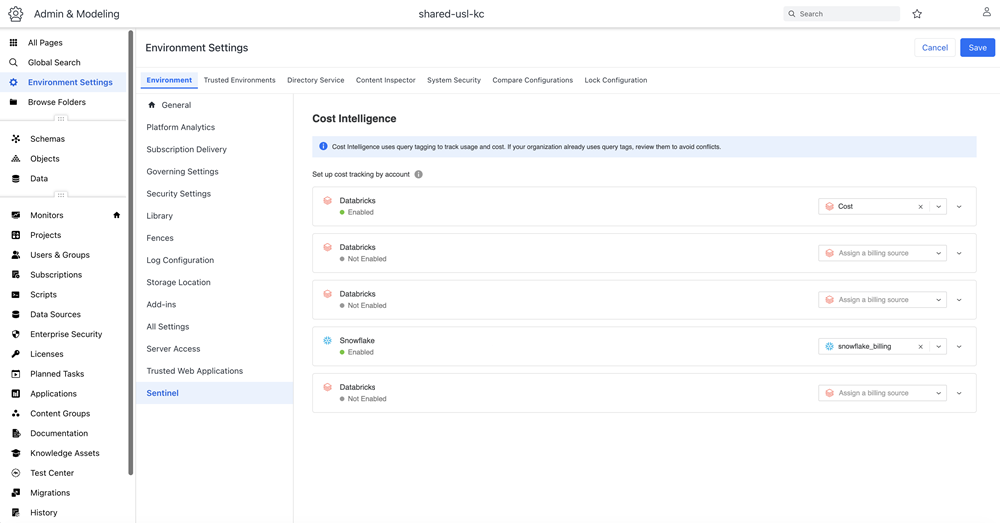
After you configure a billing source to an account, it is considered enabled.
Query Tagging
When you enable a billing source, it automatically tags all associated data source under that account. This tag allows Mosaic Sentinel to track and assign costs per dataset. To view the affect data sources, expand the account entry (for example, Snowflake or Databricks).
Automated Daily Cost Retrieval
After you establish a billing source and tracking tags are applied, Mosaic Sentinel schedules a daily background job to collect your financial metrics. Due to inherent billing data latencies within Snowflake and Databricks, the job runs once every 24 hours.
The following data is collected during the daily run:
-
Cost attribution broken down per dataset (in-memory and live)
-
Daily cost and query execution trends
-
AI-driven cost intelligence suggestions and saving opportunities.
Use Cost Intelligence
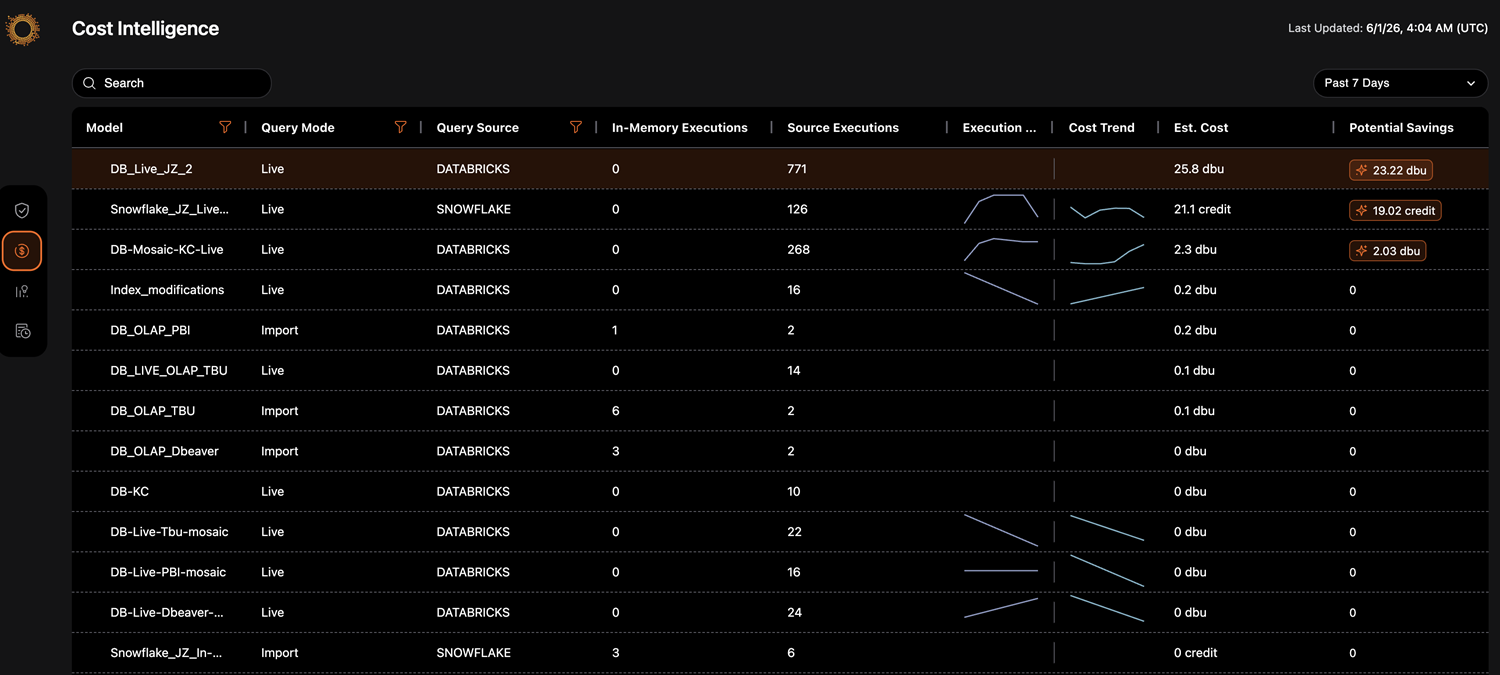
After you configure your billing sources, you can view cost information such as the data source query mode, amount of in-memory executions, amount of executions against the source, the cost trend, estimated cost, and ai-generated suggestions to lower the cost.
-
In the Library sidebar, click Mosaic Sentinel.
-
Click Cost Intelligence.
-
Optionally expand the time range selector in the top-right and choose the time frame of data you want to view.
-
To filter the model, query mode, or query source, click the Filter icon and choose an option.
-
To view AI generated suggestions to save costs:
-
Click the value under Potential Savings.
-
View the AI generated suggestion and click Edit Model.
-
Make changes to your Mosaic model.
-
-
Starting in Strategy (July 2026), click Columns to select the columns to display on the grid.