
Enable the MCP Server
Enable the MCP server before connecting MCP clients to it for interaction with agents and Mosaic models.
An administrator needs to enable the MCP server once for each environment.
-
Once your environment is ready, open Workstation.
-
In the navigation bar on the left, click Environments, if it is not already open.
-
Double-click your environment to connect.
-
Right-click your environment and select Properties.
-
In the navigation bar on the left, click Library.
-
Click Create Trusted Relationship.
-
Scroll to the Cookies section.
-
For SameSite Attribute, select None. Enable HTTP Only and Enable Secure are then selected automatically.
-
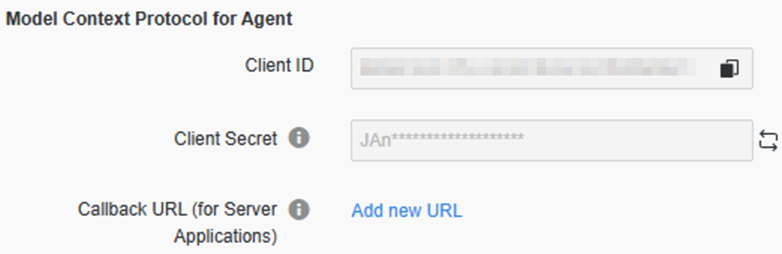
Scroll to the Model Context Protocol for Agent section.
-
Add offline_access to the offline scopes and press the Enter key to save it.
-
Generate the client secret by clicking the icon
 next to the Client Secret box.
 -
Copy and save the Client Secret, which is used in the MCP client configuration.
-
The offline access and client secret are required for clients that use manual OAuth configuration (Copilot Studio, Gemini Enterprise, ChatGPT, and AWS if metadata discovery fails).
-
-
Click OK to save your changes.
-
Restart the Library server to apply the changes.
-
For versions before Strategy One (June 2026), restart Tomcat so the trusted relationship and cookie settings take effect.