
Managing Memory in Agents
Starting in Strategy (August 2026), agent Personalization is available out of the box, replacing the preview feature.
Starting in Strategy (July 2026), Agent Personalization is available for universal agents.
Starting in Strategy One (June 2026) as a preview feature, you can enable Agent Personalization for your Library. Use Agent Personalization to better manage chat history:
-
Enable or disable agents from using saved memories (long-term memory) when responding to queries.
-
Review, search, sort, and delete memories.
Memories are facts generated by your queries in agents. Examples include:
-
Language preferences, such as "I prefer to have answers in both English and Chinese".
-
Response style, such as "I prefer text-only answers without emojis displayed in insights".
-
Filters, such as "Show me only the DCA airport".
Long-term memory is now applied to more scenarios, including universal agents and unstructured data.
Preview features are early versions of features and are not to be used in a production environment as the core behavior remain subject to change between preview and GA. By selecting to expose preview features, you can access these features and use them as you would any other dashboard functionality. The official versions of preview features are included in subsequent releases.
Prerequisites
You must have the Run AI privilege to manage memory.
Enable or Disable Long-Term Memory for Your Library
- On the Library home page or in an agent, click the Account icon
 in the right of the toolbar and select Agent Personalization.
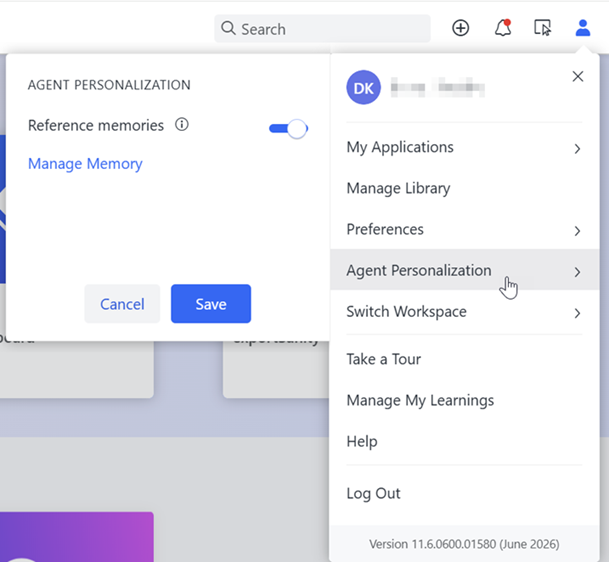
- Toggle Reference Memories on or off to enable or disable it.
- Click Save.
Manage Long-Term Memory
- On the Library home page or in an agent, click the Account icon in the right of the toolbar and select Agent Personalization.
- Click Manage Memory.
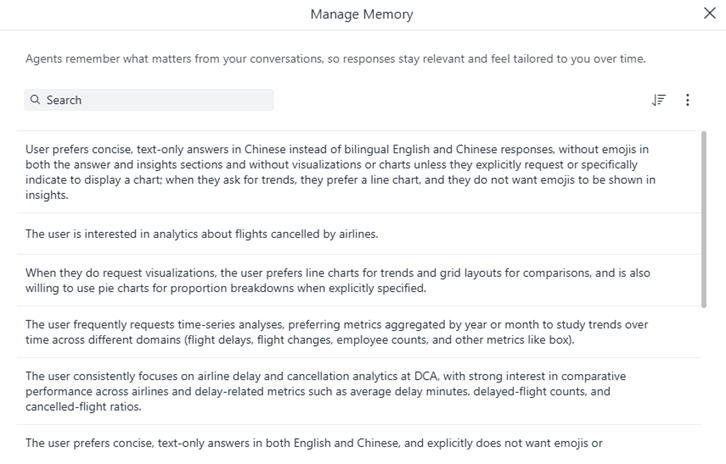
- You can search memories, and Sort
 them from newest to oldest or oldest to newest.
 - To delete a single memory, hover your cursor over the memory, click the More icon
 and select Delete Memory. Click Delete again to permanently delete the selected memory.
 - To delete multiple memories at the same time:
- Click the More icon and choose Select. Check boxes display next to each memory.
- Select the check boxes for the memories to delete.
- Click Delete
 .
. - Click Delete again to permanently delete the selected memories.
- Click the More icon
- To delete all memories:
- Click the More icon and choose Delete All Memories.
- Click Delete again to permanently delete all memories.
- Click the More icon
- Close the Manage Memory dialog box.