
Add Visualizations to Agents Using the Prompt Panel
Beginning in Strategy One (September 2025), enhanced bots are available out of the box and have been renamed to agents to reflect the improvements and advancements.
-
For details on the 2.0 enhancements, see Agent Enhancements.
Beginning in Strategy One (June 2025), an agent can display customized visualizations that serve as prompts for your end users' analysis. They can quickly view the important information in these prompts, or click the visualization to explore more details. The agent shown below displays three prompts. For steps to use these visualization prompts, see Utilize Visualization Prompts in an Agent.
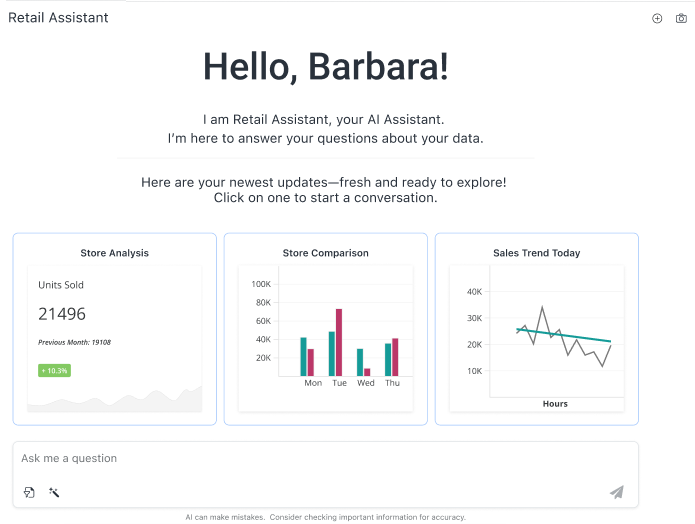
Beginning in Strategy One (June 2026), you can use the Prompt panel to add up to 25 prompts to your agent.
Add a Prompt to the Agent
- Create a new agent or open an existing agent and click the Edit
 icon in the upper right.
 - Click the Prompt panel
 .
. - Click Add Prompt.
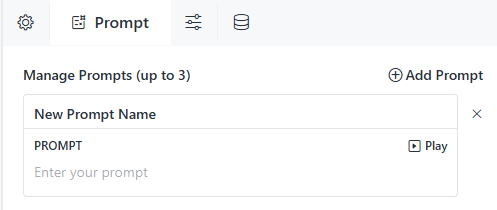
- In the New Prompt Name box, type the display name of the prompt, such as "Store Analysis" or "Sales Trend Today" from the example above.
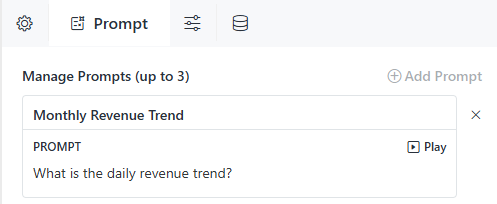
- In the Prompt box, type a description of the prompt. The description can be as simple as "What is the daily revenue trend?" or as detailed as "Give me a line chart of the sales trend of the last 24 hours. Break the line chart by hours of the day and include an average dotted sales line."
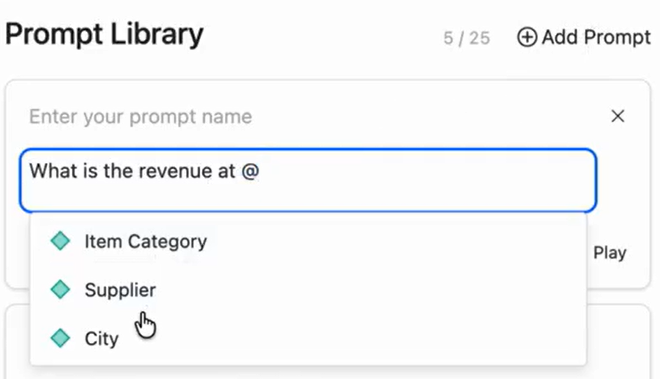
- Starting in Strategy (August 2026), you can create a dynamic "filter" to allow end users to select attribute elements when they use the prompt. For example, your users repeatedly ask about the revenue for various cities. This is an ideal scenario for prompts. Rather than creating a separate prompt for each city, you can create a single dynamic prompt that asks the user to pick the city from a list.
- To create a dynamic "filter" prompt, in the Prompt box, type the description. To create the "filter", type @ then select the attribute from the list displayed. The attribute must be NER-enabled.
- To create a dynamic "filter" prompt, in the Prompt box, type the description. To create the "filter", type @ then select the attribute from the list displayed. The attribute must be NER-enabled.
- Beginning in Strategy One (June 2026), by default, the prompt is linked to the Common Questions button displayed on the agent's home page, below the suggestions. You can choose to display the prompt directly on the home page as well, replacing the suggestions, by clicking Add to Home
 .
. - To preview the results of the prompt, click Play.
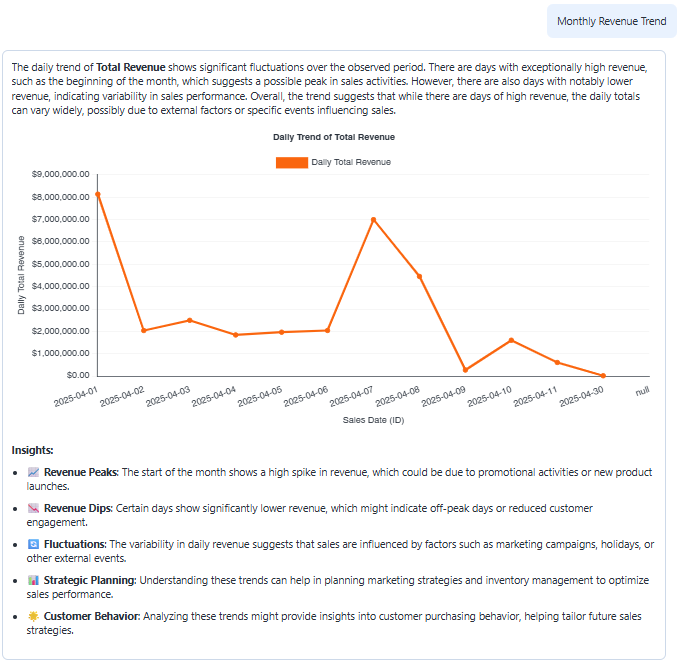
The results of the Monthly Revenue Trend prompt are shown below. It includes a summary, a visualization, and a list of insights, in a new chat.
- To add another prompt, click Add Prompt and repeat the steps above. You can add up to 25 prompts to an agent.
- To change the order that the prompts display in both the home page and Common Questions panel, beginning in Strategy (August 2026), drag and drop the prompts into the new order.
- To delete a prompt, click the X next to the prompt.
- To continue creating or editing a agent, see Create an Agent.