
Report Properties Dialog
Use the Report Properties dialog box to set properties that affect the report, including evaluation order, drilling options, prompt ordering, folder browsing, export options, Library options, object aliases, and advanced properties (formerly known as VLDB properties).
Starting in Strategy (September 2026) you can configure a report to export as Excel or PDF by default, a browsing folder for users, and a default file name for each export format.
Starting in Strategy (August 2026) you can rename objects in the Object Alias editor.
Access
To access the Report Properties dialog box:
- Open a report.
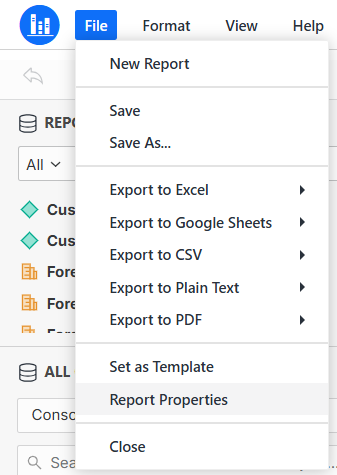
- From the File menu, select Report Properties
Fields
Select a tab from the navigation pane on the left:
Calculation
Default evaluation order: Configure the default evaluation order of smart components of the report:
-
Calculate derived elements/consolidation before derived metric/smart compound metric,"total" subtotal as smart and other subtotals as non-smart
-
Calculate derived metric/smart compound metric before derived elements/consolidation and all subtotals as smart
-
Calculate derived metric/smart compound metric before derived elements/consolidation and all subtotals as non-smart
Use default evaluation order: uncheck to manualy set the Dataset evaluation order
Drilling
Enable or disable report drilling and configure drilling options:
-
Drill anywhere or Drill down.
-
Keep parent while drilling.
-
Keep threshold while drilling.
-
Inherit across-level subtotal from parent: If a report is subtotaled across levels, you can determine whether the subtotals on the drilled-from report are displayed on the drilled-to report.
-
Add the current page-by element as part of the filter when drilling from: If a report you want to drill on contains a page-by field, you can choose whether to have the object that is in the page-by field be part of the filter for the drilled-to report.
Prompt
Change the default order in which prompts are applied.
Browsing Options
Start browsing from the following folder: Starting in Strategy (September 2026) you can define where users can browse to within a project to select objects to include on a report. This setting defines the folder that is displayed in the All Objects panel.
If this field is empty, users can navigate to any folder in the project to which they have access.
Restrict browsing within the selected folder: Select this option to restrict browsing to the selected folder only. If this option is left unchecked the user can navigate to other folders in the project.
You can reset Browsing Options to default folder by using the Reset button.
Export Options
Starting in Strategy (September 2026), set a default export File Name for all users. Type a default file name the following export formats, Excel, Google Sheets, PDF, CSV, and Plain Text.
Library
View in Library: Select the default open view when the report is opened in Library.
The setting modified at the individual report level takes priority over the setting defined on the environment or project level.
- Open with the default level setting: Keep the default view set by the administrator at either the environment or project level.
- Always open with the last saved report: View the report in Library with the last saved view that the author intended (base view). The report is always reset upon execution.
- Always open with the last viewed report : View the report in Library with the last viewed state of the user.
Run By Default As: Starting in Strategy (September 2026), select the default execution mode when the report is opened.
-
View Report
-
Export to Excel
-
Export to PDF
Object Alias
Starting in Strategy (August 2026), re-name attributes and metrics using the Object Alias Editor.
For details see: Rename an Object
Advanced Properties
View and edit advanced properties for the report. Advanced settings affect how Strategy Intelligence Server manages joins, metric calculations, query optimizations, etc.
Modifying any advanced setting should be performed with caution only after understanding the effects of the settings you want to apply. A given advanced setting can support or optimize one system setup, but the same setting can cause performance issues or errors for other systems.