
Navigate a Dashboard Using the Navigation Panel
Beginning in Strategy (July 2026), the navigation panel displays in Library Mobile on iOS and Android. See Navigation Panel in Library Mobile.
Beginning in Strategy One (May 2026), dashboard authors can quickly and easily embed a navigable table of contents into dashboards. The navigation panel lists each chapter and page in the dashboard so you can easily view the dashboard's structure and navigate through it. The navigation panel automatically displays on every page of the dashboard.
For example, this dashboard displays a navigation pane positioned on the left. Click a page or chapter to jump to.
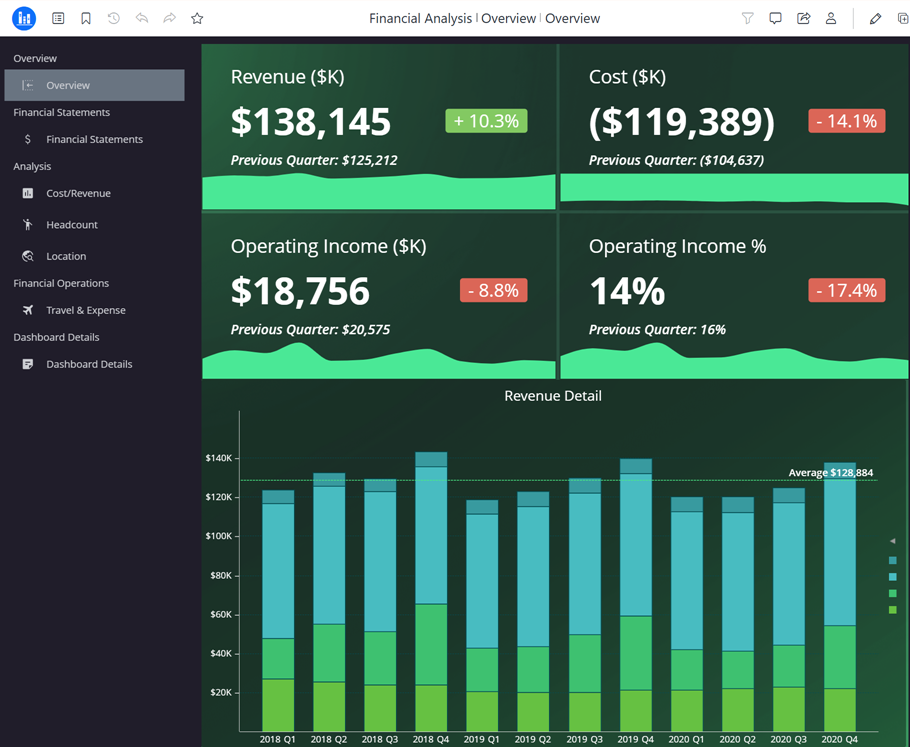
The user clicked Headcount in the Analysis chapter. The navigation pane automatically displays on all pages of the dashboard.
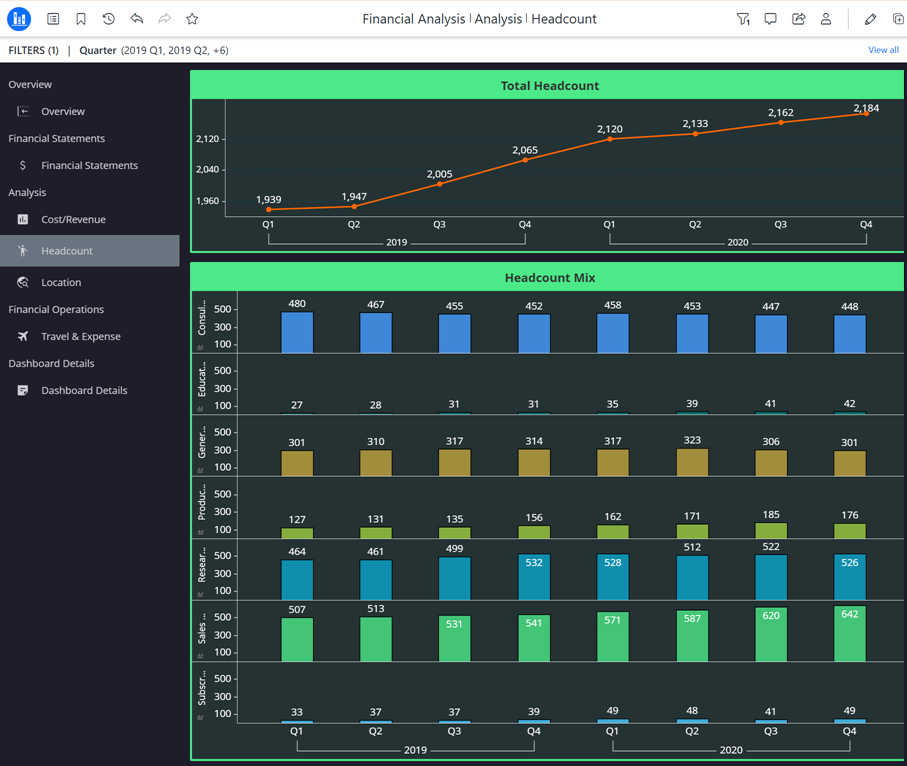
The navigation panel can display at the top, bottom, right, or left of the page.
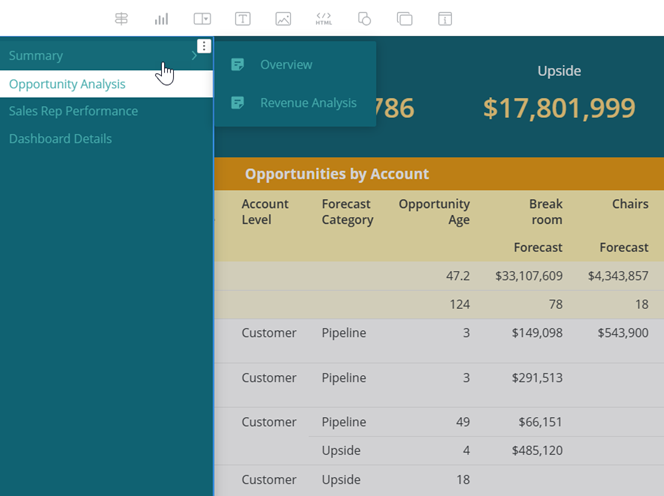
The navigation panel can display as a flat list, as shown in the examples above, or a drop-down list, as shown below. For the drop-down list, hover your cursor over a chapter to view pages and select the page to navigate to.
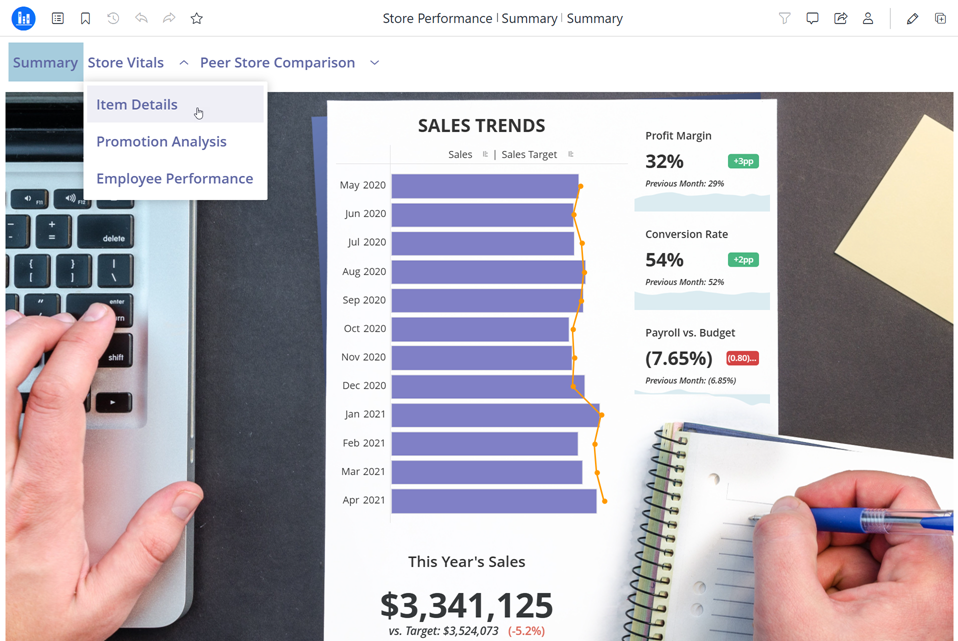
The dashboard author can also choose whether to display chapters and pages, as shown in the examples above, or just the pages, as shown below.

Navigation Panel in Library Mobile
The navigation panel displays responsively and is hidden by default on phones and small tablets.
To open and use the panel, click the floating button  on the left edge of the screen .To close the navigation panel, click the X to the right of the panel.
-
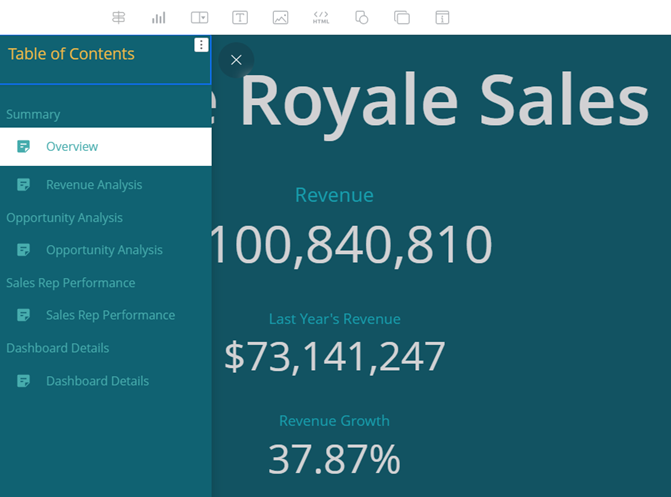
If the navigation content displays vertically (on the left or right of the page), the navigation panel in Library Mobile displays the same content as in regular view. This includes the table of contents and any images, text, links, and so on displayed on the panel. For example, a navigation panel displays on the left side of the page and contains a text box as well as the flat list navigation content. Library Mobile displays the text box as well as the navigation content, as shown below.
-
If the navigation content displays as horizontally (on the top or bottom of the page), the navigation panel is converted to vertical display in Library Mobile. Only the navigation content (the table of contents) displays; other objects such as images and text are hidden. For example, when the same navigation panel with the text box displays on the top of the page, the navigation content displays as drop-down lists. Library Mobile displays the navigation content but not the text box, as shown below. It is shown as drop-down lists.
Related Topics
-
For steps to create a navigation pane, see Embed a Navigation Panel in a Dashboard.