
Strategy One
Connect to Dropbox
Create an OAuth App in Dropbox
-
Sign in to
https://www.dropbox.com/developers/appsand create an OAuth 2.0 integration app.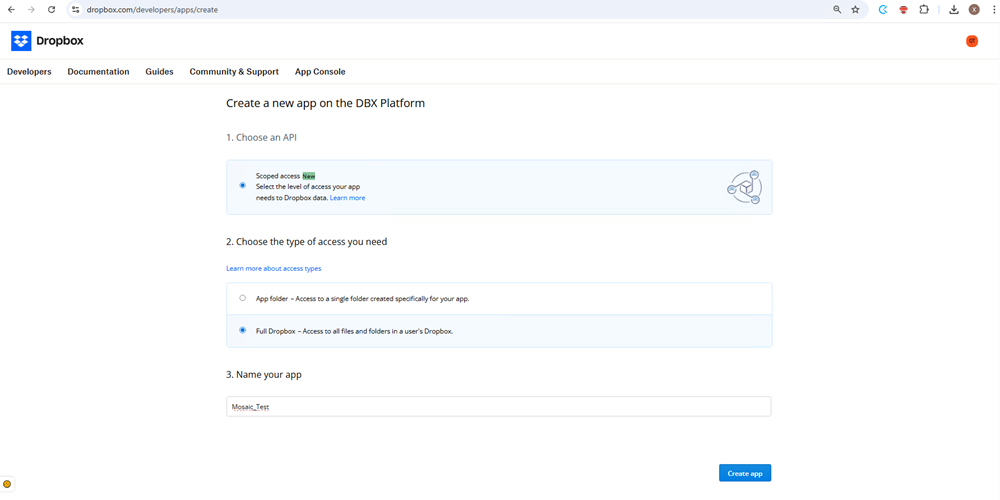
-
Choose an API and choose the type of access you need.
-
Name your app.
-
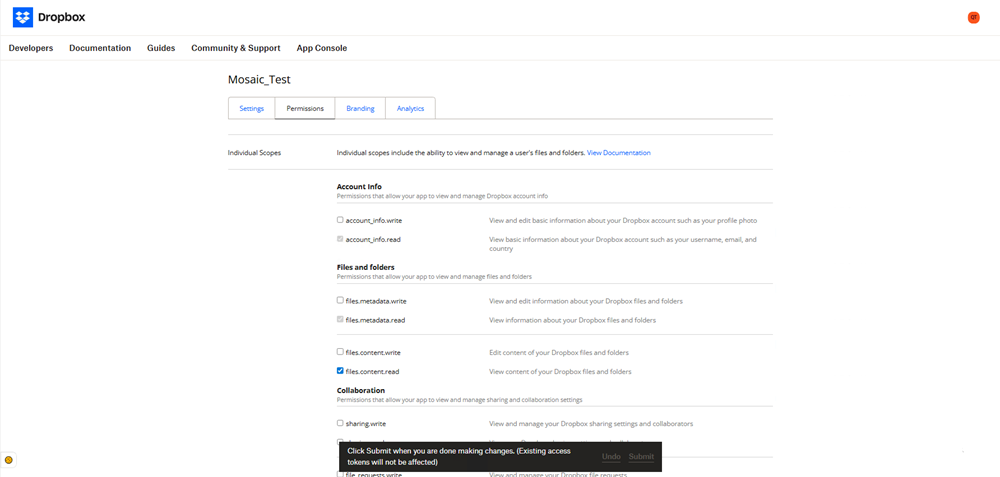
Click the Permissions tab and add the following scopes:
-
Account Info:
account_info.read -
Files and folders:
-
files.metadata.read -
files.content.read
-
-
-
In Settings > Development users, click Enable additional users.
-
In Settings > OAuth 2, add Callback URL for Web, Library, or Workstation.
-
Web redirect URI:
https://<servername>/MicroStrategy/servlet/mstrWeb?evt=3172 -
Library redirect URI:
https://<servername>/MicroStrategyLibrary/auth/DIOAuthRedirect.jsp -
Workstation redirect URI:
http://127.0.01
-
-
In Settings, note the App key and App secret values to later create your data source.
Create a Dropbox Data Source
Prerequisites
To create and edit authentication services, you must have the Configure security settings privilege.
To create and edit data sources, you must have the Create and edit database instances and connections privilege.
Create a New Authentication Service in Workstation
For more information on creating identity and access management (IAM) objects, see Manage OAuth Enterprise Security with Identity and Access Management (IAM) Objects.
-
Open the Workstation window.
-
In the Navigation pane, click
 , next to Enterprise Security.
 -
Expand the Type drop-down list and choose Gateway Authorization.
-
Click Next.
-
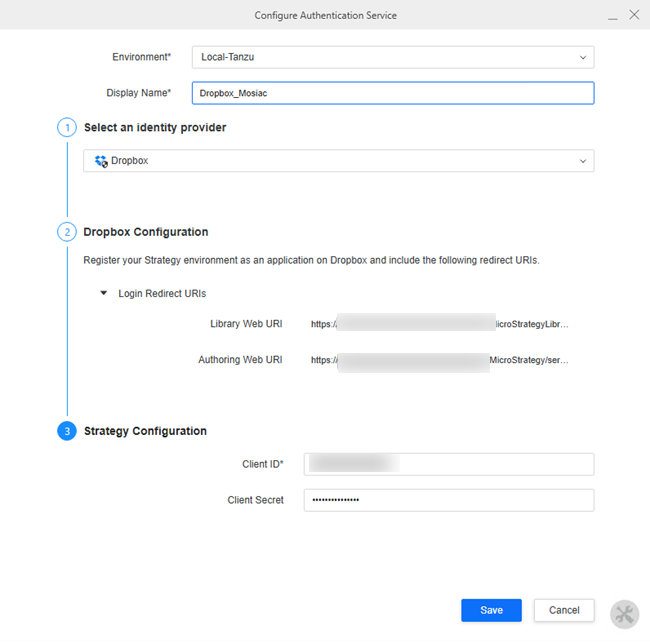
Type a Display Name.
-
Expand the Select an identity provider drop-down list and choose Dropbox.
-
In Dropbox Configuration in Client ID, enter the App key you noted above.
-
In Client Secret, enter the App secret you noted above.
-
Click Save.
Create a Dropbox Data Source in Mosaic Studio
-
In Library, click Create New and choose Mosaic Model.
-
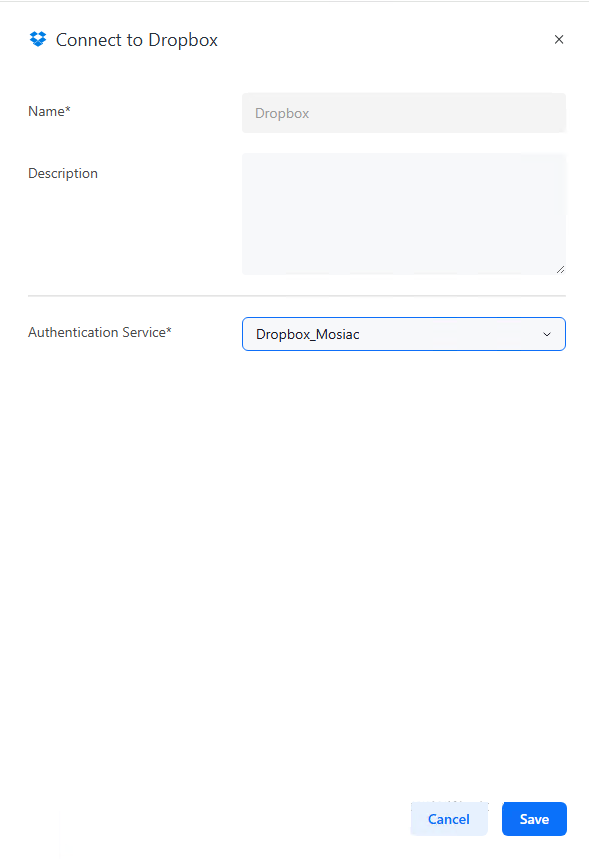
Click Add File Storage and choose Dropbox.
-
Type a Name.
-
Expand the Authentication Service drop-down list and choose the authentication service you created above.
-
Click Save.
Import Data
-
In Add Tables, choose the Dropbox database.
-
Login to dropbox, if needed.
-
Select the files you want to import.
-
Click a file name to view the sample data.
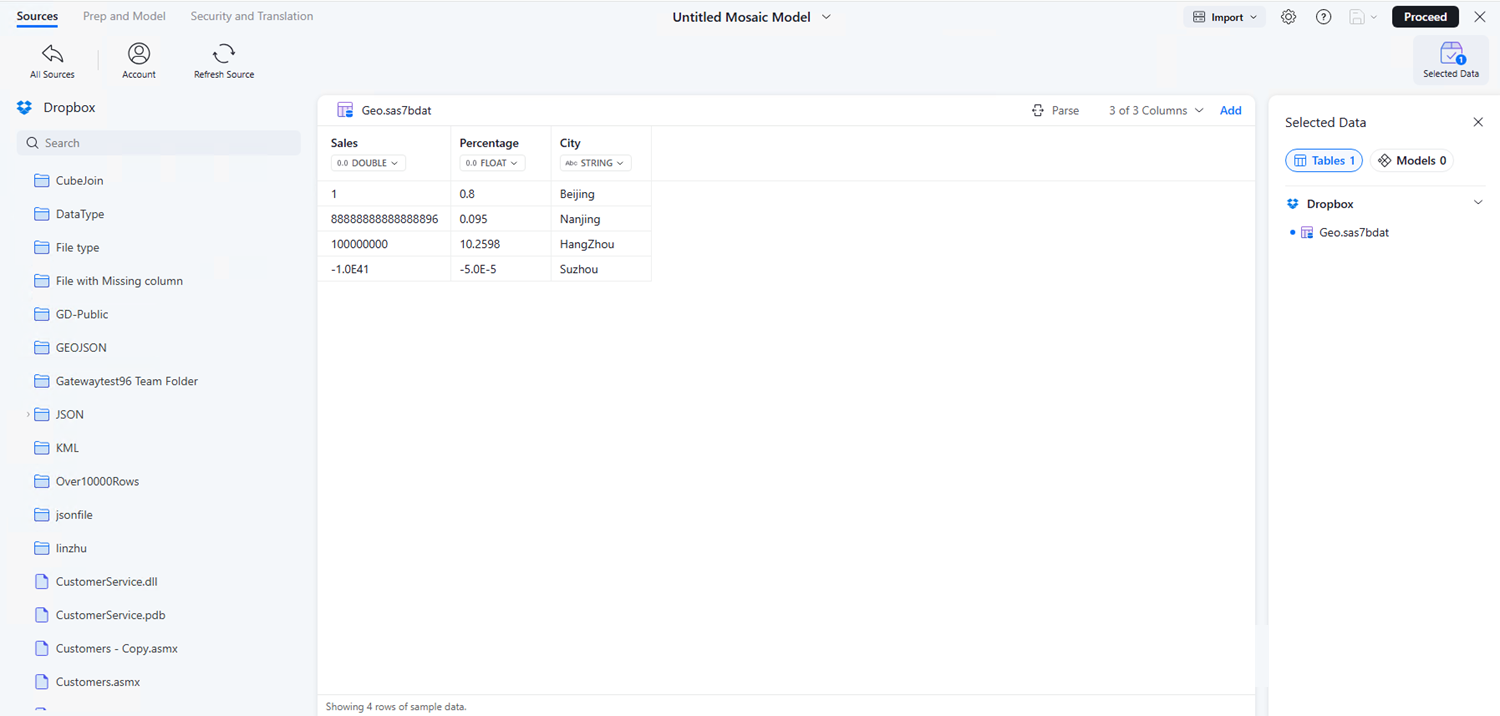
-
Click Add to import the data.
-
Click Proceed.
-
View and choose suggestions, view object logical relationships, or automatically create attributes and metrics.
-
Click Save, Save as, or Publish.
-
If you Saveor Save as your Mosaic model:
-
Type a Name and Description.
-
Choose a Save in folder location.
-
Optionally, select the check box next to Certify Mosaic Model.
-