
Create a Burst Email Subscription
Starting in Strategy (August 2026) you can create and edit a dashboard burst e-mail subscription in Library.
Bursting in Strategy distribution services allows administrators to send personalized dashboards to a dynamic list of recipients with data sliced by a user’s email. To learn more see Bursting for Email Subscriptions.
Prerequisites
-
The dashboard must contain an attribute with email data format:
-
If a project attribute is used, make sure its Data Format is set to Email in the Attribute Editor in Workstation.

-
If the dashboard is using imported data, make sure the Email Column is set to Data Type Email.
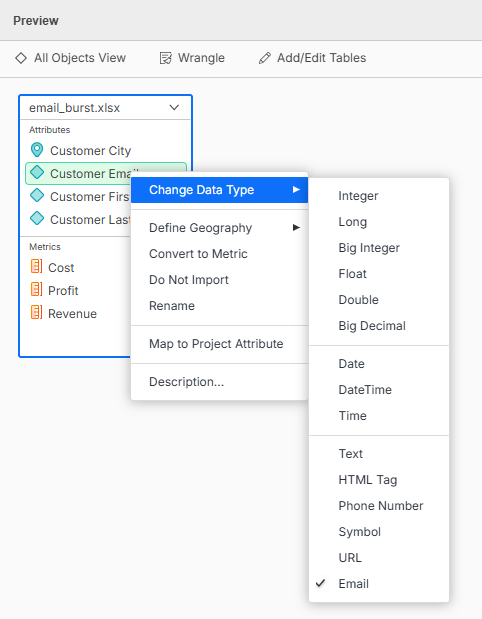
-
-
It is not possible to create a burst email subscription on a bookmark.
Create a Burst Email Subscription
-
Open a dashboard in Library Web.
-
Click
 Share >
  Subscribe to Dashboard.
 -
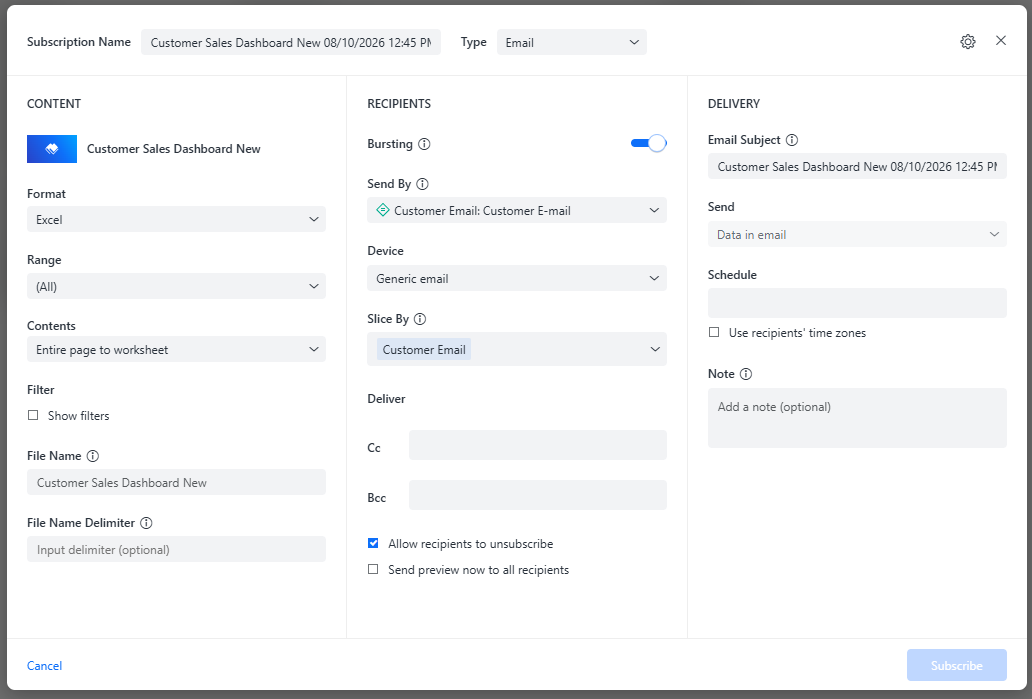
On the Recipients pane, toggle on the Bursting option.
As a burst email subscription cannot be created for a bookmark, the Bookmark section disappears from the Content menu.
-
Choose the Format of the subscription from the drop-down list:
-
Excel.
-
You can Show Filters in the Excel file.
-
You can select the Contents of the Excel file, either the Entire page to worksheet (each dashboard page becomes a separate Excel worksheet) or Each visualization separately (each visualization becomes a separate Excel worksheet).
-
-
PDF. You can change PDF settings such as printing visualizations together on the same page or each on a separate page, setting the paper size, and whether to display page numbers. Click Attached PDF Settings to change them.
-
CSV, starting in Strategy One (May 2025).
-
Beginning in Strategy One (July 2025), select the Data Delimiter from the drop-down list. If your desired delimiter is not available, select Other and type the custom delimiter in the box.
-
-
-
Select the Range to include, such as all of the dashboard or specific chapters or pages. Not available for snapshots.
-
In the Recipients options select a Send By attribute. This is the attribute which will be used for dynamic e-mail distribution.
-
Select a Device from the list of available devices.
-
Select a Slice By attribute. This is the attribute by which the data will be sliced. Each slice is a separate delivery. By default it is the same attribute as the Send By attribute
-
Optionally add Cc and Bcc recipients. These recipients receive all slices generated by the subscription. Their inbox shows multiple emails, one per slice. The content and attachments for each email are identical to those received by the slice recipient.
-
By default, recipients can delete their subscription. To disable that ability, clear the Allow Recipients to Unsubscribe check box.
-
Optionally, select the Send preview now to all recipients check box.
-
In Email Subject, type a brief description to help recipients quickly identify the content being delivered.
-
Select a Schedule from the drop-down list. Schedules have already been created.
-
Starting in Strategy One (October 2025), to run the subscription according to each recipient’s own time zone, rather than the schedule's time zone, select the Use Recipients' Time Zones check box.
-
Type an optional Note.
-
Click Subscribe. The new subscription is created.
Edit a Burst Email Subscription
-
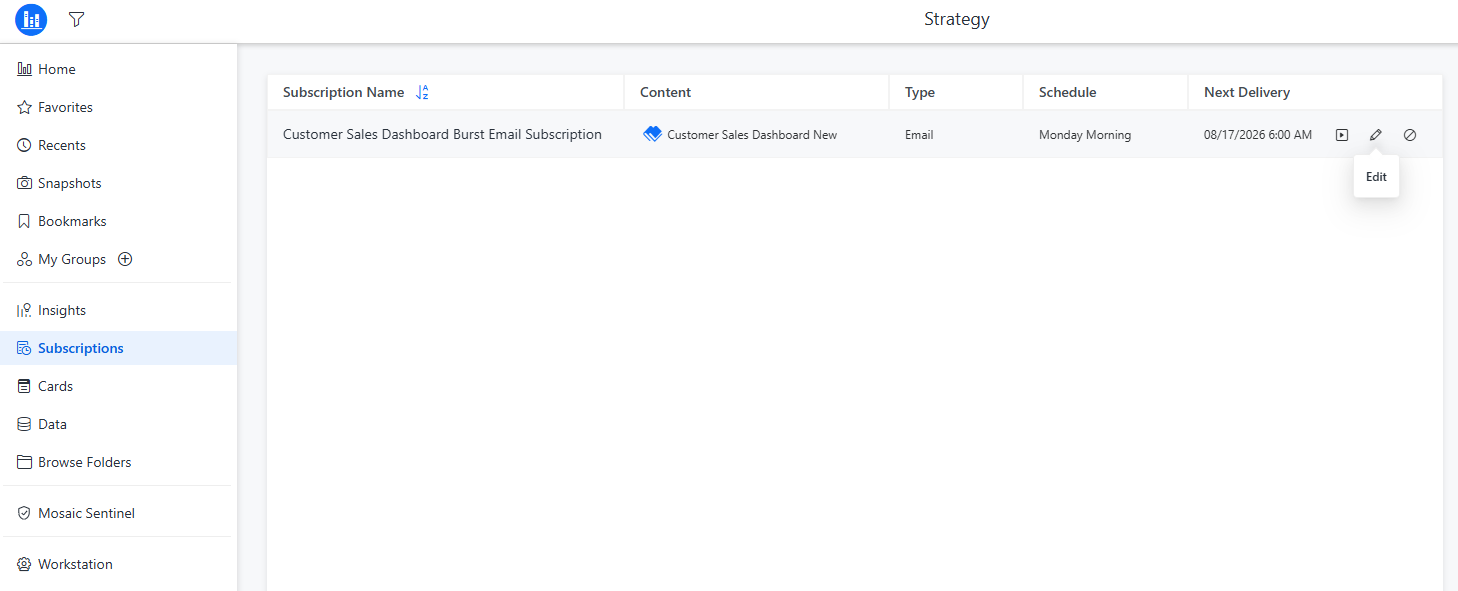
In the Library sidebar, select Subscriptions.
-
Find the subscription that needs to be modified.
-
Hover over the subscription. Click the Edit icon
 .
. 
-
Follow the same steps as in Create a Burst Email Subscription section to modify the subscription.
Related topics: Manage Subscription Delivery Devices