
Create a Burst File Subscription
Starting in Strategy (September 2026) you can create and edit a dashboard burst file subscription in Library.
Bursting in Strategy distribution services generates slices of data and stores results to separate files via a subscription.
Create a Burst File Subscription
-
Open a dashboard in Library Web.
-
Click
 Share >
  Subscribe to Dashboard.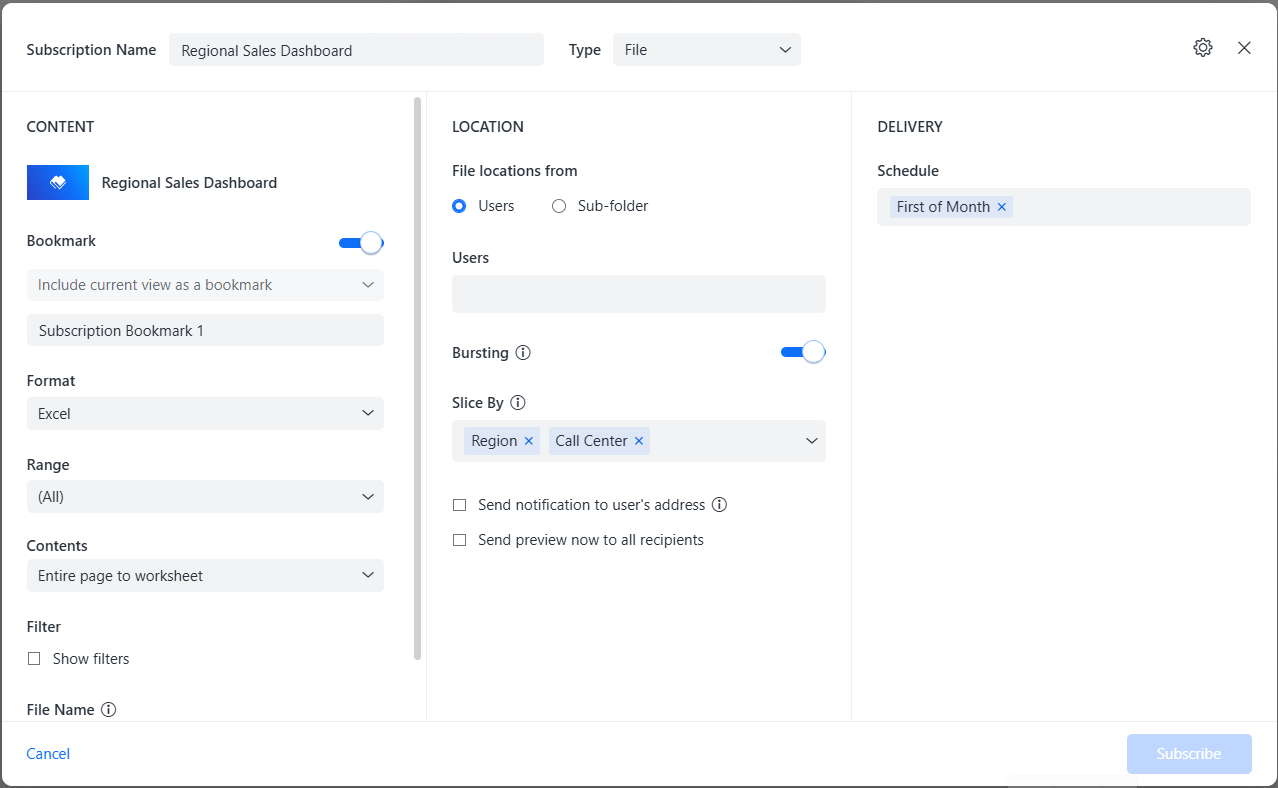
-
Type Subscription Name.
-
Under Type select File.
-
Under Content, Bookmark is enabled by default.
Library subscriptions are based on bookmark views. If the current view is not saved as a bookmark, creating a subscription with the current view automatically adds a new bookmark to the Bookmarks panel. You can name the bookmark for the current view.
-
Toggle Bookmark off, if you don't need a specific Bookmark for the file subscription.
-
Choose the Format of the subscription from the drop-down list:
-
Excel.
-
You can Show Filters in the Excel file.
-
You can select the Contents of the Excel file, either the Entire page to worksheet (each dashboard page becomes a separate Excel worksheet) or Each visualization separately (each visualization becomes a separate Excel worksheet).
-
-
PDF. You can change PDF settings such as printing visualizations together on the same page or each on a separate page, setting the paper size, and whether to display page numbers. Click Attached PDF Settings to change them.
-
CSV, starting in Strategy One (May 2025).
-
Beginning in Strategy One (July 2025), select the Data Delimiter from the drop-down list. If your desired delimiter is not available, select Other and type the custom delimiter in the box.
-
-
-
Select the Range to include, such as all of the dashboard or specific chapters or pages. Not available for snapshots.
-
In Location, choose from the following:
-
Users
-
Sub-folder
-
-
If you choose Users:
-
In Users, type the users that have a default delivery address for File subscription.
-
Optionally select the check box next to Send notification to user's address and/or Send preview now to all recipients.
-
-
If you choose Sub-folder:
-
Expand the Subscription Device drop-down list and choose the device you want to send the subscription to.
-
In Sub-folder, type the sub-folder you want to send the subscription to.
Dynamic text is supported in the Sub-folder field.
-
Optionally select the check box next to Send preview now to all recipients.
-
-
Toggle Bursting on.
-
Select a Slice By attribute. This is the attribute by which the data will be sliced. Each slice is a separate file generated by the subscription.
Only stand-alone attributes are supported for Slice By attribute, derived attributes and derived elements cannot be used.
If you select multiple attributes the result is one file per one combination of attribute values.
-
Under Delivery, select a Schedule from the drop-down list.
-
Click Subscribe. The new subscription is created.
Edit a Burst File Subscription
-
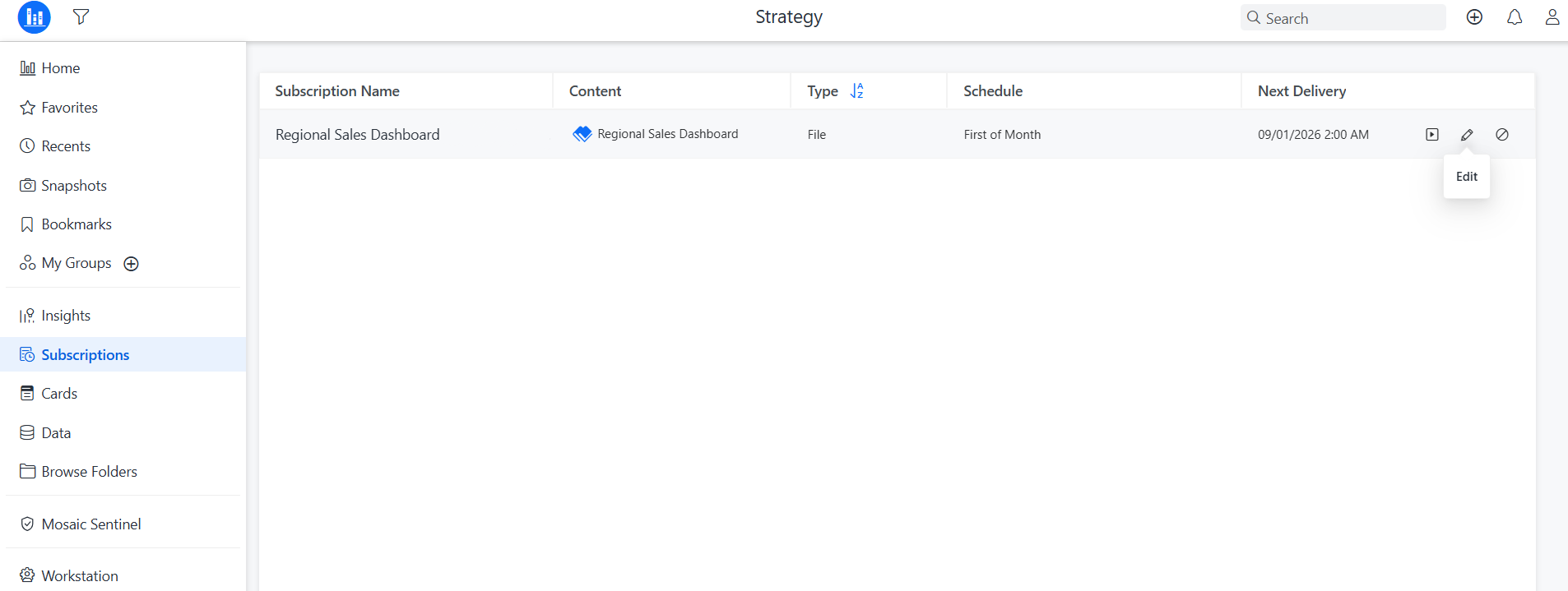
In the Library sidebar, select Subscriptions.
-
Find the subscription that needs to be modified.
-
Hover over the subscription. Click the Edit icon
 .
. 
-
Follow the same steps as in Create a Burst File Subscription section to modify the subscription.
Related topics: Manage Subscription Delivery Devices