
Strategy ONE
New JavaScript Wizard
The New JavaScript Wizard adds new JavaScript to a MicroStrategy Web page.
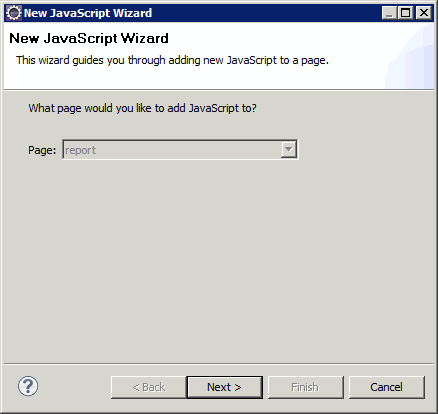
This wizard can be accessed as follows.
-
Click on MicroStrategy Web Configuration inside the Application Settings view to expand the hierarchical tree. The expanded list comprises the different settings that can be modified to perform customizations.
-
Click on Pages to expand the list of MicroStrategy Web Pages.
-
Right-click on the MicroStrategy Web Page to which you want to add JavaScript and select Create New JavaScript to launch the New JavaScript Wizard.
Or use the following method.
-
Click on MicroStrategy Web Configuration inside the Application Settings view to expand the hierarchical tree. The expanded list comprises the different settings that can be modified to perform customizations.
-
Right-click Pages and select Create New JavaScript to launch the New JavaScript Wizard.
-
Select the page to which you want to add JavaScript from the drop-down menu.
See also: