
Tenant Partitioning
Strategy One (June 2026) adds tenant partitioning out-of-the-box which enables a single Strategy metadata repository to host multiple isolated organizations, business units, departments, or customers while preserving centralized governance.
Enabling tenant partitioning permanently changes metadata and can not be undone. Back up your metadata repository and validate client compatibility before enabling it. You can also only perform object migration and project duplication between multi-tenant environments.
A tenant is a first-class metadata object. Users, groups, projects, applications, and supported configuration objects can be associated with a tenant. Strategy evaluates the tenant boundary before it evaluates object control access lists (ACLs).
See the following information on tenant partitioning:
Overview
Tenant partitioning provides metadata-layer isolation for supported objects and operational records inside a shared environment. It is designed for multi-tenant deployments that need strong separation without maintaining a separate metadata repository for each tenant.
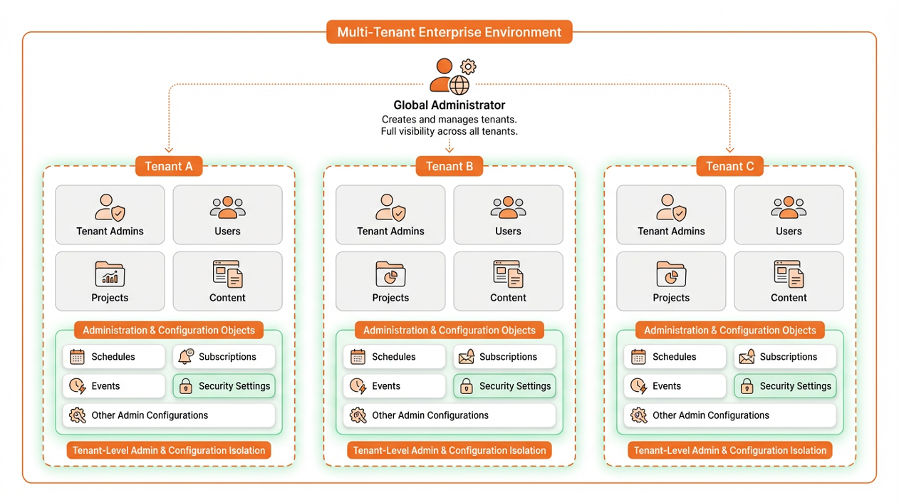
What Tenant Partitioning Isolates
-
Users and user groups associated with each tenant
-
Projects and the project-level objects that inherit the project's tenant
-
Applications, subscriptions, schedules, scripts, security objects, and other supported configuration objects
-
Tenant-aware monitoring and operational records, including Change Journal and History List records
Authorized global administrators can manage all tenants. Tenant administrators operate only inside their tenant context and remain subject to privileges and ACLs within that boundary.
Benefits
-
Platform-enforced isolation: Separation is built into metadata scoping, not just object permissions.
-
Delegated administration: Tenant administrators can manage their own tenant without seeing or affecting other tenants.
-
Environment consolidation: Multiple isolated deployments can be combined into one metadata repository.
-
Operational consistency: Tenant onboarding, administration, and lifecycle management become easier to standardize.
Prerequisites
Verify the prerequisites before enabling tenant partitioning:
-
Metadata database: Use a supported PostgreSQL metadata database.
-
Cognitive Search: Enable cognitive search for the environment. Contact Strategy Support to enable cognitive search. For more information on cognitive search, see Cognitive Search.
-
Privilege: You must be a global user with the Create and manage tenants privilege.
-
Backup: Create and verify a metadata backup before enabling.
-
Clients: Confirm that all required workflows use the supported modern clients and automation interfaces.
The Create and manage tenants privilege is reserved for global users. A tenant user cannot inherit this privilege through a membership in a global user group.
Unsupported Legacy Tools
After tenant partitioning is enabled, connections from the following legacy tools are not supported:
-
Developer
-
Enterprise Manager
-
License Manager
-
Narrowcast
-
Object Manager
-
User Merge Wizard
Command Manager is supported for tenant-aware administration. Supply the required tenant parameter for tenant-scoped commands.
Enable Tenant Partitioning
-
Open the Workstation window.
-
Log in to your environment as a global user with the Create and manage tenants privilege.
-
In the Navigation pane, click Environments.
-
Right-click your environment and choose Enable Tenant-based Object Isolation.
-
Review and accept the warning.
-
Reconnect to your environment.
-
Right-click your environment and ensure Multi-tenancy Enabled displays.
Key Concepts
Users and Administrators
| Role | Definition |
|---|---|
|
Global user |
A user that is not associated with a tenant. |
|
Global administrator |
A global user with privileges to administer the environment across tenant and global scope. |
|
Tenant user |
A user associated with one tenant. |
|
Tenant administrator |
A tenant user with administrative privileges inside the assigned tenant. |
Tenant-bound and Global Objects
| Object scope | Visibility and behavior |
|---|---|
|
Tenant-bound |
Visible only in the associated tenant and to authorized global administrators. Privileges and ACLs apply inside that boundary. |
|
Global project |
Visible to global users only. Tenant users cannot browse or enter a global project. |
|
Eligible global configuration object |
A tenant user may browse, read, or use the object only when the required ACL grants access. Tenant users cannot modify global objects. |
Global object visibility: When a global object (for example, user or user group) is created without tenant assignment, it is visible to all tenant users by default. ACLs can control global configuraion objects' visibility to tenant users and cannot be bypassed.
Access rule: Bypass all access does not override tenant isolation and does not grant access to global configuration objects. Grant tenant administrators the required ACLs, including write access to any global parent folders in which they must create tenant-bound objects.
A tenant user may belong to a global user group and inherit the group's permitted privileges. The tenant boundary still applies, and the Create and manage tenants privilege is never inherited by a tenant user.
Create and Manage Tenants
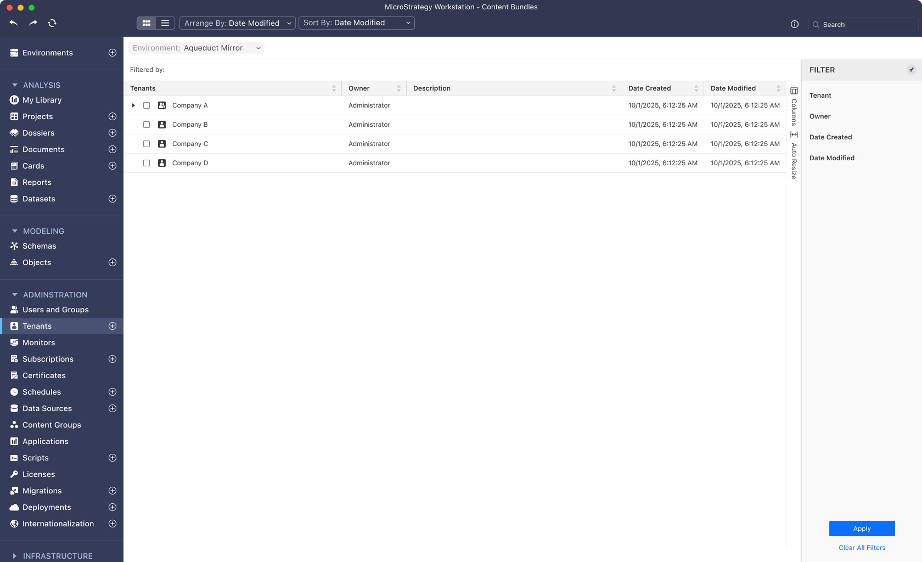
In the Workstation Navigation pane, click Tenants. The global administrator can perform the following:
-
Create, rename, enable, disable, and delete tenants.
Disabling a tenant rejects new logins for users assigned to that tenant. Objects that retain a reference to a deleted tenant display as Unknown Tenant.
-
View tenant properties, including the tenant ID.
-
Assign supported users, groups, projects, and configuration objects.
-
Configure tenant-level governing limits, such as maximum users and projects.
-
Switch to a tenant context to verify visibility and administration. For more information on switching tenants, see Switch to Tenant.
Assign Users, Groups, and Objects
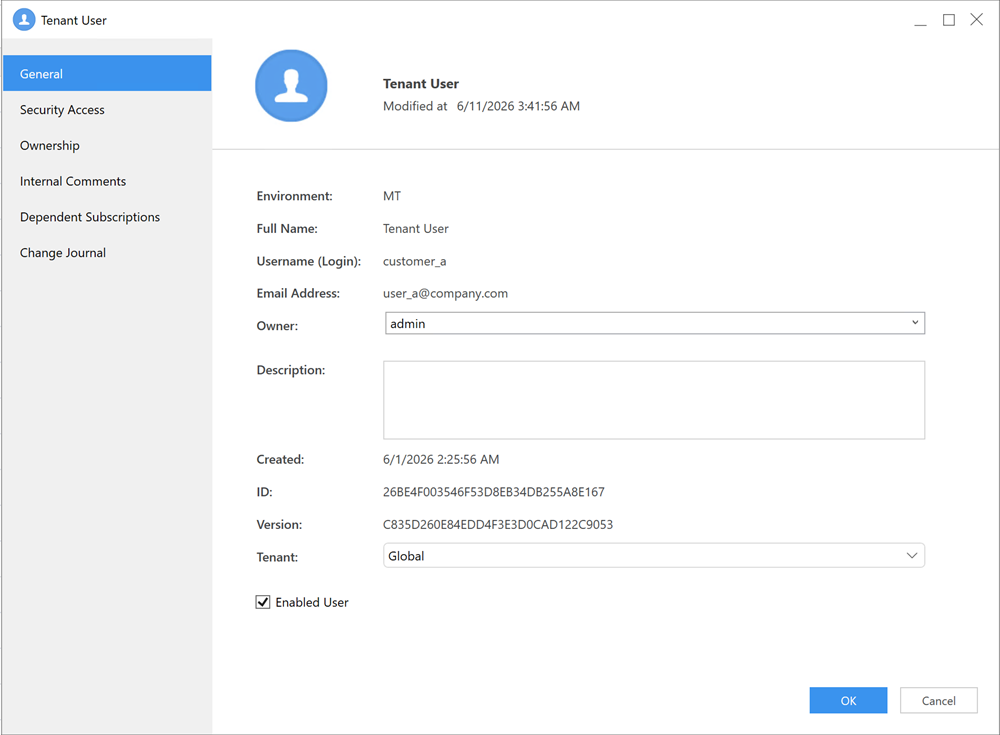
Only a global user with the Create and manage tenants privilege can perform an operation that changes an object's tenant. Use either the tenant editor or update the Tenant field in a supported object's Properties dialog.
To use the tenant editor:
-
In the left Navigation, click Tenants.
-
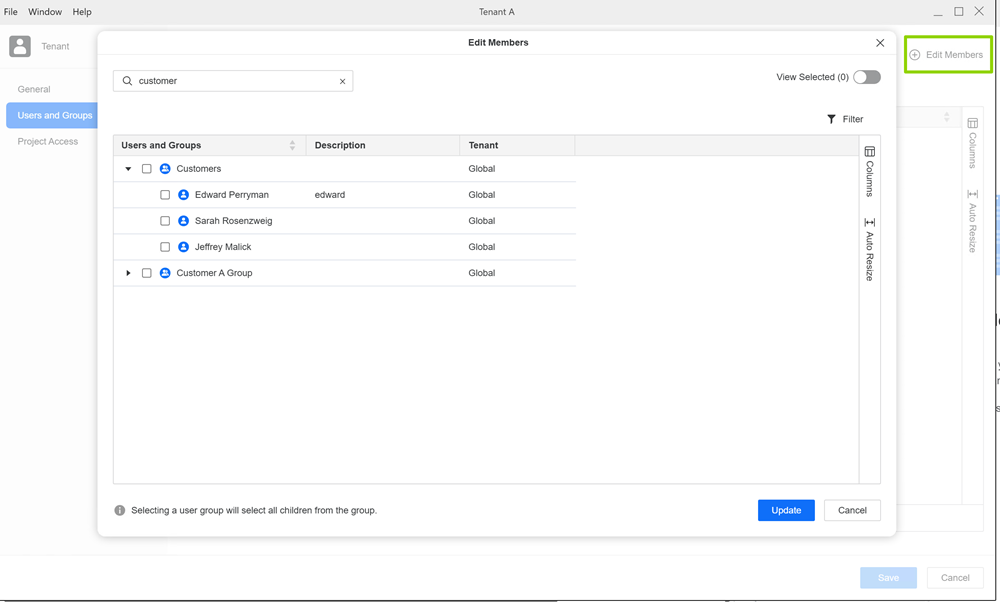
Right-click a tenant and choose Edit.
-
Select the users, groups, projects, or supported configuration objects to assign.
-
Review the dependent objects and project implications.
-
Apply the change.
If you reassign a user, end the existing sessions and sign in again to establish the new tenant context.
To update the Tenant field in object properties:
-
Navigate to the selected object.
-
Right-click the object and choose Properties.
-
Expand the Tenant drop-down list and choose a tenant.
-
Click OK.
Tenant Assignment Behavior
| Operation | Result |
|---|---|
|
Change an object's Tenant property |
The metadata assignment changes immediately. Existing user sessions retain their prior context until the user signs in again. |
|
Assign a global user group to a tenant |
The group and its global-user members are assigned to that tenant. |
|
Reset a tenant user group to global |
Only the group becomes global. Existing members keep their current tenant assignments. |
|
Add a global user to a tenant user group |
The user is automatically assigned to the group's tenant. |
| Create an object in a tenant session | The supported configuration object is automatically associated with the current tenant. |
Plan carefully: Project-to-tenant assignment is permanent. A project cannot be returned to global scope or reassigned to another tenant. Delete all projects associated with a tenant before deleting the tenant.
Name Uniqueness
For most configuration objects, name-and-type uniqueness is evaluated within the tenant. Different tenants can therefore use the same object name and type under an equivalent parent folder.
The following exceptions apply:
-
A global object and a tenant-bound object share the same namespace for name-and-type uniqueness.
-
Project names must remain unique across the environment.
Using the same project name in different tenants is not supported.
-
User login names, trust IDs, and LDAP distinguished names must be globally unique across the environment.
-
Dynamic address list names must be globally unique across the environment.
Switch to Tenant
Switch to a tenant when a global administrator needs to troubleshoot tenant-specific issues, verify that users and objects are visible only within the intended tenant boundary, validate tenant administration workflows, or confirm configuration changes before handing an environment over to tenant administrators. This function temporarily places the administrator in the selected tenant context without changing their global account assignment.
To switch to a tenant:
-
In the Navigation pane, click Environments.
-
Right-click the connected environment, click Edit, and choose Project List.
-
Select the check box next to Switch to tenant.
-
Choose a tenant from the drop-down list.
-
Click OK.
To exit the tenant:
-
In the Navigation pane, click Environments.
-
Right-click the connected environment, choose Edit and Project List.
-
Deselect the check box next to Switch to tenant.
-
Click OK.
Connect Using Tenant-bound Endpoints
Library Applications
For Library, bind an Application object to a tenant and provide users with that application's link. The application endpoint strictly validates the following session tenant actions:
-
A user from another tenant is rejected.
-
A global user is rejected from a tenant-bound application.
-
A tenant user is rejected from a global application.
Generic non-application endpoints, including Workstation, establish the session from the user's assigned tenant rather than enforcing an application-to-tenant match.
Strategy Web and Mobile
To dedicate a Strategy Web or Mobile deployment to a tenant:
-
Configure the target tenant ID in the deployment's
sys_defaults.propertiesfile using the following field,tenantId=[tenant_ID]. -
Restart the server.
A separate Web deployment is required for each dedicated tenant endpoint. Library Applications are generally the simpler option for scalable tenant-bound access.
Monitor Tenant Activity
Tenant-aware records include the tenant ID so administrators can filter operational activity.
Workstation provides a Tenant column and tenant filters in the supported object views.
Note the following:
-
Change Journal records for configuration objects, History List records, and object migration and project duplication records are isolated by tenant.
-
Platform Analytics events include the tenant ID for tenant-aware analysis.
Automate Tenant Administration
Use REST APIs, Command Manager, or mstrio-py for repeatable tenant operations. Confirm the endpoint details in the Swagger documentation for the installed release.
| Method | Endpoint | Purpose |
|---|---|---|
|
POST |
/api/multitenant/tenant
|
Create a tenant. |
|
GET |
|
Retrieve tenant information. |
|
DELETE |
/api/multitenant/tenant/{tenantId}
|
Delete a tenant. |
|
POST |
|
Assign supported objects to a tenant. |
| POST | .../{tenantId}/removeMembers
|
Remove supported members from tenant scope where allowed. |
|
PATCH |
|
Enable or disable a tenant. |
| PATCH | .../{tenantId}/suffix
|
Update the tenant suffix. |
|
GET / PATCH |
|
Read or update tenant governing settings, including maximum users and projects. |
The addMembers operation accepts supported object types, not only users and user groups. Workstation uses this operation when an object's Tenant property changes.
The mstrio-py tenant management module is available for tenant lifecycle automation. Existing mstrio-py workflows also operate against tenant-partitioned environments according to the session's tenant context.