Baseline Tests
Strategy (August 2026) adds support for search objects and updates the New Test clickpath.
Strategy (July 2026) updates the privileges required to use the Test Center plugin, a test summary, a new performance tab for baseline test results, a new object selection dialog, and support for documents.
Starting in Strategy One (April 2026), you can archive errors generated by the baseline test.
A baseline test is a saved reference snapshot of the output generated by the content objects. This includes the data returned, formatting, structural layout, and SQL. The baseline represents the expected, correct result against which future executions are compared.
The purpose for baseline tests are the following:
-
Regression Verification: Ensure that modifications to the environment do not negatively impact the accuracy or appearance of existing objects.
-
Automation: Facilitate routine, automated checking of large numbers of objects.
You must have the server-level configuration privilege, Use Integrity Manager, to use the Test Center plugin. For more information on setting server-level privileges, see Assign Server-Level Configuration Privileges.
Create a Baseline
- Open the Workstation window.
-
In the Navigation pane, click
 next to Test Center.
 - If you are using Strategy (August 2026) or later, choose Comparison Test and type a Name for the test.
-
If you are using a version prior to Strategy (August 2026), type a Name for the test and in the Type drop-down list, choose Comparison Test, then click Next.
-
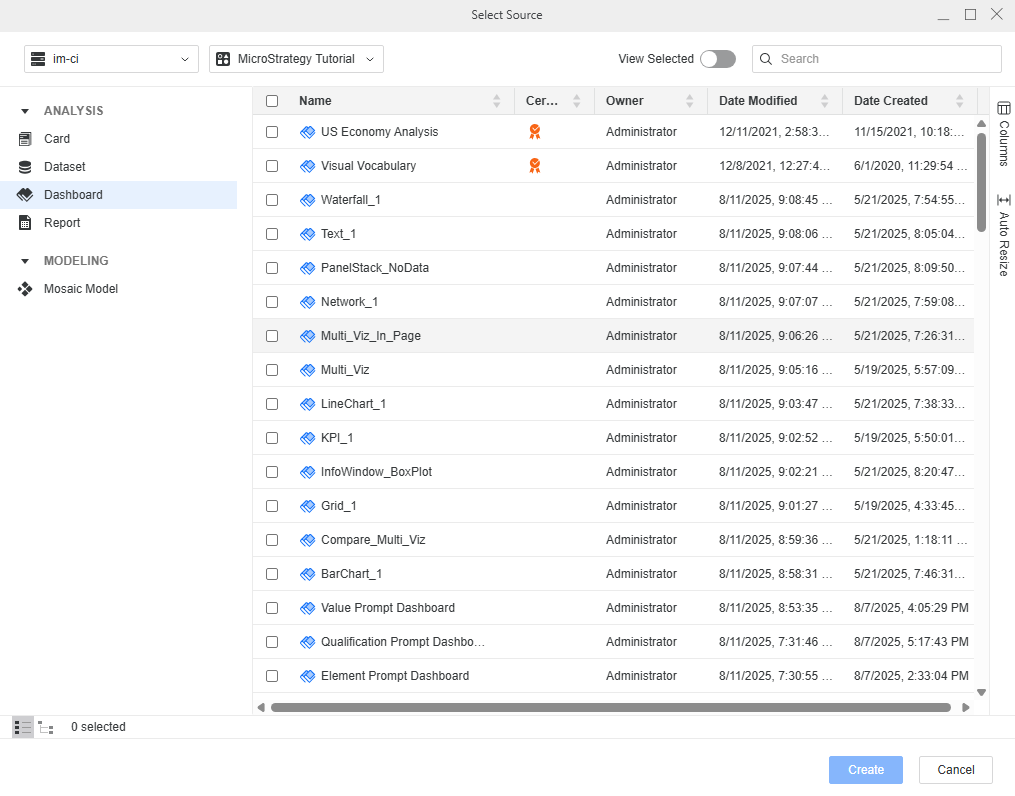
Select the objects to create a snapshot in a desired state and click Create.
Starting in Strategy (July 2026) or later, click Add Objects toStarting in Strategy (August 2026), you can also add search objects or folders to the test. The objects involved in the selected search or folder will be rendered when the test is executed. open the object selection page or to select objects by folder, click Import Folders.
By default, the Data and SQL content types are included by default. Starting in Strategy (May 2026), you can customize the content type to validate. Strategy (August 2026) adds support for PDF validation types.
Starting in Strategy One (October 2025), you can choose cubes and Mosaic models. Starting in Strategy One (January 2026), you can choose cards and reports. Starting in Strategy (July 2026), you can choose documents. Starting in Strategy (August 2026), you can choose search objects.
- Optionally select the check box next to the following settings:
- Use Cache in Execution: Starting in Strategy One (July 2026), use cached results when available to reduce execution time and server load. Disable this option to force fresh execution against the Intelligence Server.
- Performance Test: Starting in Strategy One (July 2026), execute the selected objects multiple times to measure performance. The number of cycles defines how many times each object runs.
Include Hidden Objects in Search Objects: Starting in Strategy (August 2026), display objects that have been set to be hidden in your search objects.
This option only displays if you add a search object to your test.
-
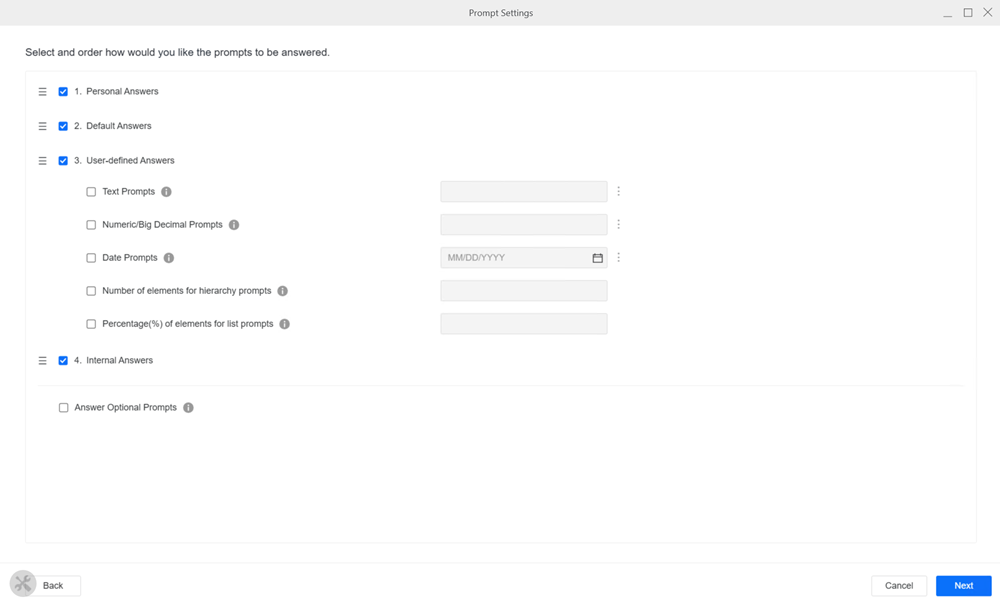
If any of the included objects contain prompts, you can modify the prompt settings, as well as provide any answers.
Starting in Strategy One (April 2026), the prompt settings always prompt after object selection. If no objects include a prompt, the setting is not applied.
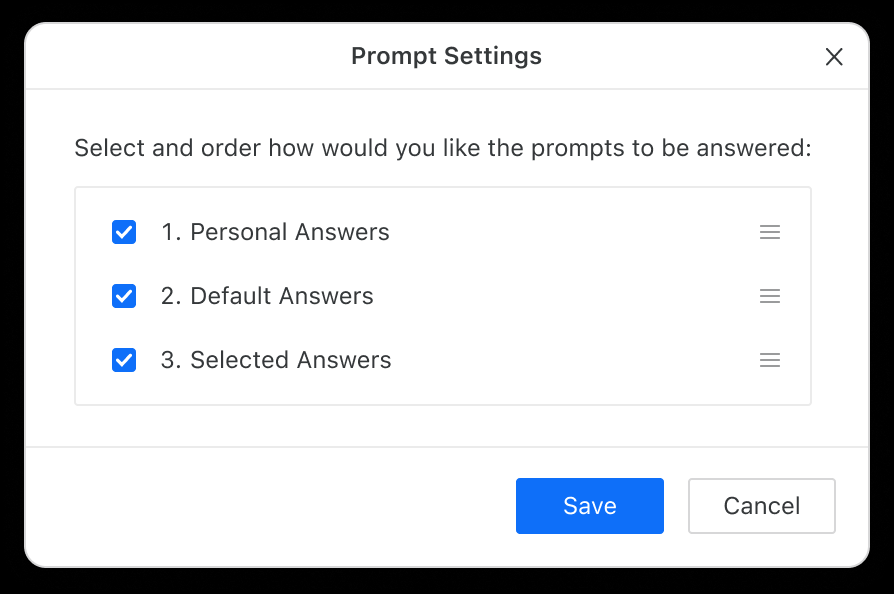
Strategy (July 2026) adds support for user-defined answers.
-
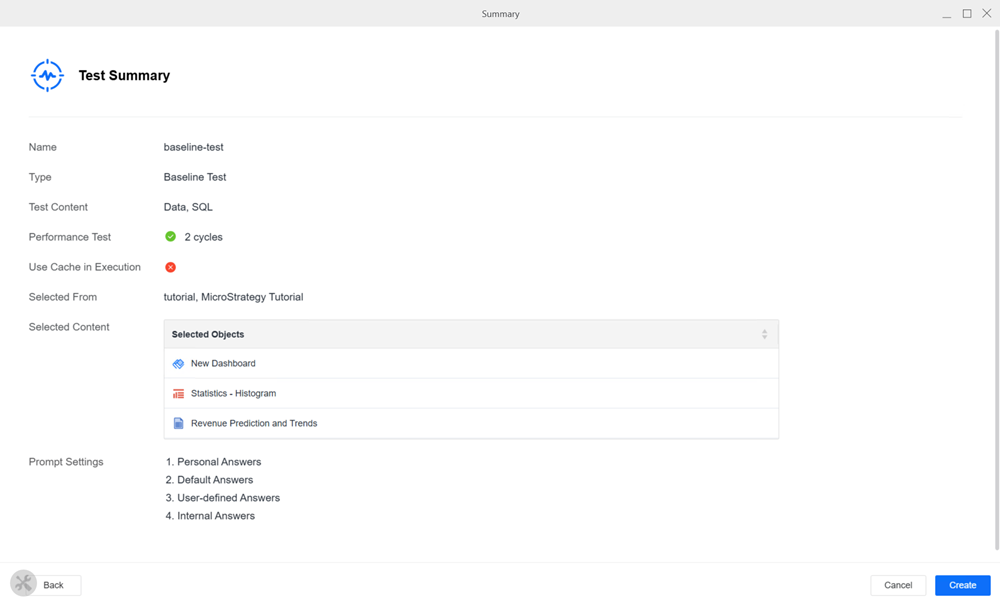
Starting in Strategy (July 2026), view a Test Summary before saving a test.
-
After all prompt settings are established, click Save to save the baseline test.
You can find the new test in the Test Center.

Review Baseline Test Results
-
To see specifics, right-click a test result and select View Result.
-
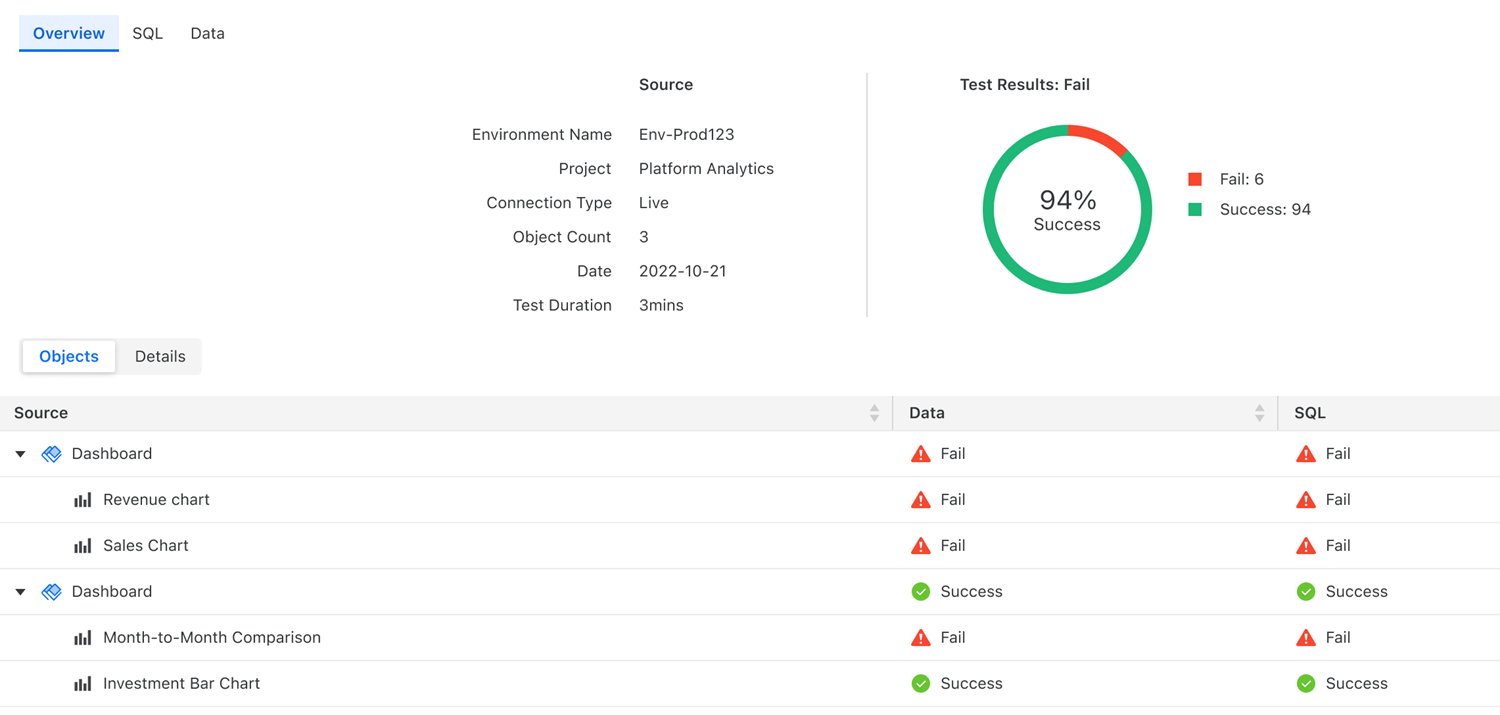
By default, you see the Overview page. The Overview page provides a high level summary of the test execution result (pass or fail) for each content object. For dashboards, each visualization displays.
-
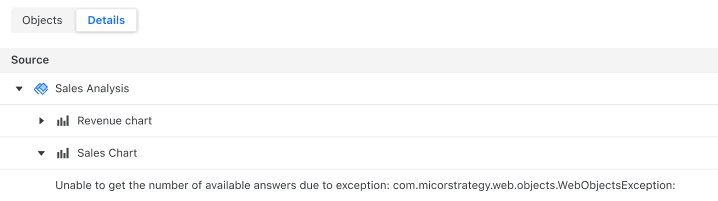
For objects with a Fail status, to check discrepancies and error messages, click Details.
-
- To archive errors thrown at the Objects level, select Archive
- To archive all entries of the same error type, select Archive All with Same Error
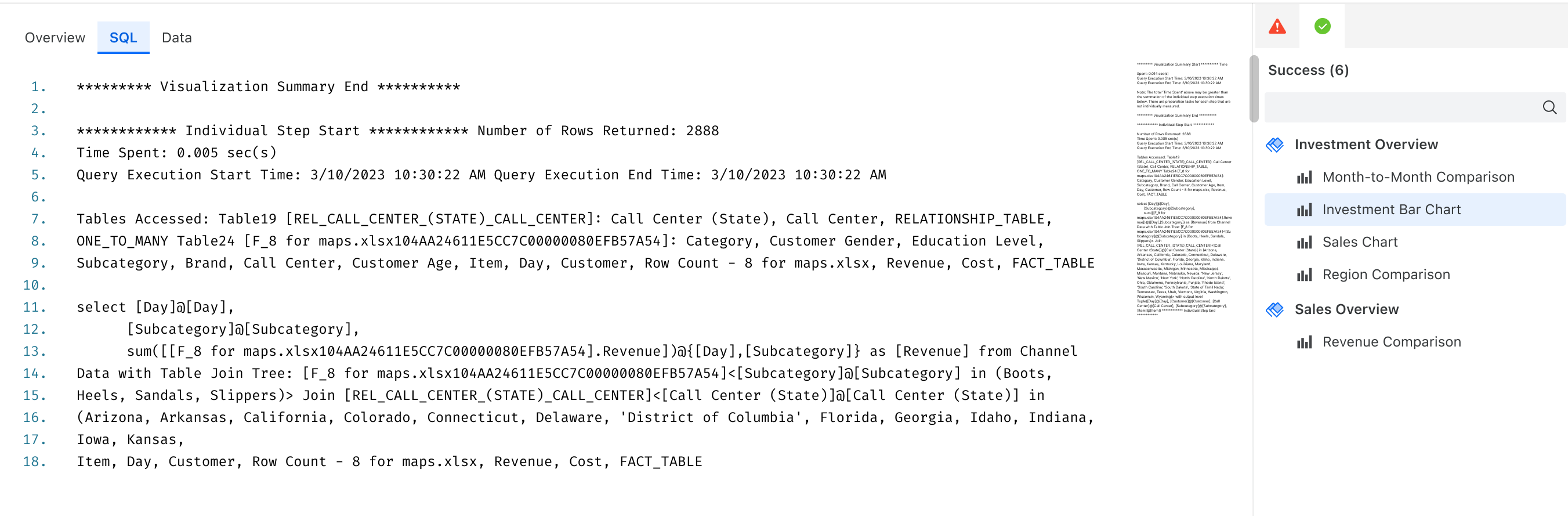
- To switch to the SQL view, click SQL. This page displays query SQL for each object or visualization. Objects with execution errors display an Execution Failed icon.
-
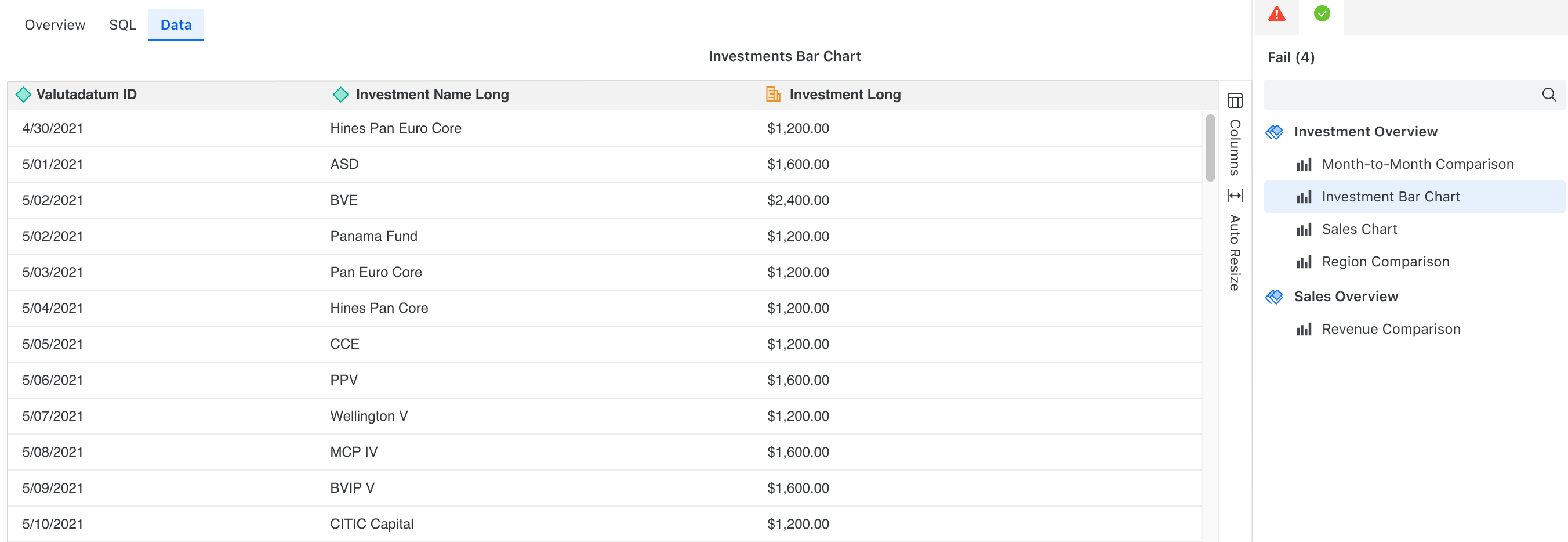
To switch to the Data view, click Data. This page visualizes raw dashboard result data for each object or visualization.
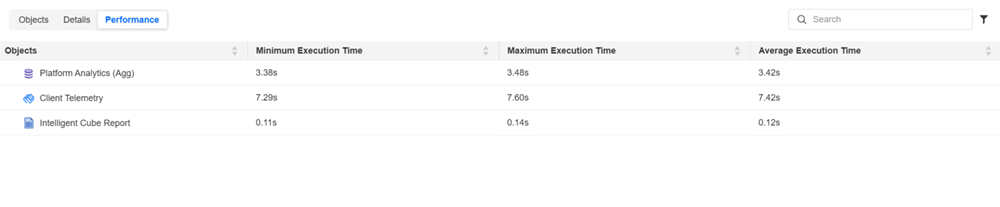
- Starting in Strategy (July 2026), for results with performance test enabled, click Performance to view the execution time.