
Strategy One
Manage Workflows
Workflows bring visual design, centralized management, execution monitoring, and detailed logging into the same powerful interface.
Prerequisite
This feature is released behind a feature-flag. To enable the feature in your environment, contact Cloud Support.
Overview
With Workflows you can:
-
Create executable Flows that chain multiple Python scripts together
-
Pass data, status, or custom variables between steps
-
Assign meaningful icons to each step for instant visual recognition
-
Store Flows as a dedicated Script object type inside your Projects
-
Centrally manage all Flows across Projects from a single blade in Workstation
-
Execute Flows on demand, monitor progress in real time, and review granular per-step logs
The result is a flexible, Python-first automation layer that replaces the legacy System Manager while giving you the full power of modern scripting, version control, and the broader Python ecosystem.
Creating a Workflow
- Open the Workstation window and connect to an environment.
- In the Navigation pane, click Flows.
- Select the environment the Workflow will run on.
- Select the various scripts available and add them to your Workflow:
- Click Save
 .
.
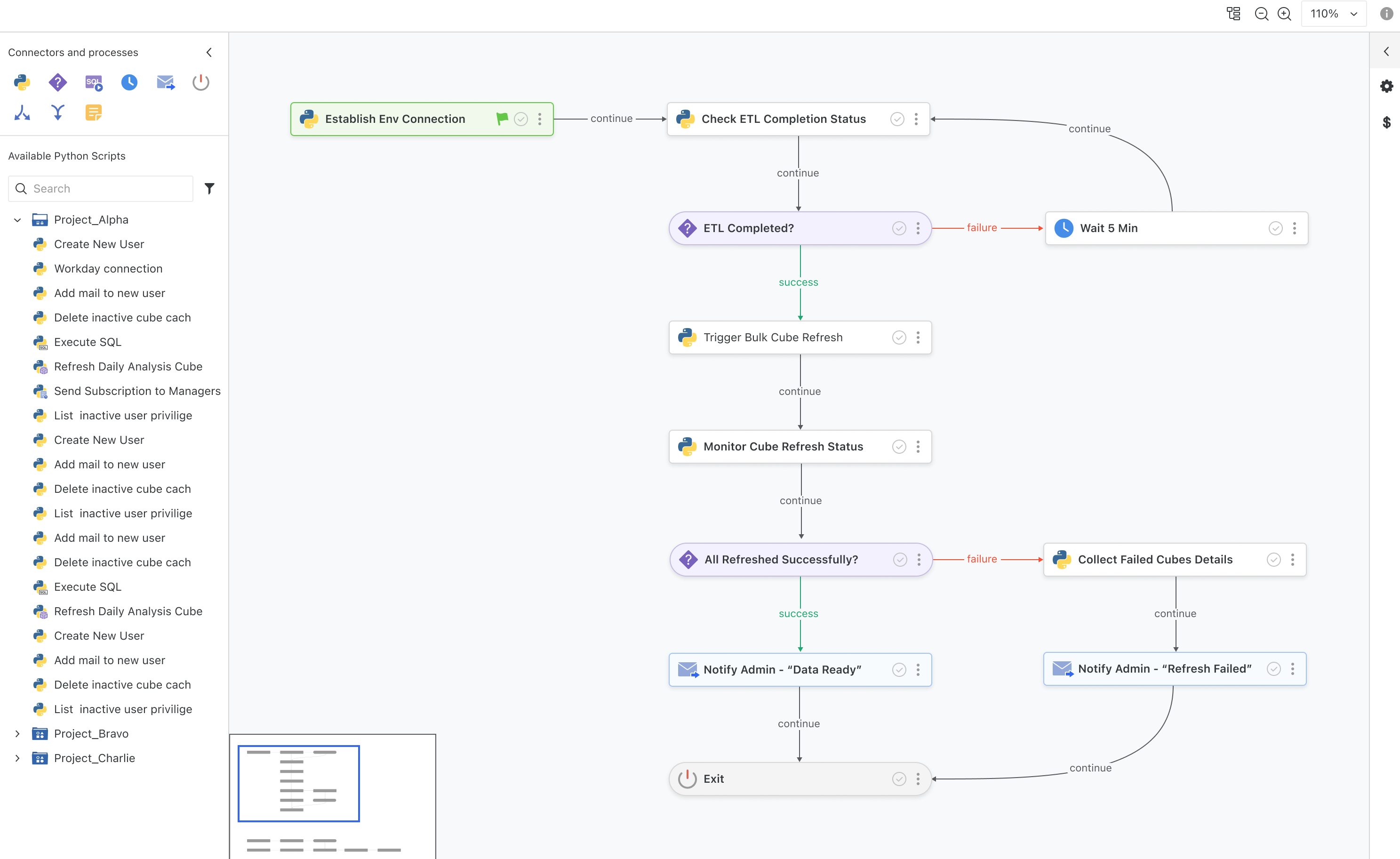
Supported Action Nodes
In addition to Python scripts, you can use the following action nodes when building a Workflow:
-
New Python Script: Creates a new Python script directly in the Python script editor. You can save it locally or on the environment.
-
Decision: Controls the flow path based on conditions. Supported decision types include:
- Variable / Exit code comparison
- File or Directory check
- Weekday(s) check
Decision nodes let you branch the workflow depending on the output of a previous step.
-
Execute SQL: Runs either a SQL file or a SQL statement.
-
Send Email: Sends an email to one or more users in the environment.
-
Wait: Pauses the workflow for a specified amount of time before continuing.
-
Parallel: Splits the workflow into separate trees to run further tasks in parallel.
-
Merge: Merge the workflow into one tree from multiple trees.
-
Exit: Stops the workflow and returns a specific exit code.
Viewing Workflow logs
-
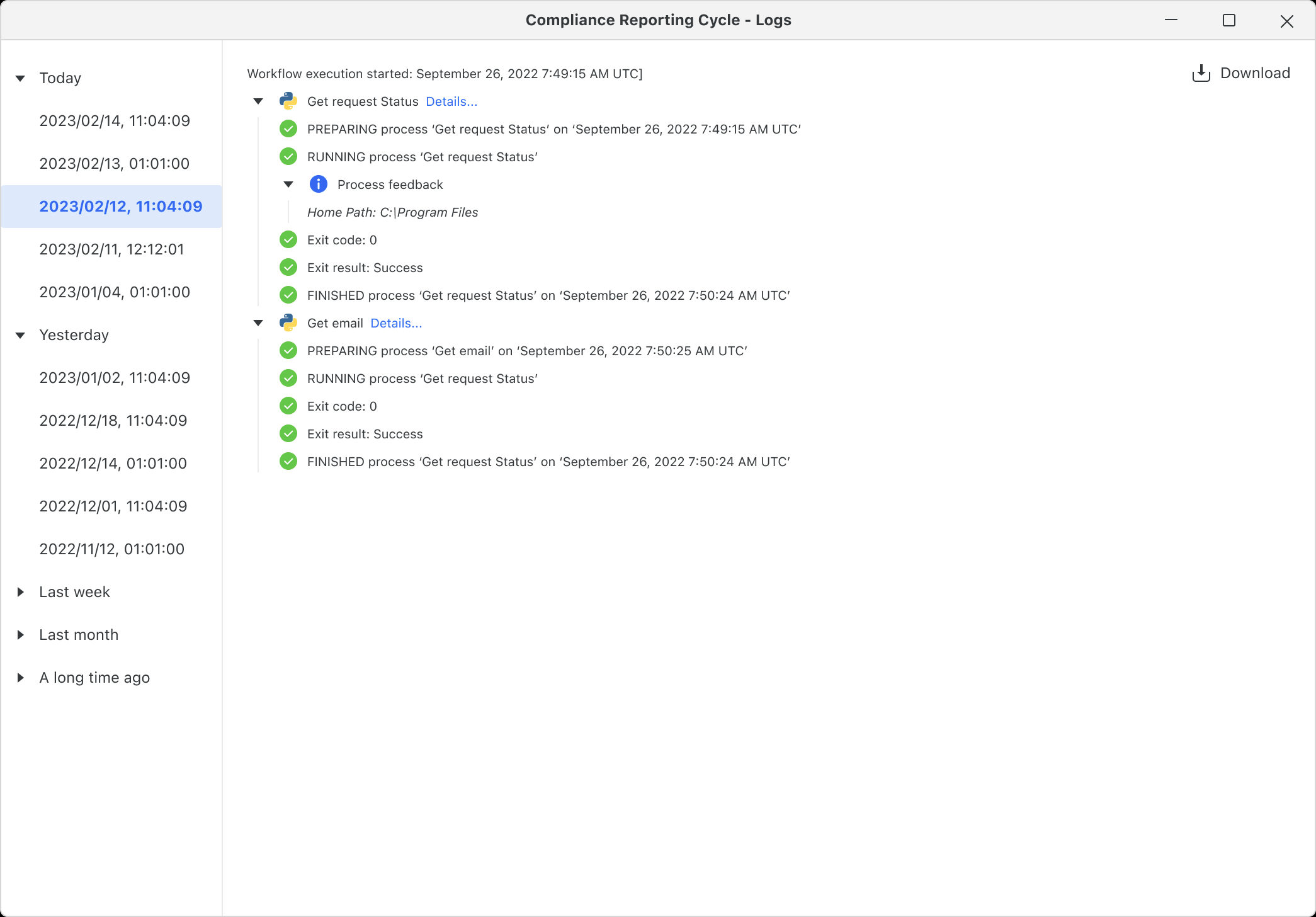
To view the logs for Workflow execution, right-click the Workflow and select View Log.
-
A panel displays with the log information:
Managing Global Variables
-
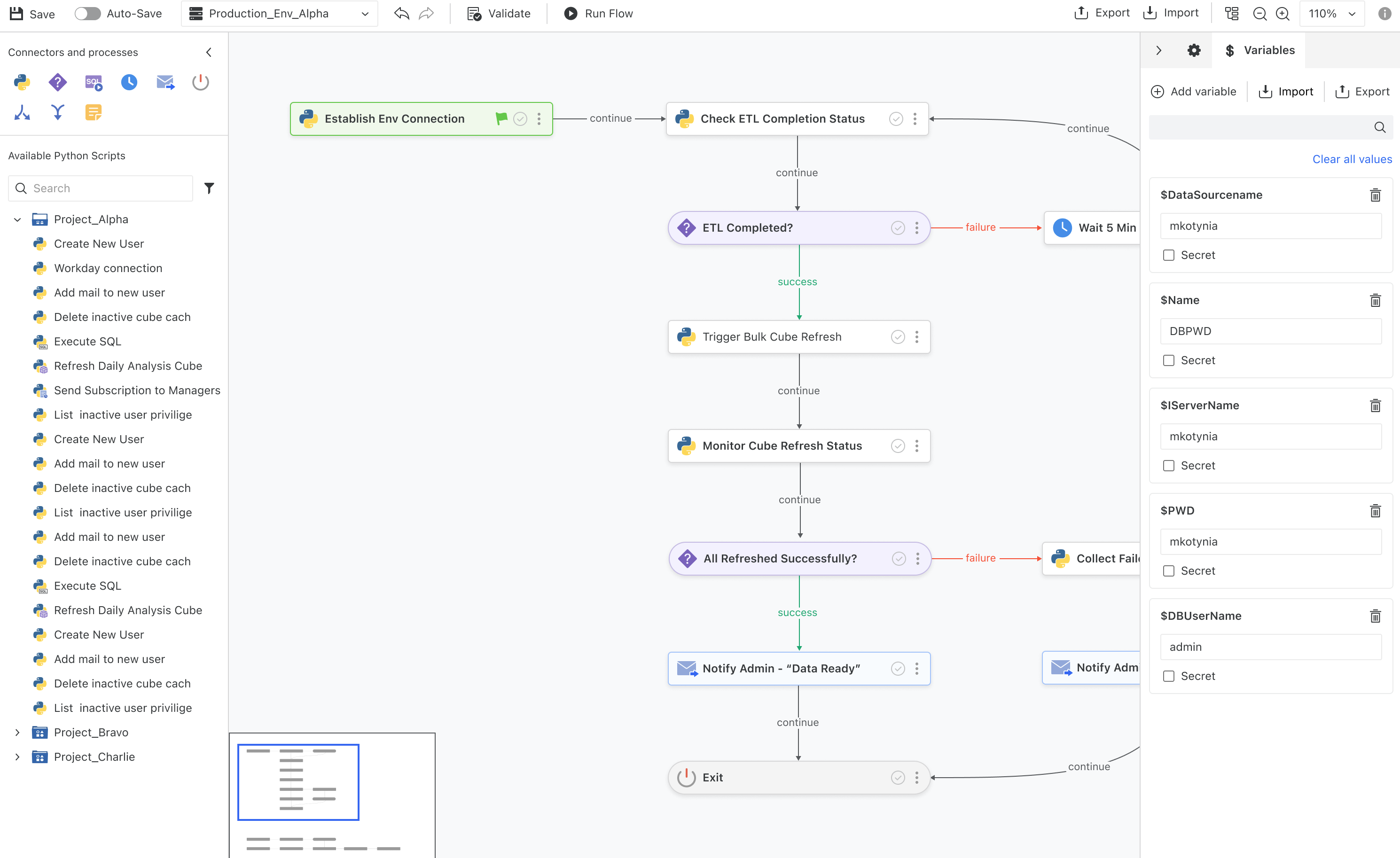
Click the Variables icon $ on the right side of the Workflows interface.
-
In the Variables panel, you can perform any of the following actions:
- Add a variable
- Import a variable
- Export a variable