
Grant Permissions and Manage Access for Application Objects
Enable Manage Access
- Open the Workstation window.
- In the Navigation pane, click Applications.
- Edit the (Default) Strategy Application or click New Application.
- In the left pane, click Components.
- Expand Share and enable Manage Access.
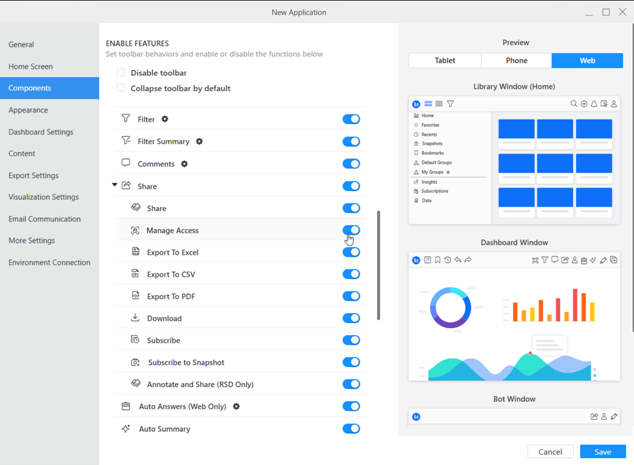
- Click Save.
For new installations, the Manage Access option is enabled by default. For existing installations, the Manage Access option is disabled by default.
Enable Manage Access for an Agent
Beginning in Strategy One (September 2025), enhanced bots are available out of the box and have been renamed to agents to reflect the improvements and advancements.
-
For details on the 2.0 enhancements, see Agent Enhancements.
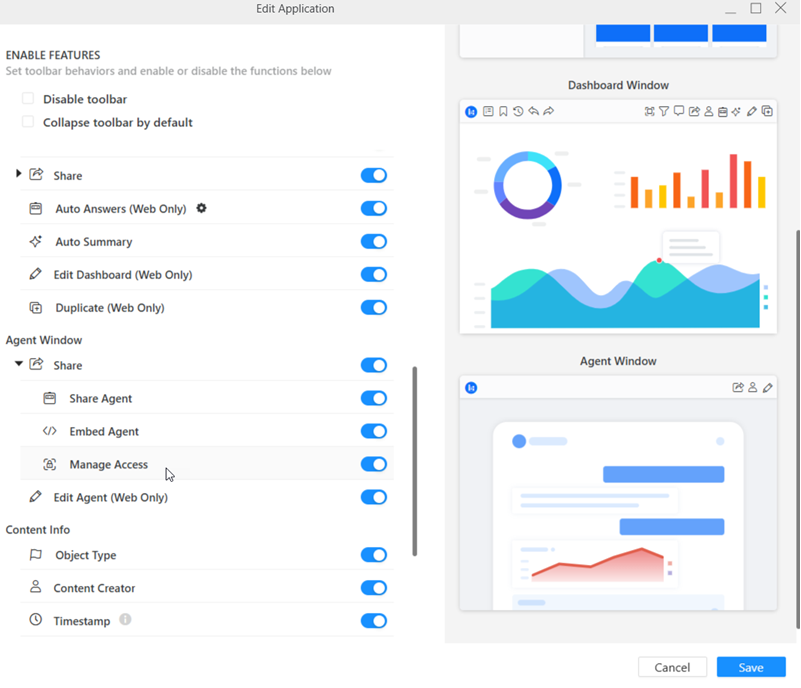
- Ensure you have Manage Access enabled in Workstation.
- Under Agent Window, expand Share .
- Enable Manage Access.
-
Click Save.
For more information on enabling Manage Access