
Navigate the Workstation Page
The Workstation page displays when you open Workstation.
-
To open the page, from the Strategy Library Home page, click Workstation
 in the sidebar.
The page has a toolbar across the top and a navigation bar on the left. You can set which folder displays when you open Workstation (the homepage).
Workstation Toolbar
Use the toolbar to:
-
Collapse and Expand the navigation bar displayed as a sidebar to gain more screen space or use the navigation bar.
-
Search by entering keywords to search for objects.
-
 Display the Favorites panel.
 -
 Account to quickly return to Library, show hidden objects and user comments, log out of Workstation, and work with environments.
The Navigation Bar
The Navigation bar is grouped into smart folders for your environment settings, folders, objects, data, and administrative tasks and workflows. Adjust its display to suit your needs.
-
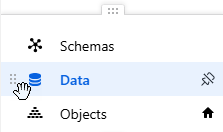
Rearrange the order of the folders within groups by dragging and dropping a folder's handle
 .
. 
-
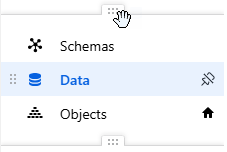
Rearrange the order of the groups on the pane by dragging and dropping a group's handle
 .
. 
-
Remove a folder from the Navigation pane by unpinning it. Hover your cursor over the folder and click the Unpin icon
 .
. -
You can restore an unpinned folder to the Navigation pane. In the Navigation pane, click All Pages. Hover your cursor over the folder and click the Pin icon
 .
.
-
-
Set a folder as the homepage. The homepage displays when you open Workstation. Right-click the folder and select Set as Homepage
 .
. -
Open a folder in a new browser tab. Right-click the folder and select Open in New Tab. A new browser window opens, displaying the Workstation page open on the selected folder.