
Browse Projects
Starting in Strategy (September 2026), the Browse Folders page is renamed Browse Projects and the Projects and Browse Folder page functionality is combined to the Browse Projects page.
You can browse the folders of your projects and access content. You can rename, copy, move, and delete that content. You can also create new folders and shortcuts to organize folder contents.
- Open the Workstation window.
-
In the Navigation pane, click Browse Projects.
If you are using a version prior to Strategy (September 2026), click Browse Folders.
- Select a project and browse its folder structure.
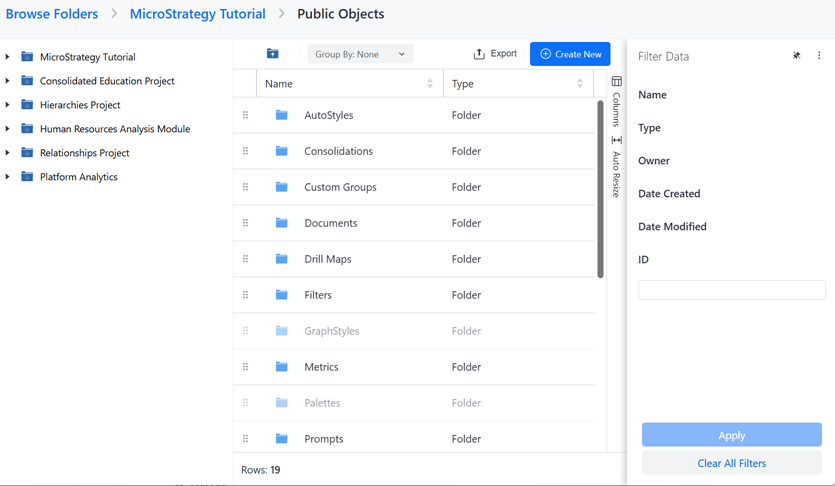
- The folder structure displays at the top of the window. Use it to navigate back to a previous folder.
-
Filter the objects grid to focus on specific objects. Make multiple selections in the Filter panel and Apply them to the grid. You can filter on Name, Type, Owner, Data Modified, Date Created, and ID.
The filter summary displays at the top of the grid. You can use it, as well as the Filter panel, to edit the filters.
-
To remove a specific filter, click Show More. Click the delete icon
 next to the filter. For example, you can remove the Owner filter but keep the Type filter.
 -
To edit a specific filter, click Show More. Click the edit icon
 next to the filter and make changes. Click Apply.
 -
To clear all filter selections, click Clear All.
-
-
Group the objects grid to focus on objects by owner, object type, modification date, or creation date.
-
You can drag and drop objects to move them to a different location.
- To save the object information to a .csv file, click Export
 . The .csv file includes the displayed objects and the applied filter.
 - To create a new object, click Create New in the top right corner. Select the type of object to create.
Work with a Specific Object
- To edit an object, double-click it.
- Dashboards open in Library in editing mode.
- Reports and documents do not open.
-
Right-click an object and choose an option to:
-
Create a shortcut to the object (point to New and select Shortcut)
-
Create a subscription to the object (point to New and select Subscription)
-
Create a dashboard from a report (point to New and select Dashboard)
-
Create an intelligent cube from a report (point to New and select Intelligent Cube)
-
Delete the object
-
Duplicate the object
-
Move the object
-
Rename the object
-
View and edit security access (point to Share and select Manage Security Access)
-
View Properties
-
Add to History List
Not all options are available for all object types
-