
Manage Subscriptions
You can manage your subscriptions using the Subscriptions dialog. For more information about subscriptions, see Scheduling Reports and Documents: Subscriptions in the System Administration Help.
-
Open the Workstation page.
-
In the Navigation pane, click Subscriptions.
- Click Columns to select the columns to display in the grid.
-
To view subscription details, right-click a subscription in the grid and choose Properties.
Click to view details about the options in the left pane.General Displays detailed information and the schedule.
Content Lists all content in the subscriptions including Content Name, Project Name, Certification Flag, Content Type, Owner, Content Modification Date, ID, and Location.
Recipients Lists all the recipients of the subscriptions. If it's a bursting subscription, the bursted attribute is listed instead of the actual recipient list.
Schedule
- Right-click a subscription and choose the appropriate option to Edit, Run Now, or Delete it.
- When you edit a bookmark-based Library subscription, you can update all subscription settings but you cannot change the bookmark.
- To unsubscribe subscriptions, right-click a subscription in the grid and choose Unsubscribe. To unsubscribe from a report
- To save the subscription information to a .csv file, click Export. The file includes the subscriptions in the grid, the applied filter, and the visualization selection.
- To refresh the subscriptions every thirty seconds, enable Autofresh. You can also click Refresh to manually refresh when necessary.
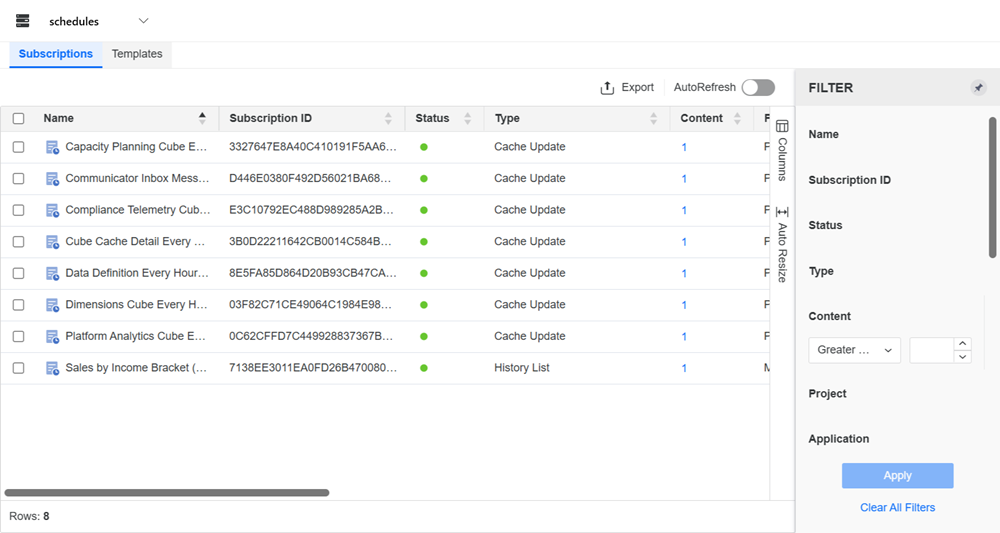
Filter Panel Lists all the fields shown in the subscription grid. You can make multiple selections and apply the filter to the grid. The filter summary appears at the top and you can remove elements or clear all filter selections from there.
Subscription Grid Lists subscription details, including the name, whether the subscription is active, type, content, project, owner, when the subscription was last run and a log, recipient, expiration date, and schedule. If it's a bursting subscription, the Recipients column displays Bursted instead of the actual recipient count.
Last Run Log
-
Locate the Last Run column in the Subscription Grid.
-
Click Log
 next to the Last Run timestamp.
 -
The subscription result dialog appears, which includes the following detailed summary of the subscription's last execution:
-
Subscription name
-
Subscription ID
-
Trigger status
-
Number of total deliveries
-
Number of failed deliveries
If a subscription encounters failures, a grid displays, which includes the following detailed information of up to 100 failed deliveries:
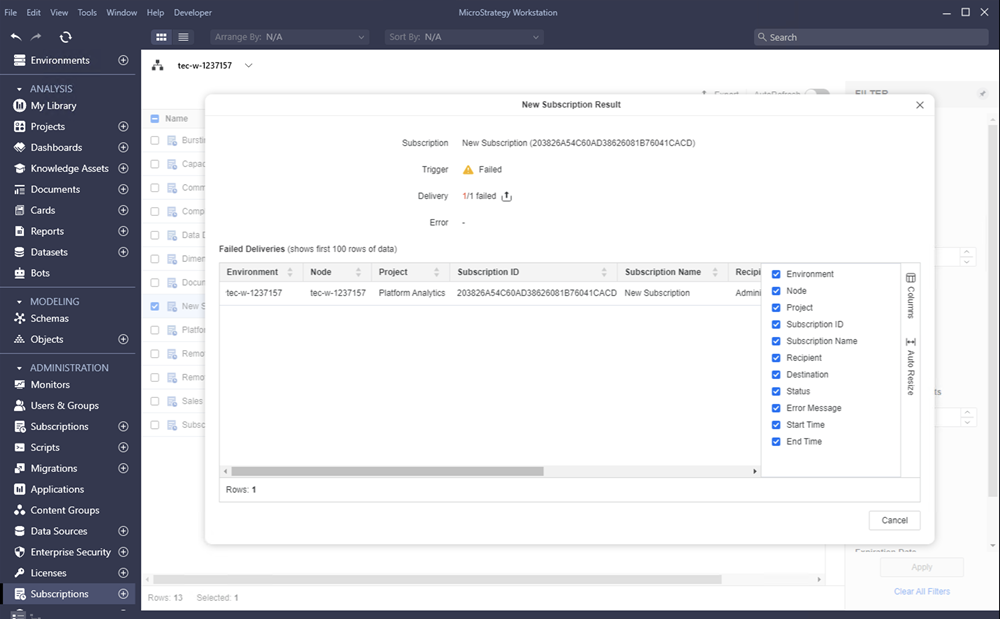
-
Environment
-
Node
-
Project
-
Subscription ID
-
Subscription Name
-
Recipient
-
Destination
-
Status
-
Error Message
-
Start Time
-
End Time
-
-
To download a .csv file that contains detailed information up to 1000 deliveries, including failed and successful deliveries, click Download
 next to the delivery value.