
Create Amazon S3 Subscriptions
Prerequisites
-
Before you create a subscription, Create a Delivery Device.
Create a S3 Subscription
-
Open the Workstation page.
- In the Navigation pane, click Subscriptions.
- Click Create New Subscription.
- In the Create New window, if you are connected to multiple projects, select the project from the drop-down list on the left.
-
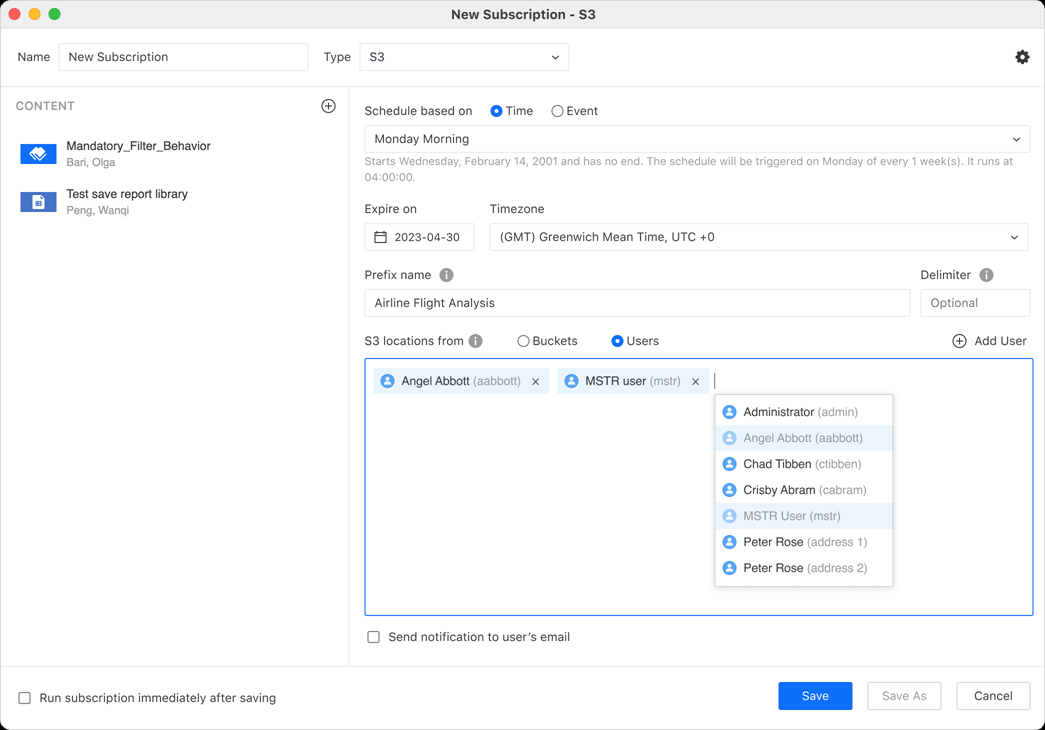
In Name, enter a descriptive name for the subscription.
-
Expand the Type drop-down list and choose S3.
- To add content to the subscription, click
 in the Content pane. Select up to six pieces of content to add to one subscription, including dashboards
 - In the Content pane, click More
 next to each dashboard
 - Change the delivery format. Supported formats for dashboard attachments are
If you select Plain Text, select the delimiter character from the Delimiter drop-down list.
If you select PDF for a dashboard, you can define PDF settings such as the range, page size, and showing page numbers. Click Settings
 to display the PDF Settings window. After you define the settings,
click Save to return to the subscription.
to display the PDF Settings window. After you define the settings,
click Save to return to the subscription.If you select Excel for a dashboard, define the Range by specifying which pages and chapters to include, select whether each page or each visualization is exported to a worksheet by defining the Contents, and determine whether to Show Filters.
If you select Excel for a report, define the Range by specifying whether to expand all page-by fields and export the page-by information, selecting whether to Export the Report Title and Export Filter Details, and customizing the Header and Footer text.
If you select CSV for a dashboard, define the Range by specifying which pages and chapters to include and select the delimiter character from the Delimiter drop-down list.
- To send the same content in different delivery formats, add the content multiple times and choose different delivery formats for each.
-
To only view schedules you own, toggle on Show my schedules only.
-
Once the schedule is set, you can optionally specify the date when the subscription should stop by selecting the date in Expire on or Stop After and choose a Timezone, if available.
- In File Name, optionally type a new file name for your content. You can include macros, attributes, and metrics that dynamically change based on your parameters. To choose from a list of available macros, attributes, and metrics, type {& or {.
- In Delimiter, optionally type a symbol to identify the symbol used to separate text strings in the File Name. The following delimiters are not supported:
*,/,\,<,>,|,?, and". - In S3 locations from, choose from Buckets or Users.
- If you choose Buckets, expand the Buckets drop-down list and choose the buckets you want to use.
- If you choose Users, type a name or click Add User, select a user, and click Update.
- You can optionally select to enable sending notifications to the user's email.
- To run the subscription as soon as you save, select the check box next to Run the subscription immediately after saving.
- Click Save.
Related Topics
To enable email notifications when S3 content successfully delivers or fails to deliver, see Enable email notification for S3 delivery.