
Create Mobile Subscriptions
-
Open the Workstation page.
- In the Navigation pane, click Subscriptions.
- Click Create New Subscription.
- In the Create New window, if you are connected to multiple projects, select the project from the drop-down list on the left.
-
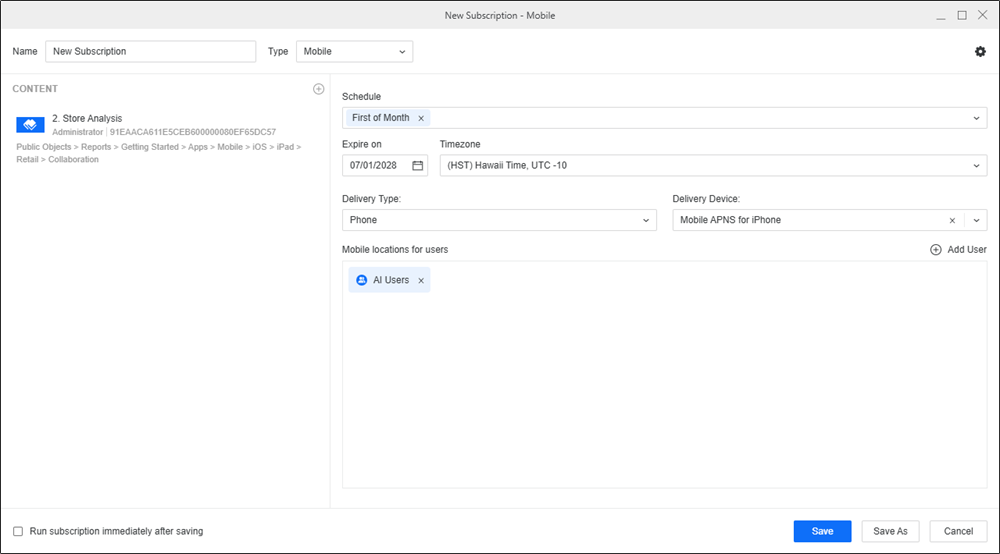
In Name, enter a descriptive name for the subscription.
-
From the Type drop-down, choose Mobile.
- To add content to the subscription, click
 in the Content pane. Select up to one piece of content to add to one subscription, including dashboards, documents, and reports.
 -
To only view schedules you own, toggle on Show my schedules only.
-
Once the schedule is set, you can optionally specify the date when the subscription should stop by selecting the date in Expire on or Stop After and choose a Timezone, if available.
-
In the Delivery pane, choose Delivery Type and an optional Delivery Device.
-
In the Mobile locations for users pane, select the recipients of the subscription. Add new user groups or individual users that have a configured mobile delivery address.
-
To adjust subscription-level settings, click
 . Here you can set the contact security level.Click here to learn more about the contact security level.
The contact security level is the security level used for your contacts. Contacts can have their own member security or you can choose to have each contact inherit from their respective contact group. Contacts and contact groups are assigned to a given user and inherit the privileges of the user to which they are assigned. These privileges determine what a given recipient is able to see when they receive the subscription.
- You can choose to Send the subscription immediately after saving.
- Click Save.