
Create Email Subscriptions
Starting in Strategy (August 2026), email addresses added to the To and CC fields maintain their order upon delivery. Therefore, if you add email addresses alphabetically, the email addresses display alphabetically upon delivery in the email To and CC fields. Use this improvement to ensure important or primary recipients are visible in the predictable order.
Strategy One (June 2026) adds email body display settings to further customize the body of your email subscription.
Strategy Workstation allows you to create email subscriptions through bution Services. You can select one or more dashboards
Prerequisite
To add images or logos to an email body, you must have the Create configuration objects privilege.
Create Email Subscriptions
-
Open the Workstation page.
- In the Navigation pane, click Subscriptions.
- Click Create New Subscription.
- In the Create New window, if you are connected to multiple projects, select the project from the drop-down list on the left.
-
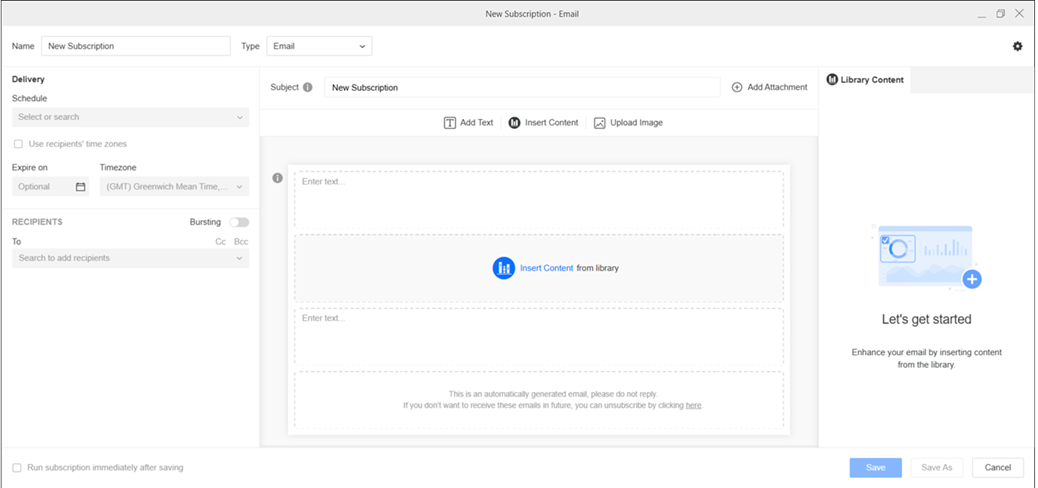
In Name, enter a descriptive name for the subscription.
-
From the Type drop-down list, choose Email.
-
In Subject, enter a brief description to help recipients quickly identify the content being delivered.
-
To add content to the subscription, click Add Attachment. Select from dashboards, reports, documents, andtemplates. Click Add.
-
To choose content from different projects, select a project from the drop-down list and select the objects to attach. Select another project from the drop-down list and select that project's objects to attach. When you have selected all the objects you need from all the projects, click Add.
-
- To view a content object's name, owner, ID, and location (which includes the project name), in the Attachments pane, hover your cursor over the object.
- In the Attachments pane, click More
 next to each added content to update:
- File Name:
Format: Change the delivery format. Supported formats for dashboard attachments are
To send the content inside the of the email, choose HTML.
If you select Plain Text, select the delimiter character from the Delimiter drop-down list.
If you select PDF for a dashboard, you can define PDF settings such as the range, page size, and showing page numbers. Click Settings
 to display the PDF Settings window. After you define the settings,
click Save to return to the subscription.
to display the PDF Settings window. After you define the settings,
click Save to return to the subscription.If you select Excel for a dashboard, define the Range by specifying which pages and chapters to include, select whether each page or each visualization is exported to a worksheet by defining the Contents, and determine whether to Show Filters.
If you select Excel for a report, define the Range by specifying whether to expand all page-by fields and export the page-by information, selecting whether to Export the Report Title and Export Filter Details, and customizing the Header and Footer text.
If you select CSV for a dashboard, define the Range by specifying which pages and chapters to include and select the delimiter character from the Delimiter drop-down list.
- To send the same content in different delivery formats, add the content multiple times and choose different delivery formats for each.
- File Name:
-
Customize the email body by adding text, content, or images.
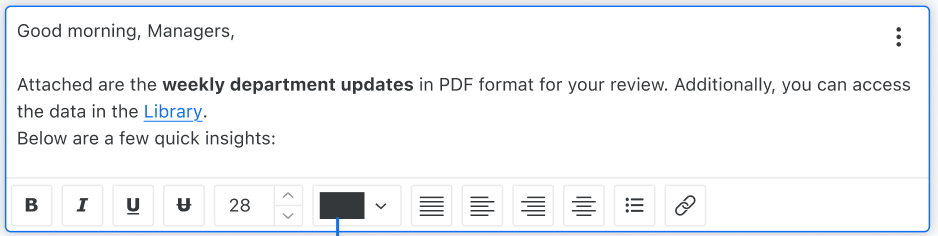
Add Text:Insert rich text with dynamic content such as attributes or metrics, and external hyperlinks, such as a Library link.
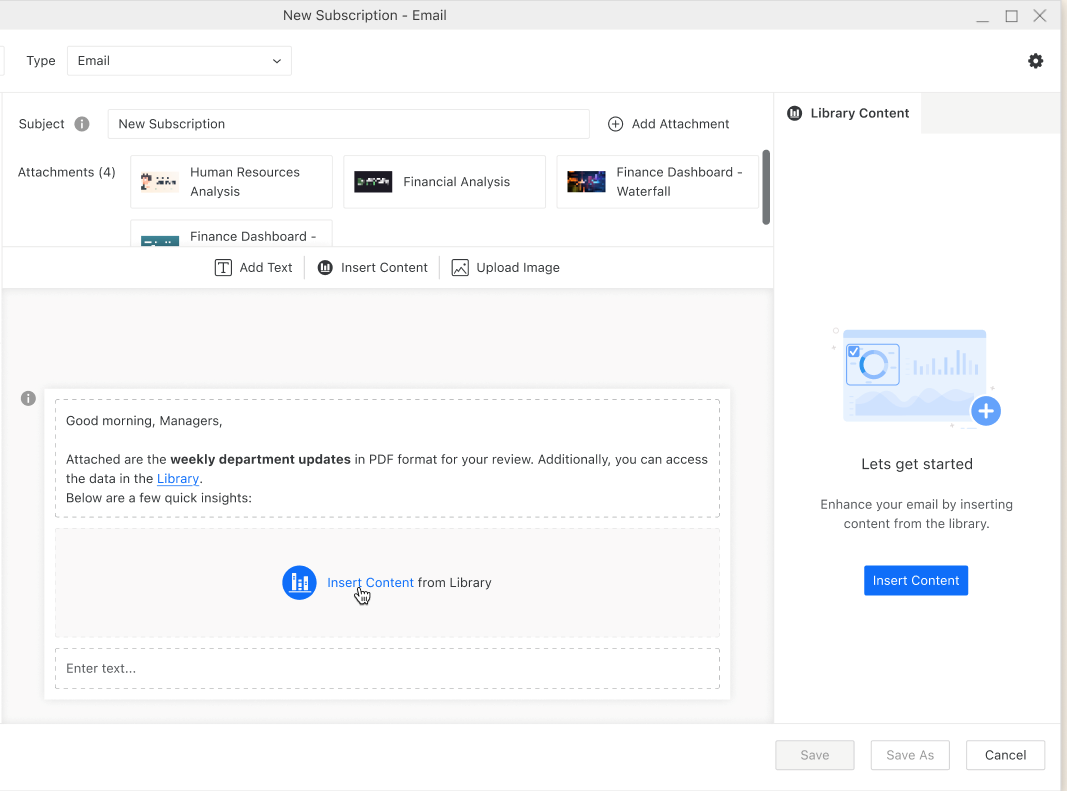
Insert Content: Insert content from your Library.
- For dashboards, you can embed individual visualizations or an entire page as a .PNG image.
- For documents and reports, the full content is embedded as an HTML section.
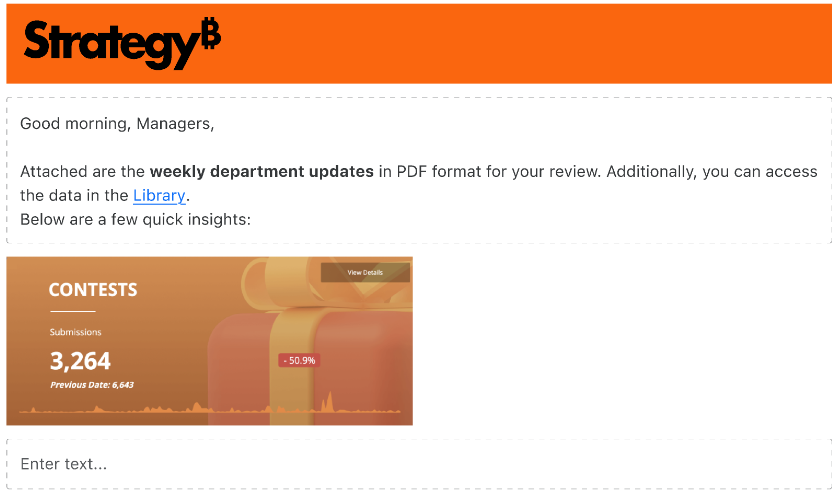
Upload Image:Add an image, such as a company logo.
-
To only view schedules you own, toggle on Show my schedules only.
-
-
Depending on your environment, you can also choose an expiration date for the schedule(s) in Stop After or Expire on and Timezone.
-
In the Recipients pane, select the recipients of the subscription
Starting in Strategy (August 2026), the order recipients are added to this field will reflect upon delivery.
This improved functionality only applies to newly saved or modified subscriptions. If you use a subscription that was created prior to Strategy (August 2026) and want to utilize the recipient order functionality, save the subscription again.
Only To and CC fields are currently supported. Ordered recipients are not supported for the Bcc field.
-
To send the notification, ensure Enable email notification for failed email delivery is enabled. For more information on enabling this option, see project-level settings.
-
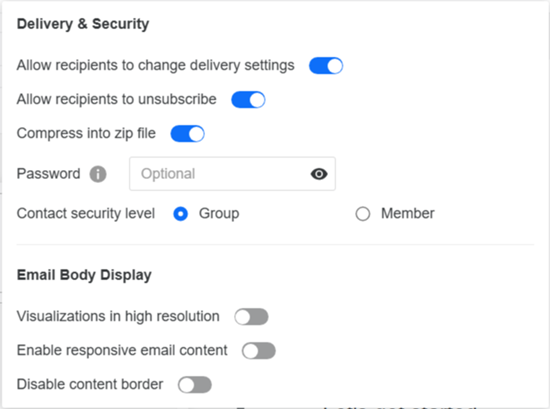
To adjust subscription-level settings, click Options
on the right side of the toolbar. These settings include:-
Allow recipients to change delivery settings or unsubscribe
-
Choose whether to compress non-HTML files into a zip file and, optionally, define the zip file's password
-
Set the contact security level to group or member
Click here to learn more about the contact security level.The contact security level is the security level used for your contacts. Contacts can have their own member security or you can choose to have each contact inherit from their respective contact group. Contacts and contact groups are assigned to a given user and inherit the privileges of the user to which they are assigned. These privileges determine what a given recipient is able to see when they receive the subscription.
-
Starting in Strategy One (June 2026), choose whether visualizations should be in high resolution.
-
Starting in Strategy One (June 2026), choose whether responsive content and content borders are available.
-
- You can choose to Run the subscription immediately after saving.
- Click Save.