
Create History List Subscriptions
History list subscriptions allow you to have dashboards, documents, and reports to be sent to your History List on a specific schedule. This subscription allows you to keep shortcuts and view the results of scheduled dashboards, documents, or reports and to execute multiple dashboards simultaneously.
Dashboard, document, and report results do not remain in the History List indefinitely. The number of results that you can have in the History List and the length of time they remain there are defined by your Strategy administrator.
-
Open the Workstation page.
- In the Navigation pane, click Subscriptions.
- Click Create New Subscription.
- In the Create New window, if you are connected to multiple projects, select the project from the drop-down list on the left.
-
In Name, enter a descriptive name for the subscription.
-
From the Type drop-down, choose History List.
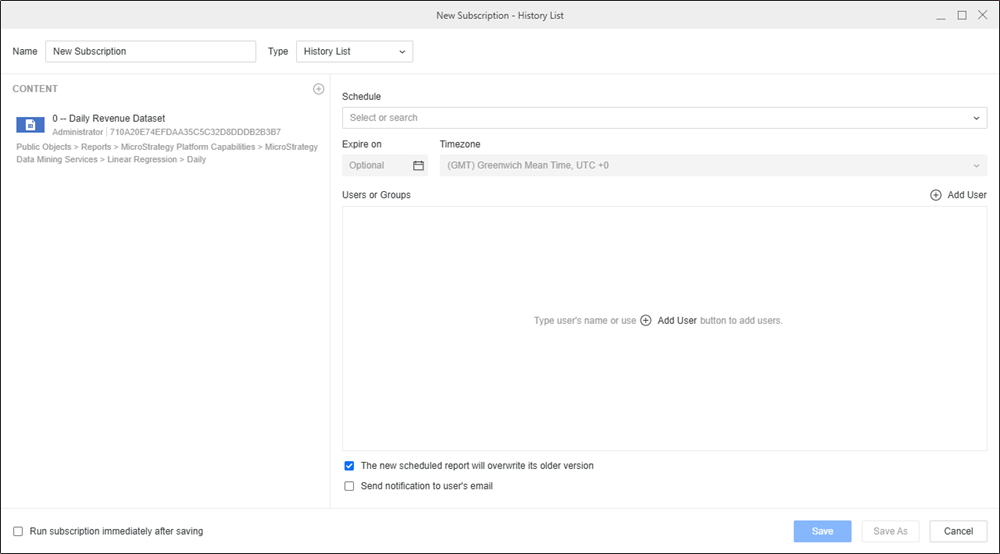
-
To add content to the subscription, click
 in the Content pane.
 -
To only view schedules you own, toggle on Show my schedules only.
-
Once the schedule is set, you can optionally specify the date when the subscription should stop by selecting the date in Expire on or Stop After and choose a Timezone, if available.
-
In the Users or Groups section, add the users or set of users to receive the subscription.
-
To overwrite the older version of the schedule, select The new scheduled report will overwrite its older version.
-
To send a notification when the subscription executes and the history list is updated, select Send notification to user’s email.
-
You can choose to Run the subscription immediately after saving.
-
Click Save.