
Manage Certificates
Various Strategy platform components have the ability to communicate via TLS and HTTPS, or support mutual authentication via the use of client certificates. Certificate Store allows administrators to easily track certificates and their expiration dates across the entire platform.
Users cannot view certificates if their privileges do not allow them to view certificates in certain environments.
When there is only one environment connected in Workstation and it meets the following conditions, Workstation selects that environment by default:
- The environment has Certificate Store service
- User has privilege to access Certificate Store in the environment.
To View and Download Certificates
-
Open the Workstation page.
-
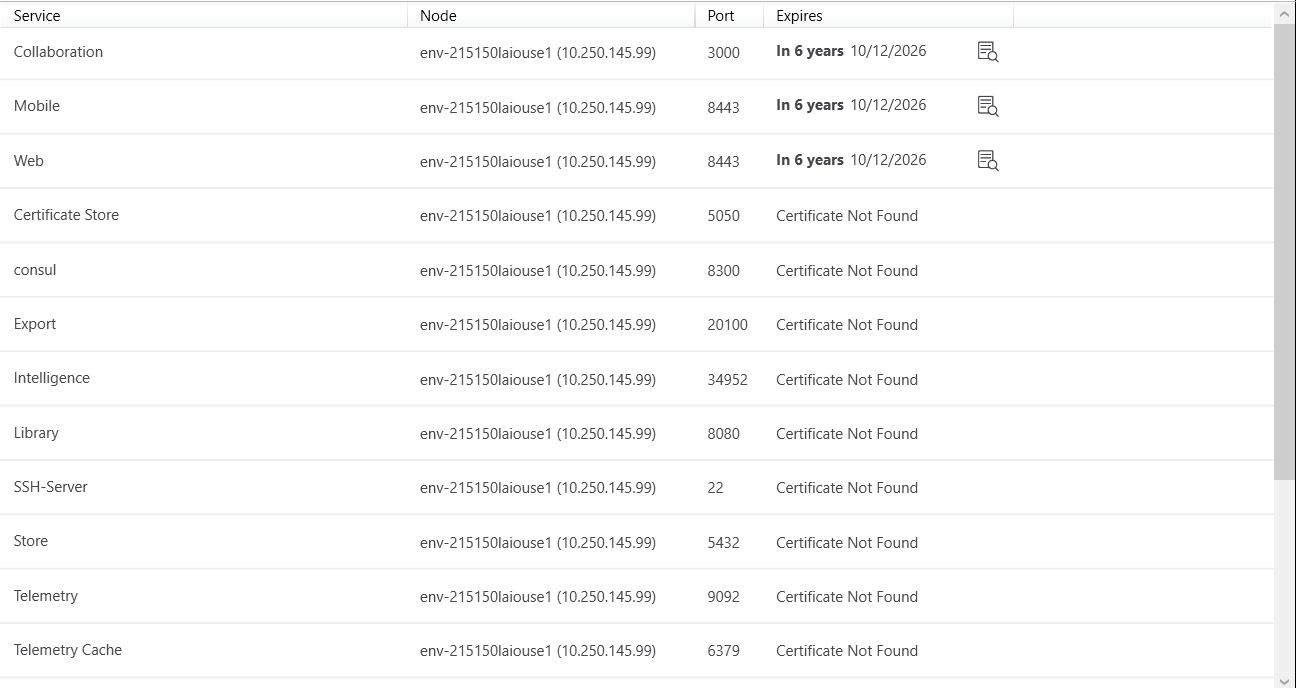
In the left Navigation, click Certificates. The certificate list displays.
-
To preview a certificate, click the icon next to it.

-
To download the certificate, click Download Certificate.